 If
an awards programs does NOT require nominations, conditions, questions,
attachments, and reviewers would only need to be setup for future reference
or reporting purposes.
If
an awards programs does NOT require nominations, conditions, questions,
attachments, and reviewers would only need to be setup for future reference
or reporting purposes.
Awards programs can be setup to require nominations or not. If an awards program requires nominations, nominations can be entered via a Web setup or manually through Personify.
An awards program must be defined in order to accept nominations.
If
an awards programs does NOT require nominations, conditions, questions,
attachments, and reviewers would only need to be setup for future reference
or reporting purposes.
Once an awards program has been defined, conditions, questions, attachments, reviewers, recognitions, sponsors, and notes can be added.
For a detailed description of each field on the Manage Awards Programs screen, please see the table at the end of the step-by-step instructions.
To create a new awards program:
1. From
the Manage Awards Programs search
screen, click Create New Award.
The Manage Awards Programs screen is displayed.
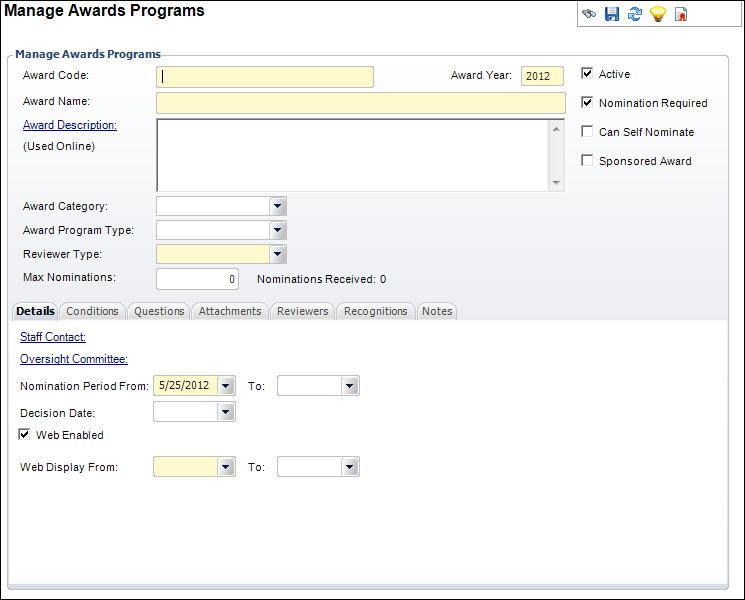
2. Enter the Award Code.
3. By default, the Award Year is set to the current year. Change this if necessary.
4. Enter the Award Name.
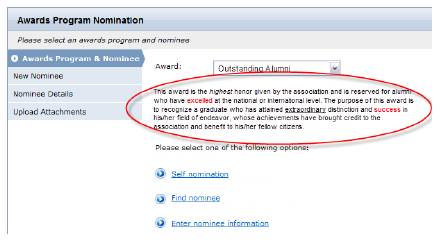
5. If necessary, click the Award Description to display the HTML Editor Dialog and enter a description to be displayed on the online nomination form.
The
description entered here will be displayed when the awards program is
selected on the online nomination form.
6. If necessary, select the Award Category from the drop-down.
7. If necessary, select the Award Program Type from the drop-down.
8. Select the Reviewer Type from the drop-down.
9. If
necessary, enter the number of Max Nominees.
The number of Nominations Received is read-only.
10. Select the appropriate checkboxes:
· Active
· Nomination Required
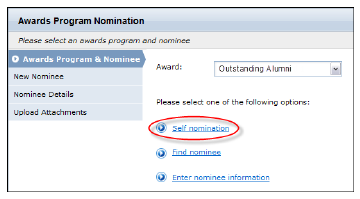
· Can Self Nominate
If
this checkbox is selected, the Self nomination option will be available
on the online nomination form:
· Sponsored Award
11. From the Details tab, if necessary, click the Staff Contact link to search for the customer associated with this award.
12. If necessary, click the Oversight Committee link to search for the committee associated with this award.
13. If necessary, select the Decision Date from the drop-down.
14. Select the Nomination Period From and To dates from the drop-downs.
15. By
default, the Web Enabled checkbox
is selected.
If you do NOT want the awards program to be available on the web, deselect
the Web Enabled checkbox.
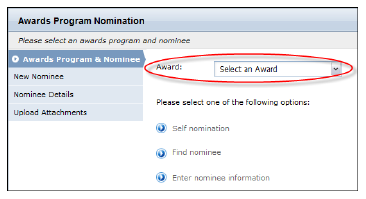
16. If the Web Enabled checkbox is selected, select the Wed Display From and To dates from the drop-downs.
Awards
programs that are defined as web enabled and fall between the Web Display
dates will appear in the Award drop-down on the online nomination form.
17. Click Save.
Screen Element |
Description |
|---|---|
Award Code |
Text box. A unique user-defined code used to define the award. |
Award Year |
Text box. By default, this field is set to the current year. This can be changed.
|
Award Name |
Text box. The name of the award. |
Award Description |
Link. When clicked, opens the HTML Editor Dialog to enter the description of the award, which displays online for users when selecting an award.
|
Award Category |
Drop-down. Indicates the user-defined category to be used to show linkage between individual awards and facilitate reporting. The options available must be entered as non-fixed codes. |
Award Program Type |
Drop-down. Indicates the user-defined program type, which can be used to further differentiate one awards program from another. |
Reviewer Type |
Drop-down. Indicates whether the awards program nominees will be evaluated by a committee or individual. This options are fixed codes and cannot be changed. |
Maximum Nominees |
Text box. Indicates the maximum number of nominees allowed for the awards program. This number is for reference only. The system will NOT check the number of nominees against this number OR prevent nominations from being entered after this maximum has been reached. |
Nominations Received |
Read-only. Displays the number of nominations received for the awards program to date. |
Active |
Checkbox. When checked, indicates the awards program is active.
|
Nomination Required |
Checkbox. When checked, from the Recognitions tab, when you click the Awarded To link, only nominated customers will be displayed. If this checkbox is NOT selected, all customers will be displayed when you click the Awarded To link. |
Can Self Nominate |
Checkbox. When selected, web users can self nominate themselves via the Online Nomination Form. |
Sponsored Award |
Checkbox. When selected, indicates that the awards program is sponsored. This checkbox makes the Sponsors tab available to enter information such as contact information, description, and amount. |
Details tab |
|
Staff Contact |
Link. When clicked, displays the Customer Chooser, where you can choose a customer to be designated as the contact for the awards program. The staff contact designated here will receive any notifications created. |
Oversight Committee |
Link. When clicked, displays the Committee Chooser, where you can choose a committee to be designated as the oversight committee for the awards program. |
Decision Date |
Drop-down. Indicates the date in which a decision will be made on the winner of the award. |
Nomination Period From and To |
Drop-down. These fields are for reference only. Nomination records can still be submitted after the end date.
|
Web Enabled |
Checkbox. When selected, indicates that the awards program will be available online and the Web Display From and To fields are displayed. |
Web Display From and To |
Drop-down. If the Web Enabled checkbox is selected, these fields display. The Web Display From date is required for the nomination form to display online. The Web Display To date determines when the form will no longer be available on the Web. |
See Also: