 Personify
will not verify that the correct document has been submitted. It is the
job of the administrator or reviewer(s) to review the contents of each
attachment.
Personify
will not verify that the correct document has been submitted. It is the
job of the administrator or reviewer(s) to review the contents of each
attachment.
Attachments can provide more information about a nominee and help in the selection of an award winner. Attachments will be requested on the online nomination form and can also be attached to the Nominations tab on the Award Nominations screen. Specific attachments can be defined on the Attachments tab by description, type, quantity, and whether or not they are required. For examples, resumes, application forms, photographs of a project, permits, and etc. may be required to evaluate a nominee.
Personify
will not verify that the correct document has been submitted. It is the
job of the administrator or reviewer(s) to review the contents of each
attachment.
All attachments are uploaded to the file server and a folder is created for each nominee. The folder name is comprised of the award code, the full customer ID, the last name of the nominee, and the first name of the nominee. Individual attachments are automatically saved with a prefix of the award code and nominee’s last name.
Keep
in mind that a change to the customer’s name will cause a mismatch in
the attachment naming convention.
Organizations should clean up their file server periodically, so all of the attachments uploaded with awards nominations do not have a negative impact over time. The default setting for uploading attachments is to preserve all attachment attempts. However, there is an option to replace an existing file with the same name, if desired. For example, a user may abandon their work but already have uploaded some files. If they tried to upload the same files at a later time, the form can be setup to reject the duplicate files or overwrite the duplicate files. Duplicate files CAN be uploaded, but the file name will be suffixed in order to remain unique.
 Recommendation:
In order to help prevent the upload of viruses with attachments, install
anti-virus (AV) software on all servers to ensure that all documents being
uploaded are scanned immediately.
Recommendation:
In order to help prevent the upload of viruses with attachments, install
anti-virus (AV) software on all servers to ensure that all documents being
uploaded are scanned immediately.
There
is NO size limitation for attachments uploaded via the back-office. There
is a 4MB size limitation for each attachment uploaded via the online nomination
form and NO size limitation for all attachments uploaded via the online
nomination form. This setting can be changed via the Internet Information
Services (IIS) settings.
To add required attachments to an awards program:
1. From
the Manage Awards Programs screen,
from the Attachments tab, click Add.
The Awards Program Attachment window displays, as shown below.
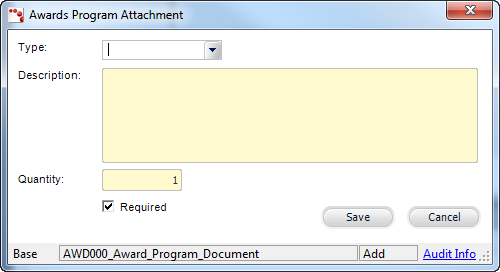
2. Select the Type from the drop-down.
3. Enter the document Description.
4. Enter the Quantity of attachments.
5. By default, the Required checkbox is selected. If necessary, deselect the Required checkbox.
Attachments
that are defined as required will be displayed with an asterisk (*) on
the online nomination form.
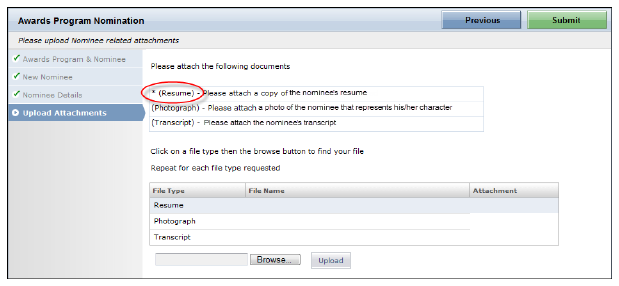
6. Click Save.
If
the text of nomination questions are changed, there will not be no record
of which text was present at the time question were answered.
7. Repeat
as necessary to add additional attachments.
There is no limit to the amount of attachments for an awards program.
| ||||||||||||||||||||||