 When
entering new nominee information, the web user must choose between an
individual or organization. Entering new nominee information for an organization
requires that a customer class of “COMPANY” be set
up in the back office for awards.
When
entering new nominee information, the web user must choose between an
individual or organization. Entering new nominee information for an organization
requires that a customer class of “COMPANY” be set
up in the back office for awards.
Once an awards program has been created, nominations can be entered. Nominations can be entered through the back-office via the Award Nominations screen, or via an online nomination form.
Any setup steps taken to create the awards program, questions, attachments, etc. can be entered and submitted online. Depending on the setup of the awards program, a web user can enter a self-nomination, enter a nomination for an existing person, or enter new nominee information.
When
entering new nominee information, the web user must choose between an
individual or organization. Entering new nominee information for an organization
requires that a customer class of “COMPANY” be set
up in the back office for awards.
A single web form can be used for any awards program. However, if your association has simultaneous awards programs and wishes to provide a dedicated form for each (with different URLs), then that can be accomplished by tweaking the existing module using Workflow for Personify Web Forms.
As part of the Personify 7.2.3 release package, you received the WizardPageGroup control. This control allows you to create a sequence of pages all contained on a single web form. Your association can use this web form control to create e-Business functionality that allows your online users to submit online nominations using the WizardPageGroup control.
A perfect example of this control in use is the Awards Program Nomination Web Form delivered with the Personify 7.3.1 package. This web form uses the WizardPageGroup control to formulate a five-step process that allows your online users to select an awards program and nominee, enter nominee information, enter nominee details, and upload attachments before submitting the nomination.
Using the default Awards Program Nomination workflow provided with the A01 Web Form delivered in Personify 7.3.1, your customers will follow along one of three paths displayed below.
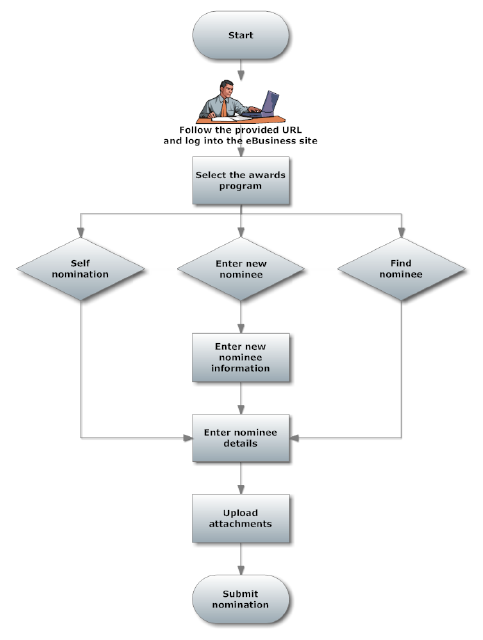
 These
options, of course, are decided upon by your association as you configure
your Awards Program Nomination workflow. You may remove any step that
does not pertain to your business needs or add an entirely new step via
the Personify Web Forms Designer.
These
options, of course, are decided upon by your association as you configure
your Awards Program Nomination workflow. You may remove any step that
does not pertain to your business needs or add an entirely new step via
the Personify Web Forms Designer.
The WizardPageGroup control created for the Awards Program Nomination functionality takes your users through a step-by-step process to an online nomination for an awards program. In order to provide your users access to the Awards Program Nomination Web Form, you must add the web form to a webpage on your e-Business site, as well as configure the settings necessary for submitting the nomination.
This section details our sample configuration set-up that includes a five-step process with the following pages represented:
1. Selecting an Awards Program & Nominee
2. Entering New Nominee Information
The setup explained in this section only serves as an example of how you can use the WizardPageGroup control to create the Awards Program Nomination functionality.