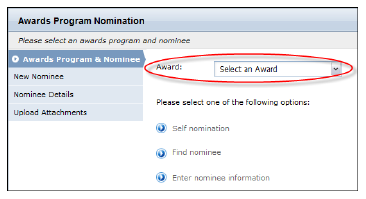
The first step in the Awards Program Nomination process allows your users to select the awards program to which to submit a nomination. From this page, your users have the option of submitting a self nomination, finding an existing customer to nominate, or entering new customer information as a nominee.
If your users are not already logged into your e-Business website, they are prompted to do so upon navigating to the Awards Program Nomination page.
After login verification, members are directed to the Awards Program Nomination homepage, which displays a list of available awards programs to which to submit a nomination.
After the user has selected the award program, they must select one of the following nominee options:
· Self nomination: when selected, the information of the logged in user is used as the nominee information and the user is taken to the Nominee Details page.
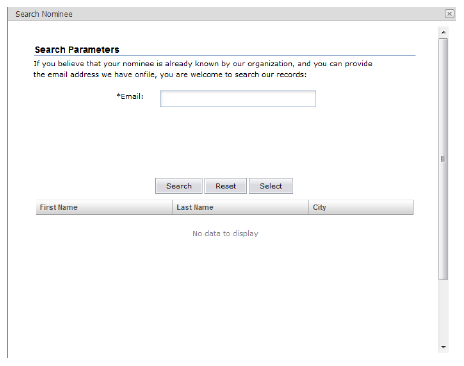
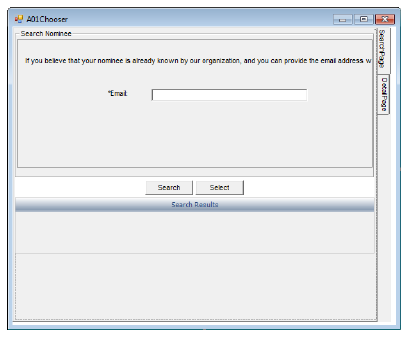
· Find nominee: when selected, the Search Nominee search displays, as shown below. By default, for security reasons the user must know the email address of the nominee to perform the search. Your association can choose which search parameters to display by editing the A01 Chooser in Personify Web Forms.
· Enter nominee information: when selected, the user is taken to the New Nominee page to enter new information about a nominee.
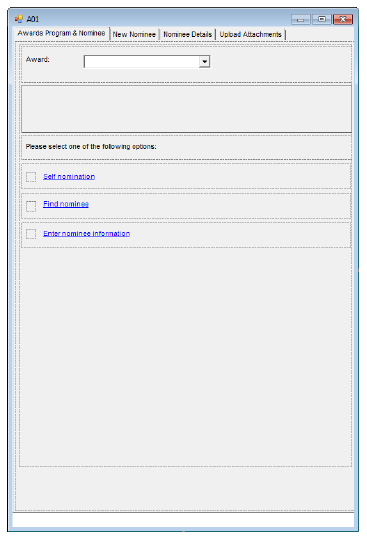
Below is a screenshot of the first page (Awards Program & Nominee) of the Awards Program Nomination workflow as it appears in Personify Web Forms Designer.
Below is a screenshot of the Search Nominee (A01 Chooser) screen of the Awards Program Nomination workflow as it appears in Personify Web Forms Designer. By default, Email is the only search parameter. This was implemented for security reasons, in order to not expose the association’s entire database. If desired, you can add additional search parameters on this screen.
For security reasons, TMA Resources recommends that you do NOT edit this screen.
All text on these pages are editable by your organization. You can also add new controls, such as an image control, to show your association’s logo.
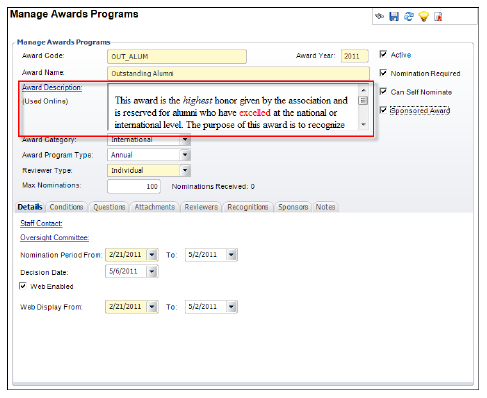
Award Description
When an awards program is selected, the description of the award is
displayed below.
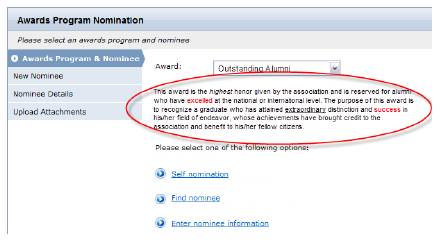
The format of this description is configured via the Award Description field on the Manage Awards Programs back-office screen.