 This
section assumes you have previous knowledge of setting up pages on your
e-Business website. For more information on setting up pages and using
web modules, please refer to
This
section assumes you have previous knowledge of setting up pages on your
e-Business website. For more information on setting up pages and using
web modules, please refer to
In order to provide your users access to the Awards Program Nomination Web Form, you must add the web form to a webpage on your e-Business site as well as configure the settings necessary for submitting the nomination. Instructions on completing this are included in this section.
For the Awards Program Nomination workflow, your association must be on Personify 7.3.1 or higher and have already downloaded the A01 form during the upgrade process. After doing so, follow the instructions below to set up the website workflow.
This
section assumes you have previous knowledge of setting up pages on your
e-Business website. For more information on setting up pages and using
web modules, please refer to
To set up the Awards Program Nomination workflow:
1. While
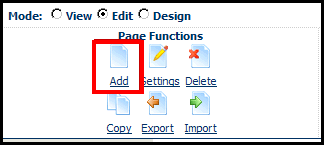
signed onto the site as the Host, click Add from
the Page Functions section of the Control Panel.
The Page Management screen displays.
For
more information on the Page Management screen, visit the DNN Online help
topic “Creating a New Page from a Template” here.
2. Create a new page for Awards Program Nominations and enter the settings on the Page Management screen as you would for any other page on your site.
Where
you place the Awards Program Nomination page is up to your organization;
for example you could set it as the Child Page of a My Account page or
a tab on the Menu bar. You may also choose not to include it in the menu
options at all, but instead send it to eligible members via a URL link
in an email.
3. From
the Control Panel, select Personify - DNN PWF Container from the Module drop-down
and click Add.
The Edit Personify - DNN PWF Container Settings screen displays.
4. For
the PWF Form Name, enter the name of your Awards Program Nomination Web
Form.
For example, A01.
A01
is the name of the web form delivered in Personify 7.3.1, but your association
may have made changes and saved it under a different name.
5. Check the Login Required checkbox.
6. Click Update.
7. Click Save.