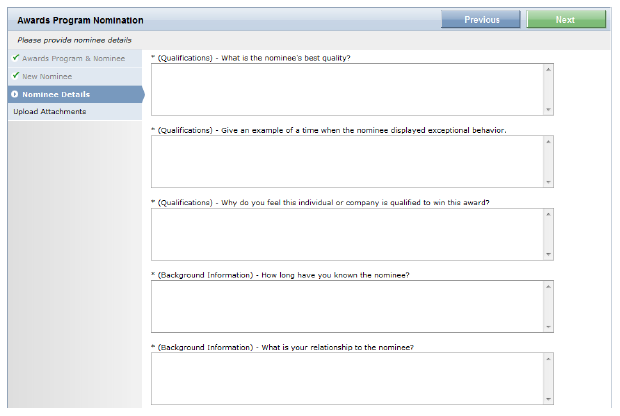
Once the user has selected/enter a nominee, the user’s next step is to answer any questions, if defined for the awards program.
After the user has selected or entered nominee information and clicked Next, the Nominee Details page is displayed. On this page, any questions that have been defined for the awards program will be displayed.
 A
asterisk (*) indicates a required field.
A
asterisk (*) indicates a required field.
If no questions have been defined for the awards program, the following message is displayed:
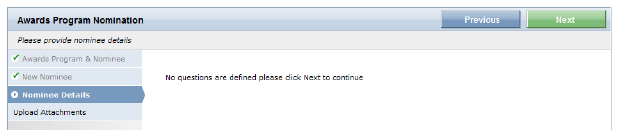
After the user is finished answering any questions about the nominee, they must click Next to proceed. If they decide they would like to venture back to the Awards Program & Nominee or New Nominee pages and possibly select a different nominee option or edit new nominee information, they can click Previous to navigate back.
Below is a screenshot of the third page (Nominee Details) of the Awards Program Nomination workflow as it appears in Personify Web Forms Designer.
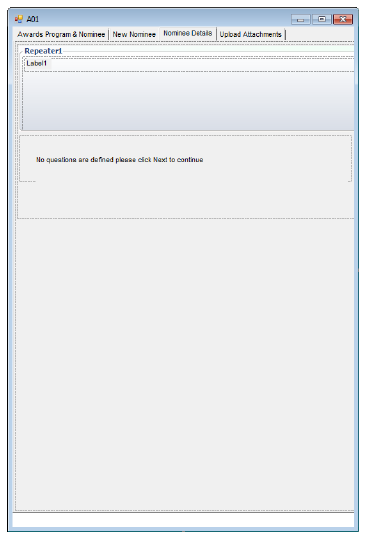
All text on this page is editable by your organization. You can also add new controls, such as an image control, to show your association’s logo.
· Required
If a question has been designated as required in the back-office setup,
an asterisk (*) will be displayed to the left of the question type.
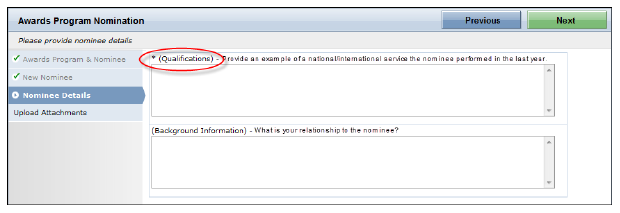
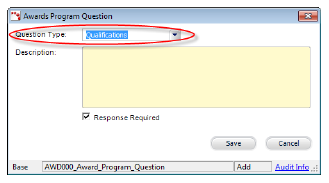
This option is defined by selecting the Response Required checkbox
on the Awards Program Question screen:

· Question Type
When defining questions to be answered by a nominator, a Question Type
must be defined. The Question Type is a non-fixed code setup by your organization.
The Awards Program Nomination web form will automatically group questions
according the Question Type selected.
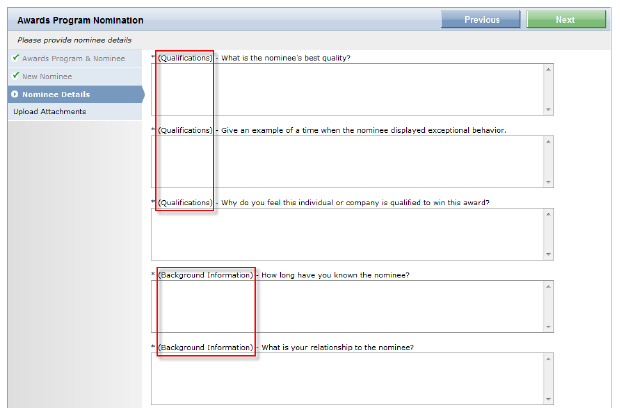
This option is defined by selecting the appropriate option from the Question
Type drop-down on the Awards Program Question screen.