 When you first install BusinessObjects, the application provides you with a default BO Admin account. If your organization chooses to use the default account, then this step is unnecessary.
This section explains how to create an Admin User account in the BusinessObjects application. This account is used internally by Personify to handle administration activities in BusinessObjects; for example, to create a Personify user, Personify group, or grant privileges for a report to a group in BusinessObjects.
When you first install BusinessObjects, the application provides you with a default BO Admin account. If your organization chooses to use the default account, then this step is unnecessary.
If your association decided to complete the “Prepare the Central Management Console (CMC)” section and included the Admin account within the delete users, then you must complete this step including the three substeps focused on providing the admin account with full control.
The Admin User account initially does not have access to any other users, client folders, or groups, so make sure to grant the Admin User Full Control to the client folders, users account, and groups by following the subsections detailed after initially creating the account. There are three different areas you need to grant an Admin User full access:
Client Folder
Users
Groups
If your organization would like to create separate admin accounts to have access to different applications within BusinessObjects, such as a separate admin for Infoview and a separate admin for Webi reports, then you should also complete this step. However, when you grant the Admin account permission, make sure to only select the desired client folder, users, and groups, instead of providing the account with full control as stated in the later sections.
For more information on setting unique permission in BOE based on different admin accounts, please proceed to “Set Permissions for BusinessObjects Enterprise Applications”.
To create an Admin User account:
1. From the CMC homepage, click Users and Groups as displayed in the image below.
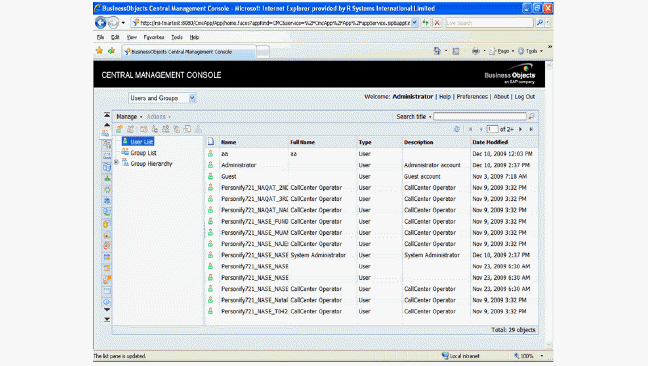
2. Click User List from the left pane and select Manage > New > New User; the following form will display.

3. Enter the Admin User account name.
For example, PPRO_ADMIN_USER.
4. Check the Password never expires checkbox.
5. Uncheck the User must change password at next logon checkbox.
6. Click Create and Close.
7. Double-click the new user and select User Security.
8. Set the Access level for Everyone to “No Access” and click Assign Security.
See Also: