 Once
an order line is created for a component in a standing order, any change
to standing order product setup that changes the number of components
that come with that component only affect new orders.
Once
an order line is created for a component in a standing order, any change
to standing order product setup that changes the number of components
that come with that component only affect new orders.
Standing orders are orders for products that get fulfilled periodically. A standing order product does not actually exist except as a device to hold product(s) to be fulfilled as they become available. The real products associated with a standing order are the components. All standing orders have a master order line that is the INV standing order product, and then one or more sub-order lines for each component product that is fulfilled. When a standing order is created, components associated with the standing order are added to the order when they become available. As new components are added to the standing order product, INV900 adds the new component to all standing orders that have not been cancelled or terminated.
ORDER_QTY and REQUESTED_QTY will always be the same on an INV standing order product order line (i.e., product type code = ‘S’). An update to ORDER_QTY will cause an update to REQUESTED_QTY, but RETURNED_QTY will always remain as 0, because the standing order line itself cannot be returned because there no products are fulfilled. In a standing order, component order lines can be returned.
ORDER_QTY for component product order lines in a standing order is ORDER_QTY of the standing order product order line times Product_Component.COMPONENT_QTY of the standing order component. Changing the quantity of the standing order product order line changes the ORDER_QTY of component order lines. (ORDER_QTY on the standing order product order line can only be changed if no component product order lines have been fulfilled.)
Once
an order line is created for a component in a standing order, any change
to standing order product setup that changes the number of components
that come with that component only affect new orders.
For example, assume a standing order product contains BOOK1 as a component and BOOK1 is defined with a component quantity of 2. Now assume the standing order product is added to an order line and the order line quantity of the standing order product is set to 3. When the BOOK1 component product order line is created, the order line quantity will be 6 – standing order product order line quantity of 3 times the component quantity of 2. Therefore, ORDER_QTY and REQUESTED_QTY in this example would be set and displayed as 6.
For a standing order product where pricing method is PROD, financial distribution will happen when the standing order product order line is invoiced. The standing order product order line should be invoiced when the first component is shipped.
To add a product to an order:
1. Open the Order Entry screen for the appropriate customer.
2. If
necessary, update the Order Information section, as highlighted below:
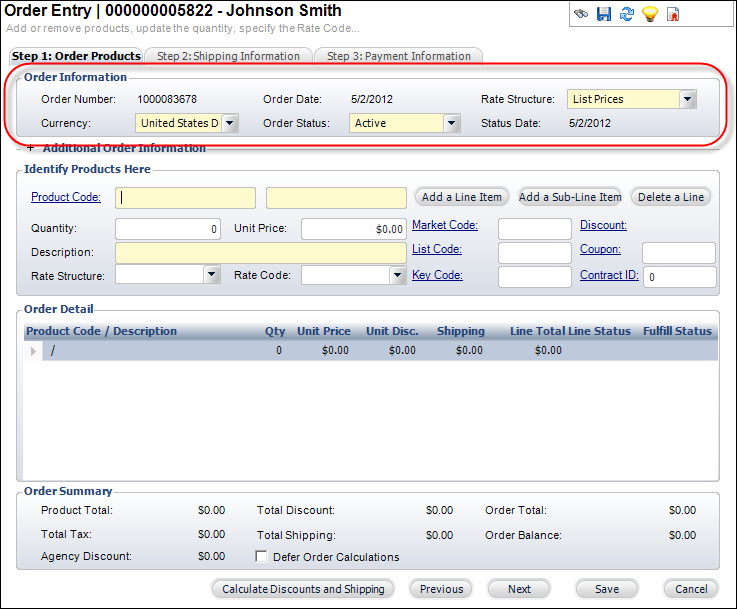
a. Change
the Currency.
As of the 7.1.3 release, Personify supports multi-currency. Currencies
(including the base currency) are defined using the Currency
Exchange Rate Maintenance screen. The values available in the drop-down
are populated from the APP_EXCHANGE_RATE table.
b. Select
a different Rate Structure from the drop-down.
This applies to the entire order. By default, when creating a new order
the Rate Structure will be “List Prices”.
3. Add the standing order product to the order using one of the following ways:
a. The
Identify Products Here section, highlighted below.
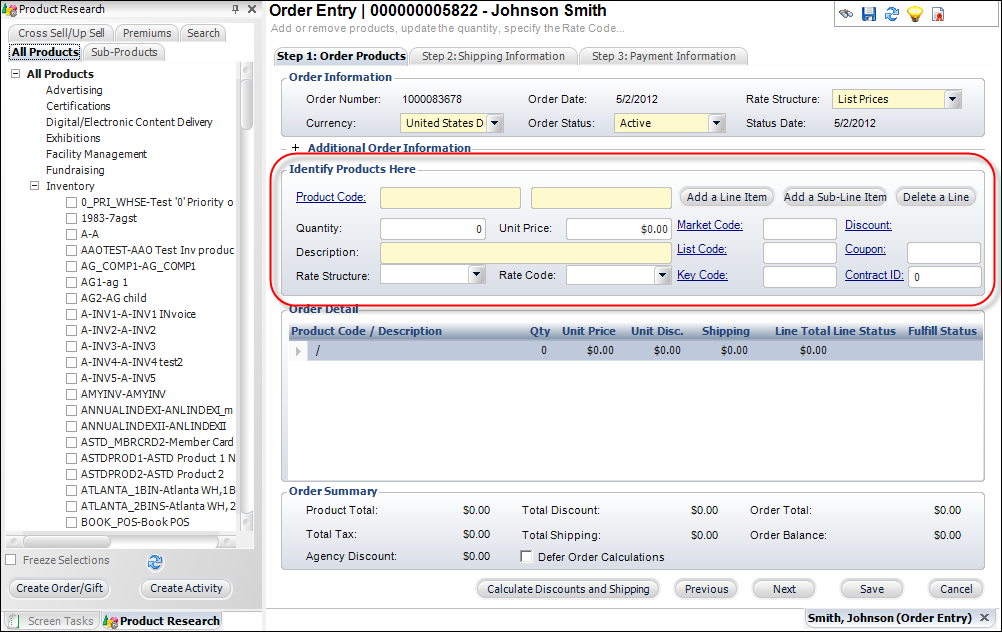
i. Click Add a Line Item.
A
Reverse Write Off line is created in Financial Distribution when overpayment
is made.
ii. Click
the Product Code link to search for a product.
The Choose Product screen displays.
iii. Search for the standing order inventoried product and double-click the appropriate product.
b. From
the Product Research tab, highlighted below, perform the following.
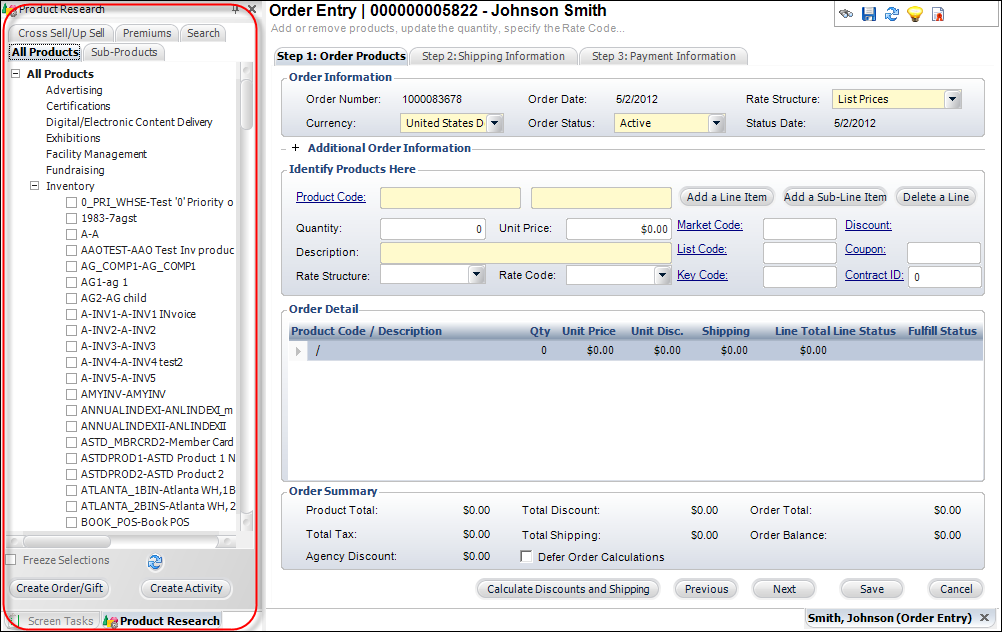
i. Expand the All Products category.
ii. Expand the Inventory category.
iii. Select the checkbox next to the standing order product.
iv. Click
Create Order/Gift.
The standing order product is added to the order with a Line Status of
Active and a Fulfill Status of Not Fulfilled.
 To delete a line
item, click Delete a Line. However,
if an order line has a Far_Txn record with a Txn Type Code of 1, 3 or
9, it cannot be deleted.
To delete a line
item, click Delete a Line. However,
if an order line has a Far_Txn record with a Txn Type Code of 1, 3 or
9, it cannot be deleted.
4. If
the standing order product was defined with a Pricing Method of "Component
Only", you may change the Quantity,
if necessary.
The quantity can be changed on a standing order product order line only
if there are no components that have shipped. If there are component order
lines that have shipped, then you need to add a new order line for the
standing order product to add the additional quantity.
Changing the quantity on an INV standing order product order line that
is priced by component will not cause the INV standing order product order
line balance to change; it will remain as $0. However,
the quantity on the component order lines (all of which are unfulfilled;
otherwise the order quantity on the standing product order line would
not have been able to be changed) will change to the new standing order
product order line order quantity times standing order component product
quantity, which will change the price on the component order lines, assuming
the component product was not a zero-price product.
Changing the quantity on a standing order product order line that is priced
by product will cause the standing order product order line balance to
be changed. When the ORDER_QTY
is changed on a standing-order product order line, the base_total_amount
is recalculated based on the new order line quantity.
5. If
necessary, change the Unit Price.
This field is only enabled if the “Allow Price Update” checkbox was selected
during the creation of the product.
6. If necessary, change the Description.
7. The Rate Structure and Rate Code values default based on the customer’s status and apply to the highlighted line item. If necessary, change these values.
8. Enter
the appropriate codes and discounts, highlighted below:
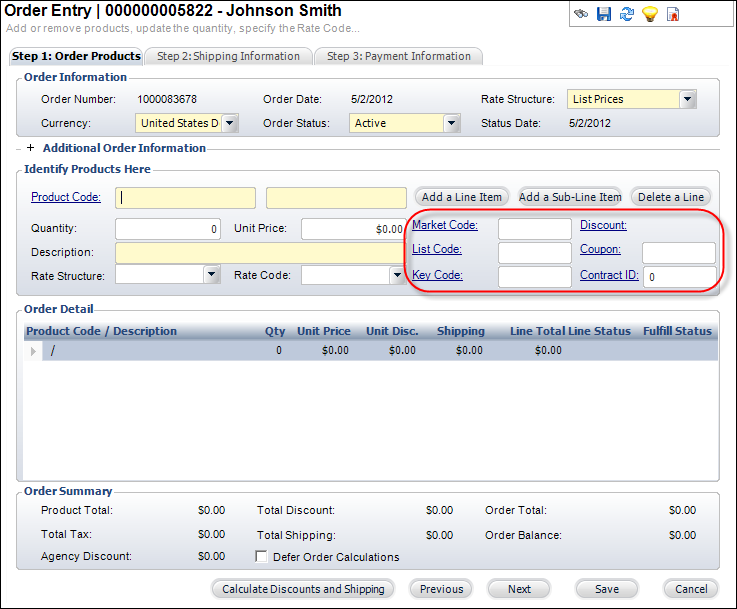
a. Market Code: This code identifies the source of an order if it is based on a promotion created for a marketing campaign.
b. List Code: This code identifies the mailing list from which the customer was solicited.
c. Key Code: This code identifies the combination of the marketing piece (e.g., brochure, mailing, etc.) and list code used to solicit the customer. Selecting a value automatically populates the Market Code and List Code.
d. Discount Code: The discount code associated with the line item. If there is an automated discount for membership, the discount code will appear and a discount amount will be displayed in the Unit Disc. column. If necessary, a manual discount can also be added here. Please note that the line item will no longer be considered for an automatic discount once you apply a manual discount.
To remove
a discount code, right-click the Discount ID and select Clear.
e. Coupon Code: The code for the coupon used for the order. If a coupon code is added to the order, the coupon will automatically be applied to each line item.
9. Click
the + next to Additional Order
Information, such as marketing information specific to the entire order.
For more information, please see Adding
Additional Order Information.
10. Update
the Order Summary section, as highlighted below: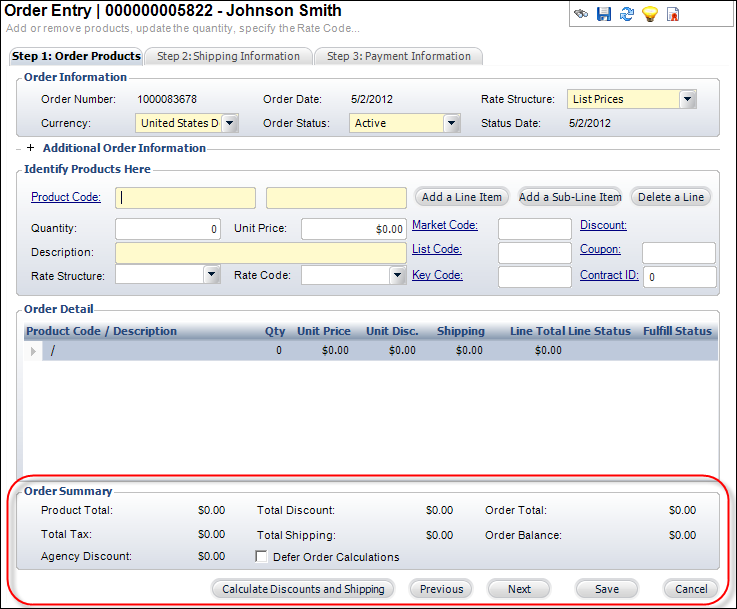
a. If
you are creating an order that is over 30 lines, select the Defer Order
Calculations checkbox to speed data entry.
When checked, the application does not calculate the order summary until
you save the information or click Calculate Discounts and Shipping.
b. If
necessary, click Calculate Discounts and Shipping.
Please note that as of 7.4.2, if a discount is applied to an order after
a "Manual" payment schedule has been created, the system will
update the order line total and scheduled payment amount accordingly,
but will not update the scheduled payment percentages. For more information
on applying discounts to a product, please see the Linking
Coupons to Products.
11. Click Save.
12. Proceed to Defining Shipping Information on an Inventoried Product Order and Creating an Inventoried Product Order Receipt.