 The default Shipping
Calculation, Domestic Ship-Via Default, and Foreign Ship-Via Default are
defined at the organization unit level via the Organization
Unit Maintenance (APP003) screen.
The default Shipping
Calculation, Domestic Ship-Via Default, and Foreign Ship-Via Default are
defined at the organization unit level via the Organization
Unit Maintenance (APP003) screen.
After an inventoried product has been added to the order, shipping information can be defined. If the products are not shipped, then they are not invoiced and the payment stays in the Prepayment Liability account. The shipping charges displayed here are populated from the Shipping Charges Maintenance (ORD009) screen, but can be overridden for a line item on this screen.
The default Shipping
Calculation, Domestic Ship-Via Default, and Foreign Ship-Via Default are
defined at the organization unit level via the Organization
Unit Maintenance (APP003) screen.
If a warehouse is not defined for a non-inventoried INV product, then the fulfill status is always set to “P” (pre-shipped) when the product is added to an order and shipping charges are never assessed. If a warehouse is assigned to the non-inventoried INV product, then the system looks to the product rate code definition to determine whether shipping charges should be assessed.
Changing the Ship-To
or Bill-To Customer before a receipt has been created may result in a
recalculation of the order amount, unless the product is a fundraising
cash product, in which the order line price will be whatever amount is
paid.
To define shipping information:
1. Access the Step 2: Shipping Information tab.
2. From
the Shipping Address section (as highlighted below), change the shipping
information, if necessary:

· Click the Change Ship-To Address link to display the Address Chooser from which to select a different ship-to address for the order or create a new address.
· Click the Change Ship-To Customer link to displays the Customer Chooser to search for and select a different ship-to customer for the order.
· Click the Create One-Time Address link to display the Create a one-time address screen to create an address that will only be used once for this order.
3. From
the Billing Address section (as highlighted below), change the billing
information, if necessary:
· Change Bill-To Address - displays the Address Chooser from which to select a different bill-to address for the order or create a new address.
· Change Bill-To Customer - displays the Customer Chooser to search for and select a different bill-to customer for the order.
4. From
the Shipping Method and Cost section (as highlighted below), select the
Ship Via method to apply to all lines.
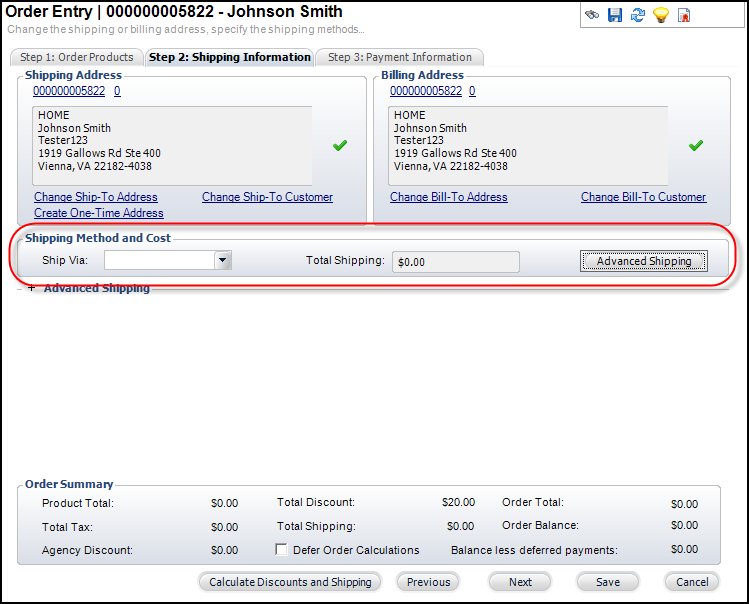
 The
Ship Via can only be changed if the order is Not Fulfilled. Changing the
Ship Via may result in a recalculation of shipping charges.
The
Ship Via can only be changed if the order is Not Fulfilled. Changing the
Ship Via may result in a recalculation of shipping charges.
To apply a different ship-via for each item, proceed to the next step.
Make sure
to only select a Ship Via that has been defined for your organization
unit and GL account for the country of the selected ship-to customer.
5. Click
Advanced Shipping to display the Advanced Shipping section (as
highlighted below) to add shipping information for each line item:

a. In
the Advanced Shipping table, select the Ship Via method from the
drop-down in the cell for each line item.
This will override the Ship Via selected in the Shipping Method and Cost
section above.
In a multi-line
order, changing the Ship Via on one line item will subsequently change
the Shipping Charges on the other line items if the Shipping
Calculation method is By Schedule by Price or By Weight.
b. If
necessary, manually override shipping charge by entering a different Shipping
Charge.
Alternatively, you can manually change the shipping amount on the Line
Item Details screen by selecting the Add
Shipping Manually checkbox and entering the Ship Amount. Either way, the
system will automatically select the Add
Shipping Manually checkbox on the Line Item Details
screen.
6. Click Save.