Configuring the Back Office Settings for the Contact Information Controls
The following system types and codes need to be configured in order
for the contact information to display on the e-Business website. See
Enabling System Types
and Codes for the Web for more information how to web enable
system types and codes.
· COMM_TYPE
COMM_TYPE is the system type that identifies how a communication method
will be grouped (e.g., phone, fax, email, web, mobile, etc.). These
are fixed codes that cannot be changed. See Customer
System Types and Codes for more information.
o CRM360
Contact Method Category (Option3)
This field is located in the back office on the Communication Type screen,
as highlighted below. This option is used to control what value (i.e.,
Phone, Email, Web, or Fax) will display to the user on the Contact Information
controls, as well as in CRM360®
screen. For more information on how to configure this option see Changing
the options in COMM_TYPE for more information.
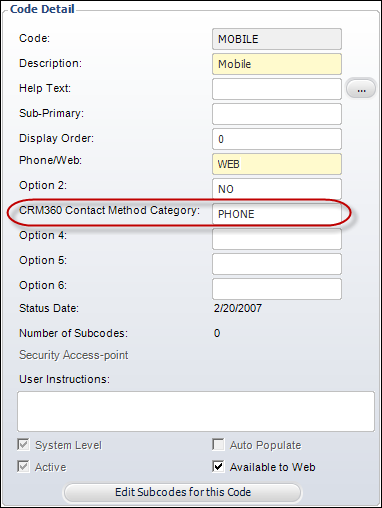
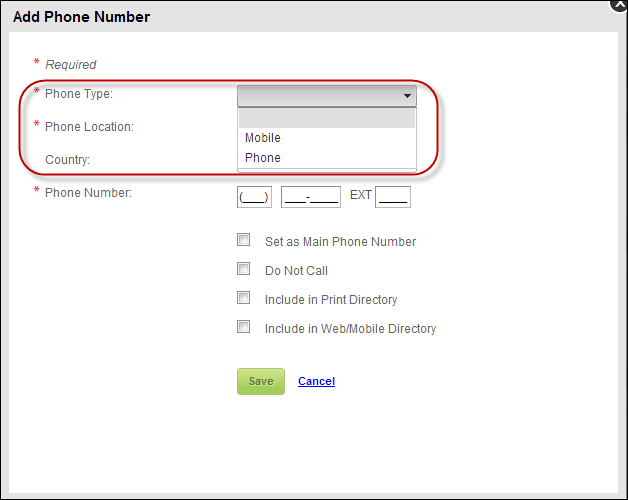
For example, for the Mobile and Phone codes, if "PHONE" is entered
in the CRM360 Contact Method Category
field, "WEB" is entered in the Phone/Web
field, and the Available to Web
checkbox is checked, the type will display on the web in the phone category,
as shown below.
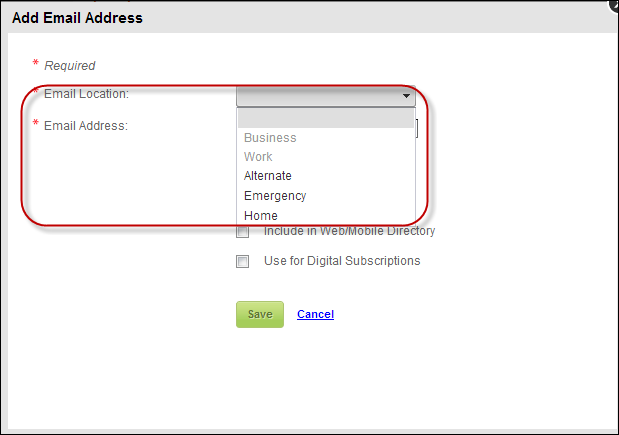
 For
Email, Fax, and Web controls, the type drop-down is suppressed since there
is only one COMM_TYPE option for the user to select from. For example,
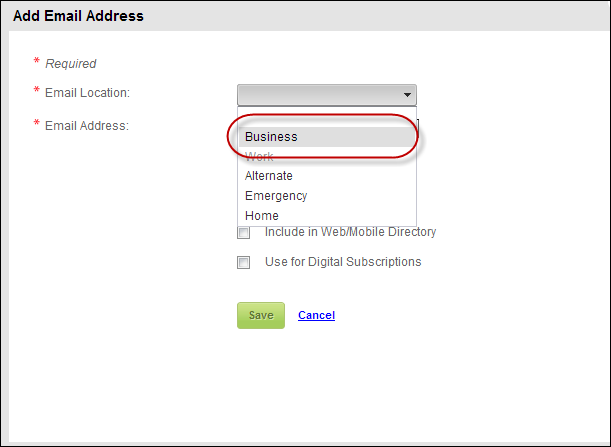
when the user selects Add New Email address, he/she does not choose an
email type, just an email location, as highlighted below.
For
Email, Fax, and Web controls, the type drop-down is suppressed since there
is only one COMM_TYPE option for the user to select from. For example,
when the user selects Add New Email address, he/she does not choose an
email type, just an email location, as highlighted below.
· COMM_LOCATION
COMM_LOCATION is the system type that describes where the contact
information is located (e.g., home or work). This is not a fixed code
and you can change the code names or add new codes. See Adding
New Code(s) to the "COMM_LOCATION" System Type for more
information.
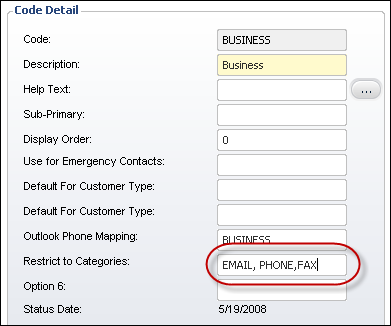
o Restrict to Categories (Option 5)
This field is located in the back office on the Communication Location
screen, as highlighted below. This field is used to setup where you want
the code (e.g., home, business, cell, etc.) to display on the web. If
you do not setup where you want the code to display, by default it will
show up in all categories (i.e., web, phone, email, and fax). To add additional
options to COMM_LOCATION or make changes to the default settings see Changing the Options
in COMM_LOCATION and Adding
New Code(s) to the "COMM_LOCATION" System Type for
more information.
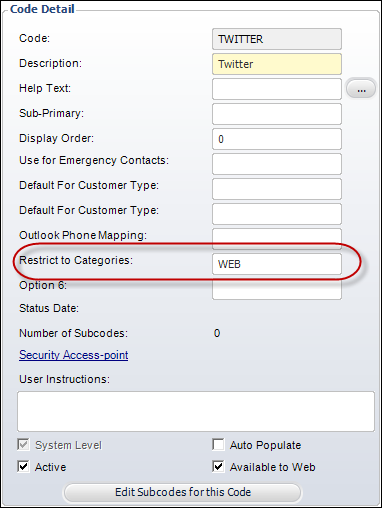
For example, in the back office, you can enter "EMAIL, PHONE,
FAX" in the Restrict to Categories textbox, as highlighted below
for the Business code.
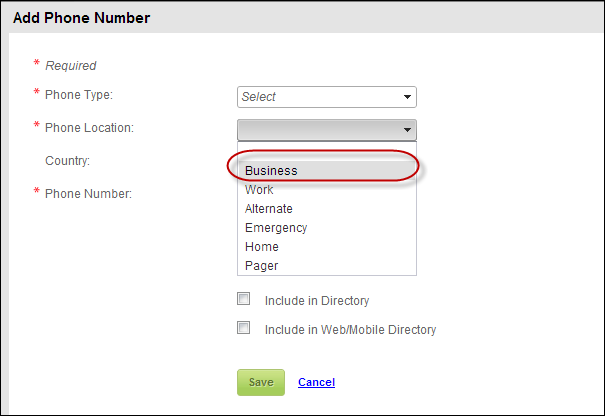
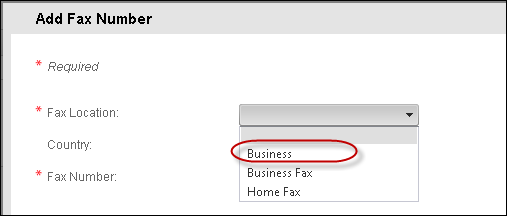
On your e-Business website, the option "Business" will display
in the Email, Phone, and Fax drop-downs for location, as highlighted below.
In addition to the system types and codes described above, the appropriate
country and state codes need to be defined in the back office. Country
and state codes allows you to setup and maintain countries and states
in Personify. Country and state codes come pre-populated for USA, Canada,
and Mexico. Country codes must be initially configured in the back-office
before setting up Phone structure. For more information, please see Adding Country and
State Codes.
If
the country code is not setup, the system will default to use the "ALL"
country code setup to generate the structure for address and phone. See
Adding Country and
State Codes for more information.
In addition to the system types and codes described above, and once
country and state codes have been defined, the appropriate phone structure
must be defined in the back office. The phone structure allows you to
define the format that you want a phone number to display. This is very
useful for customers who live outside of the Unites States where the telephone
and address rules differ. During setup, you must make sure to check the
"Available to Web" checkbox in order for this to display on
the web. For more information, please see Defining
Phone Structures.