Adding Prospect Activities
To add a prospect activity:
1. From
the toolbar, select Marketing & Communication
> Prospect Edits.
The Prospect Edit search screen displays, as shown below.
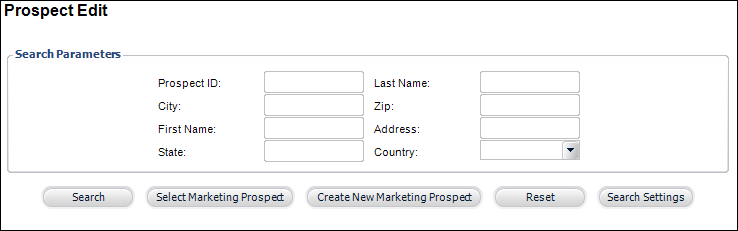
2. Search
for an existing prospect and click Select
Marketing Prospect or create
a new prospect.
The Prospect Edit screen displays, as shown below.
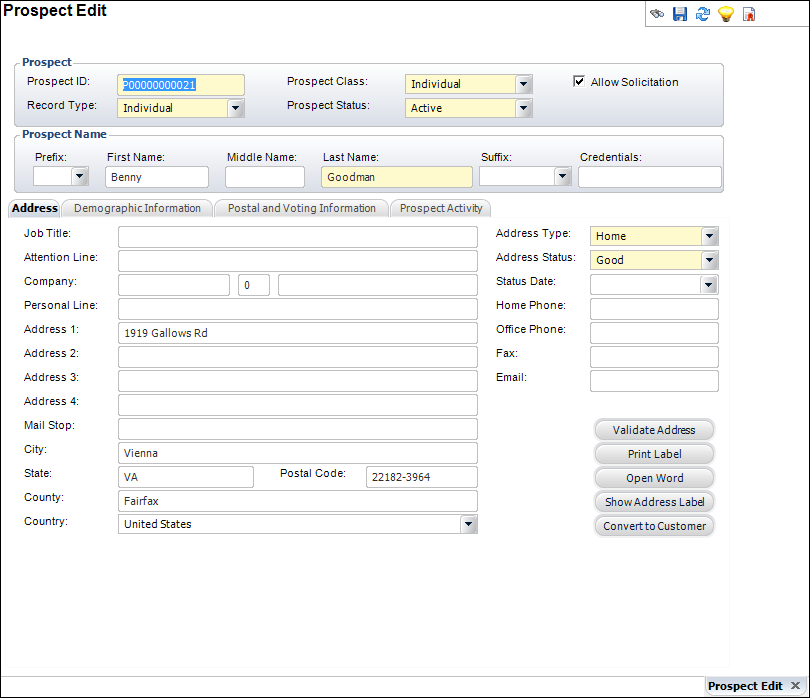
3. On
the Prospect Activity tab (shown below), click Add.
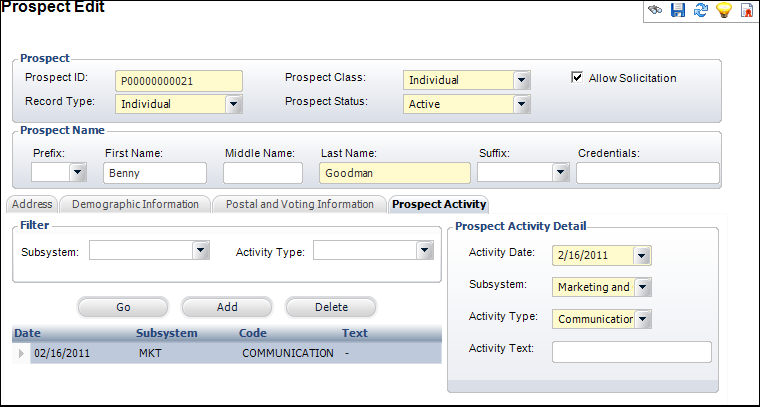
4. If
necessary, change the Activity Date.
5. Select
the Subsystem from the drop-down.
6. Select
the Activity Type from the drop-down.
7. Enter
any Activity Text.
8. Click
Save.
| Screen Element |
Description |
Filter |
| Subsystem |
Drop-down. Select the subsystem by which to search for existing
activities. |
| Activity Type |
Drop-down. Select the activity type by which to search for
existing activities. |
| Go |
Button. Click to search for existing activities by the filter
criteria |
| Add |
Button. When clicked, a new activity is added for the prospect. |
| Delete |
Button. When clicked, the highlighted activity is deleted from
the prospect. |
Prospect Activity Detail |
| Activity Date |
Drop-down. The date on which the activity for the prospect
took place. Defaults to today’s date. |
| Subsystem |
Drop-down. If there has been any contact activities with
the prospect, you would enter the subsystem responsible for the
contact.
For example, if the prospect was contacted about a membership,
select the Membership subsystem. |
| Activity Type |
Drop-down. Displays the type of activity made with the prospect.
For example, if the contact was made via Lyris. |
| Activity Text |
Text box. A free-form text box used to add additional comments
about the activity. |
|