INV610 – Shipping Import Process
Clients currently produce a packing slip/receipt for their customers
through the running of the INV620 batch
process. A third party vendor processes this information and
sends back to client a file with the shipping information included to
update the specific order in Personify. The INV610 process will process
a file sent by the third party vendor to upload shipping information,
such as ship order date, ship via, tracking number, and export date. INV610
has the ability to adjust quantity and split an order line if needed for
a back ordered item.
 The following fields must be defined on the Shipping Import Mapping tab
on the Warehouse Definition screen before running the INV610 process:
order number, order line number, ship customer master customer ID, shipped
quantity, ship via, and ship date. For more information see Defining
Shipping Import Mapping.
The following fields must be defined on the Shipping Import Mapping tab
on the Warehouse Definition screen before running the INV610 process:
order number, order line number, ship customer master customer ID, shipped
quantity, ship via, and ship date. For more information see Defining
Shipping Import Mapping.
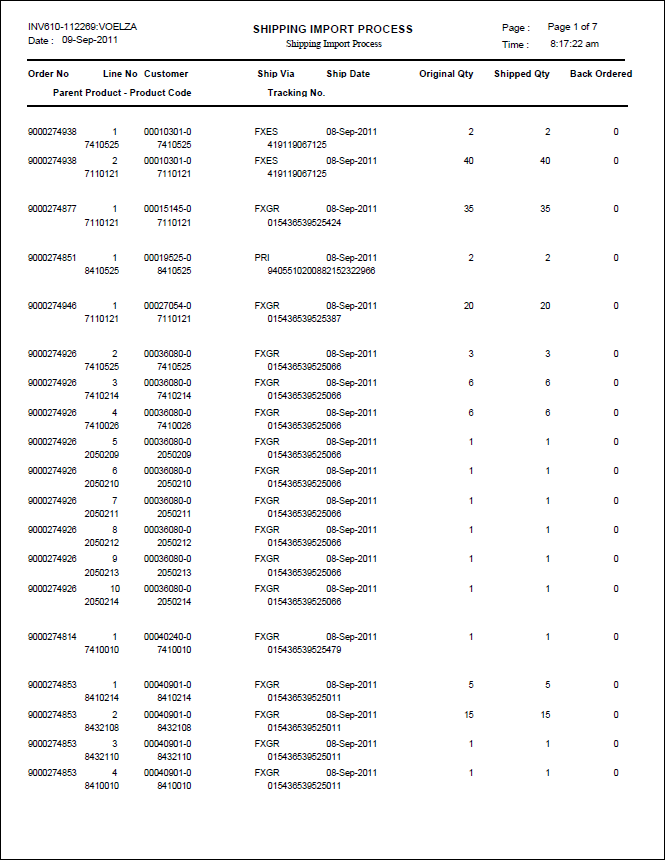
It prints a verification listing of records processed and verifies that
the ship date is coming from the correct warehouse.
If an order line is returned in this file from the vendor with a quantity
= 0, the line status is set to Back Ordered.
If
the authorization period has passed and INV610 ships the product, INV610
will try to reauthorize the credit card. If the credit card gets rejected,
then the receipts will be reversed and those transactions will display
in the error section of the report.
Parameters
| Parameter |
Description |
Required |
Organization ID |
The Organization ID for which you want to run the report. |
Read-only |
Organization Unit |
The Organization Unit ID for which you want to run the report. |
Read-only |
Function |
- Load and Process
– loads the file and processes records. If selected, the process
will pull in the records from the text file.Validate the structure
of the input file based on the Warehouse parameter against
the INV610_Mapping_Master and INV610_Mapping_Detail tables.
The master table tells you the file type (fixed or delimited),
what the length or delimiter is and if the fields are enclosed
by something, etc. If no ship_date is passed in using the
input file, then use the parameter passed with the process
to set the ship date. If there are errors, print the error
to the log and stop processing. If some records have
already been loaded into the table, delete them. Loading
the input file should be an all or nothing process.
- Load Only – only
loads the file
- Process Only –
assumes that the file has already been loaded and allows for
processing after errors have corrected in the table. If selected,
enter the JobID of the Load INV610 run to perform an edit
on all Invalid records.
|
Yes |
Run Mode |
Mode in which the report runs:
- EDIT – prints the
report.
- PROD – prints the
report and updates the database tables.
|
Yes |
| Subtitle |
Alphanumeric. Enter a subtitle, which would appear below
the report heading within the title of the report. |
No |
File Path |
The user name for the individual who uploads the file. For
example, if the individual's user name who uploads the file was
JSMITH, the user name JSMITH would display in this field. This
parameter does NOT show the file path. |
Yes |
File Name |
The name of the file to be uploaded. |
Yes |
Warehouse |
Enter the Warehouse from where the shipping took place.
This value must exist in Product_Warehouse table.
This Generic Chooser does NOT
filter warehouse that do NOT have a shipping import mapping defined. |
Yes |
Ship Date |
The ship date must
be included in the ship date parameter in the job submission screen
and in the file in order for this parameter to function properly.
|
Yes |
Delete Processed Records |
If checked then all the records successfully processed will
be deleted from the INV610_Upload Table. If not checked, then
records must be deleted manually. |
No |
Import TRS Job ID |
The TRS Job ID of earlier successful upload run. Applicable
only when the Function is PROCESS. |
No |
Error Conditions
The following is a list possible errors during the upload
process. These errors are displayed on the INV610 Upload Maintenance (INV610_Upload)
screen. For more information on this screen, please see Resolving
Invalid Shipping Records.
· File
structure incorrect (doesn’t match the file type or length).
· Invalid
Warehouse Code (parameter for input doesn’t match the order_detail record).
· Ship
Date is in the future.
· Ship
Date is not less than 2 months before PACKING_SLIP_DATE.
· Order_No
not in the system.
· Line
Number does not exist for this order number.
· Ship_Master_Customer/Ship_Sub_Customer_ID
doesn’t match the line-level ship-to for the given order number/line number.
· ShipVia
does not match any codes setup on the ShipVia Code Mapping tab on the
Warehouse Definition (INV140) screen.
· Order
already marked as shipped.
Sample Report