 These
instructions only apply for the Profile .NET controls.
These
instructions only apply for the Profile .NET controls.
To configure the left navigation panel for My Profile controls:
These
instructions only apply for the Profile .NET controls.
1. Log into your site as host
2. Create
the My Account page.
See Configuring
the My Account Home Page Controls for more information.
3. Create
all the subpages (e.g., Biography, Address, Name and Demographics, etc.) that
you want to be displayed in the left navigation of the My Account Page.
See Working
with the e-Business .NET Web Controls for more information.
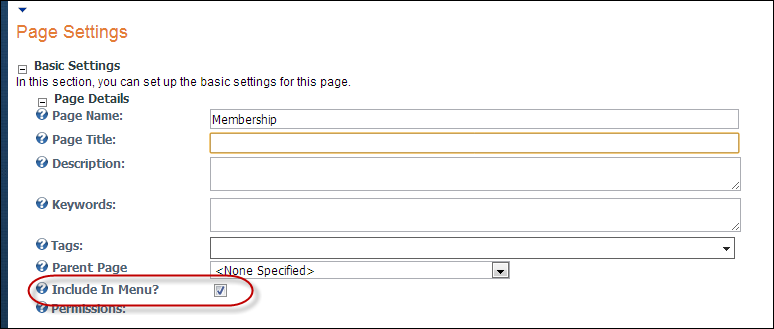
Make
sure to check the Include In Menu checkbox in the Page Settings
section so that you can navigate to the subpage before configuring the
links in the left navigation panel for My Profile controls, as highlighted
below. See Adding and Managing
Pages for information on how to add a page to your website.
4. Drop
all the controls on the respective subpages.
See Configuring the
Profile .NET Controls for more information.
5. In
the Mode section, select the Edit radio button, as highlighted
below.

6. Select
the Add New Module radio button, as highlighted below.

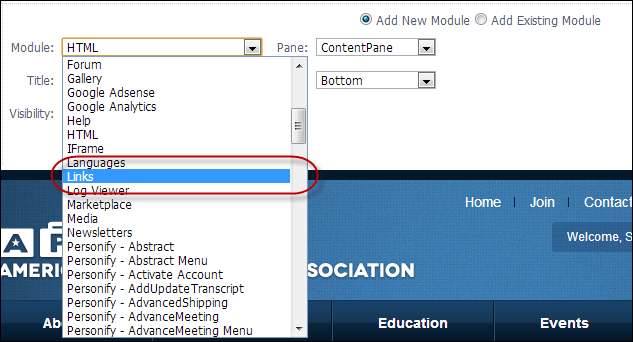
7. From
the Module drop-down, select “Links”, as highlighted below.
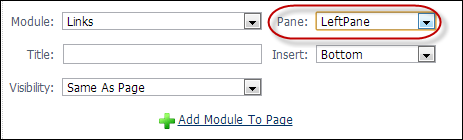
8. From
the Pane drop-down, select “Left”, as highlighted below.
9. From the Insert drop-down, select whether you want to insert the Links module at the “Top”, “Above”, “Below”, or “Bottom” of the left panel.
10. In the Title field, enter the title of the links module.
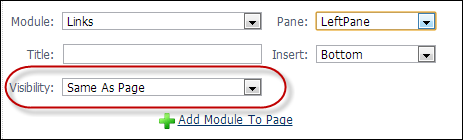
11. From
the Visibility drop-down, select “Same As Page”, as highlighted
below.
12. Click
Add Module To Page.
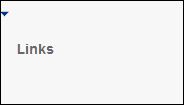
The Links module will display in the left panel, as shown below.
13. From
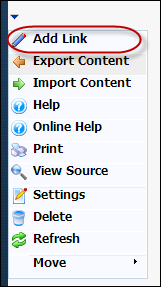
the drop-down arrow, select Add Link, as highlighted below.
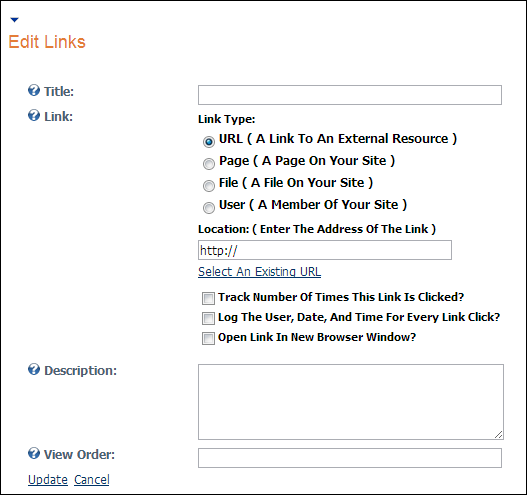
The Edit Links screen displays, as shown below.
14. In
the Title field, enter the name of the link, as highlighted below.

15. In
the Link section, select the Page (A Page On Your Site) radio button,
as highlighted below.
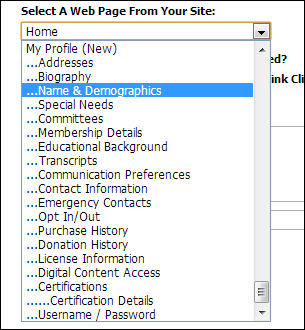
16. From
the Select a Web Page from Your Site drop-down, select the
page that you want to display in the link module.
17. If necessary, check the Track Number Of Times This Link Is Clicked? checkbox.
18. If necessary, check the Log The User, Date, And Time For Every Link Click? checkbox.
19. If necessary, check the Open Link In New Browser Window? checkbox.
20. If necessary, in the Description field, enter a description of the link.
21. If necessary, in the View Order field, enter a number representing the position on the list for this link.
22. Click Update.
23. Repeat steps 12-20 for each subpage that you want a link to be created in that link module.
The
steps described above need to be repeated for every link that you want
displayed in the left navigation panel for My Profile controls.
24. After creating all the links for the subpages, hide each of the subpages on the My Account Page menu by performing the following:
Make
sure to wait until after you are done adding a link for each subpage in
the left navigation panel before unchecking the "Include In Menu"
checkbox.
a. From the left navigation panel for My Profile controls, select the link of the subpage you want hidden.
b. From
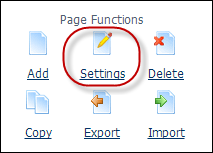
the Page Functions section, click Settings, as highlighted below.
The Page Settings screen displays.
c. Uncheck
the Include In Menu? checkbox, as highlighted below.
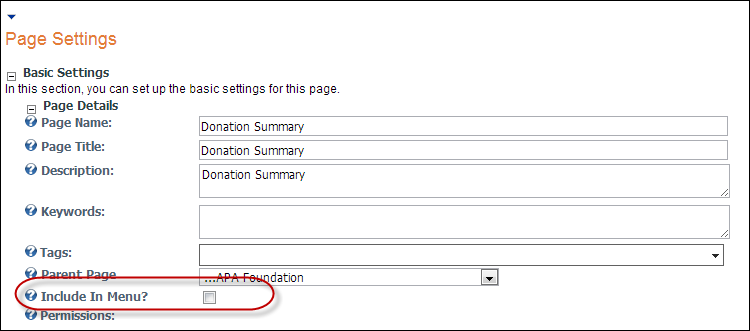
The page will no longer display in the My Account Page menu.
d. Repeat for each page that is listed in the My Account Page menu.
As
a best practice, make sure to test each link before releasing it to your
constituents in order to ensure that all settings are configured properly.
The
left navigation panel will have to be added to each individual page that
you want it to display in.