The Select A Web Control window displays.
This is the web control that is used to display any zip linked chapters, free subscription benefits, and free components related to the selected membership.
This control needs to be dropped on a web page. It is up to each client to determine the appropriate location of this page.
The section below details how to set up the control on your website. The instructions are intended for a user with web admin/host privileges.
To configure the web settings for the Membership Join Options control:
1. Log into your e-Business site as host.
2. Create
a new page on your site to add the control.
See Adding and Managing Pages for
information on how to add a page to your website.
3. Add
the Personify- DNN Web Control Container
module to the page.
See Installing .NET Controls
for more information.
4. Select
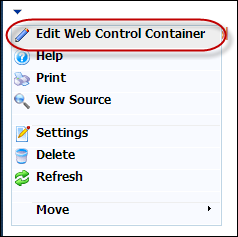
the Edit Web Control Container option from the downward arrow icon,
as highlighted below.
The Select A Web Control window displays.
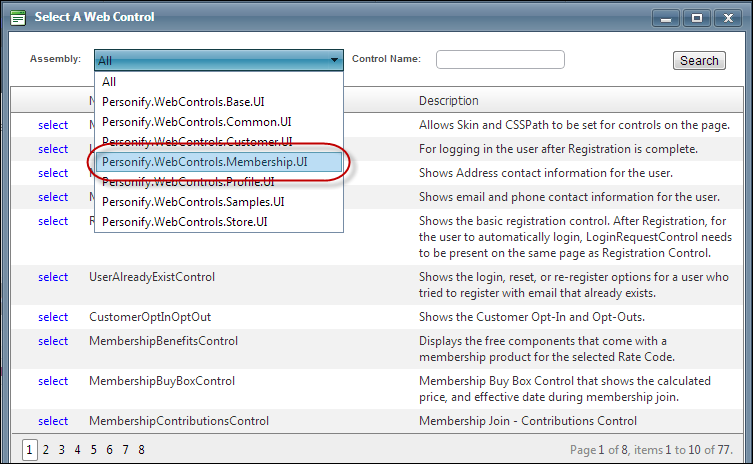
5. From
the Assembly drop-down, select
"Personify.WebControls.Membership.UI",
as highlighted below.
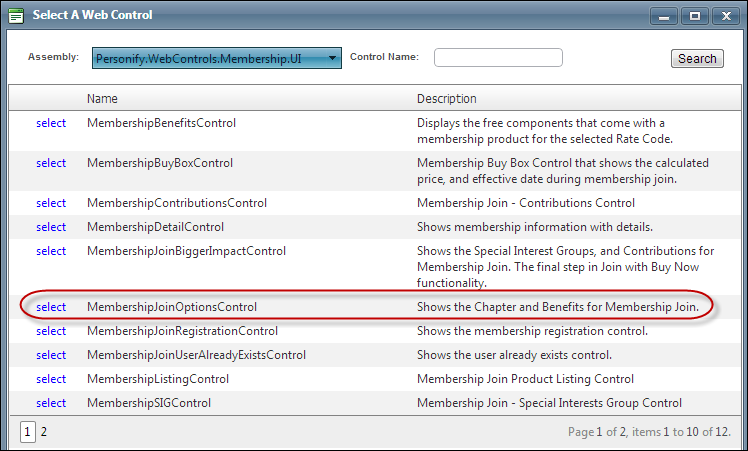
6. In the Control Name field, enter "MembershipJoinOptionsControl" and click Search.
7. Click
Select next to the "MembershipJoinOptionsControl", as
highlighted below.
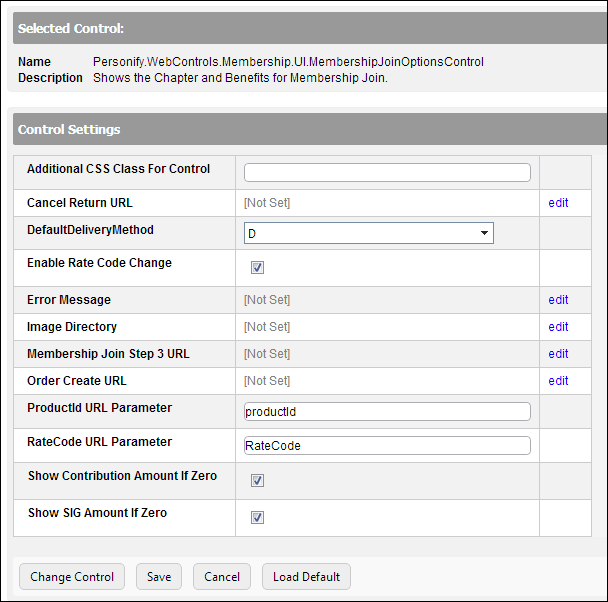
The Control Settings for this control display, as highlighted below.
 Text
fields have a 250 character limit.
Text
fields have a 250 character limit.
8. Optional:
in the Additional CSS Class for
Control field, enter the CSS class.
This option allows you to add additional layout to the skin by developing
a new DOTNETNUKE style, which requires an advanced understanding of HTML
and CSS. See Using Skins for more information.
9. From
the Cancel Return URL line, click edit.
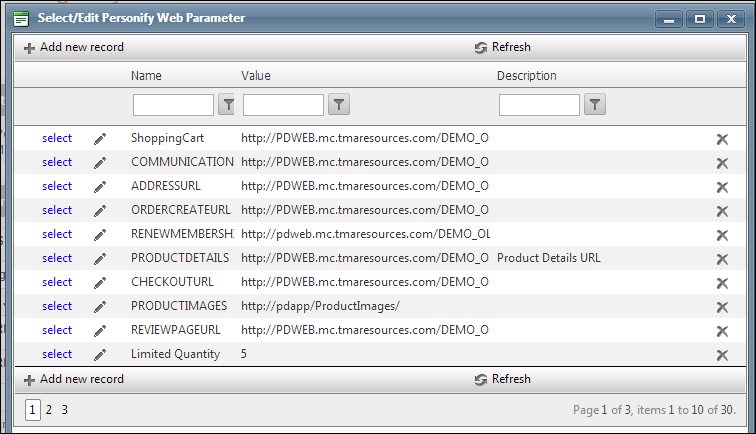
The Select/Edit Personify Web Parameter screen displays, as shown below.
a. Click
the select
link next to the appropriate PWF parameter.
You should set the PWF parameter to a value (e.g., MemJoinListing) that
will take the constituent to that URL in DNN when he/she selects "Cancel".If
this PWF parameter does not exist or you would like to create a new one,
see Setting up PWF Parameters
for more information.
10. From
the Default Delivery Method drop-down,
select the whether you want the default delivery method to be digital
or print.
This will be the default delivery method that displays to you user. For
example if you select "D", digital will be the default option
and the user can switch to print, as highlighted below.

11. Optional:
check the Enable Rate Code Change checkbox.
Checking this option will allow the user to change the rate code in the
buy box, whereall web-enabled rate codes will be displayed. The rates
are sorted by priority set in the back office.
12. Optional,
select or create a new Error Message.
The error message will display on the control for the action that was being
performed at the time of the error.
a. If left blank and the default "PersonifyErrorMessage" does not return a result, the default error message, "An error occurred while performing [Insert Action]. If the problem persists, please contact the site administrator", will display.
b. If you wish to change the default error message, customize it with a PWF parameter. See Setting up PWF Parameters for more information.
13. If
necessary, from the Image Directory line, click edit.
The Select/Edit Personify Web Parameter screen displays.
a. This is the name of the image to display if the Membership Product does not have a small image defined. The default is “NotFoundImage.jpg”, and this ensures that the image exists in the image directory.
14. From
the Membership Join Step 3 URL line, click edit.
The Select/Edit Personify Web Parameter screen displays.
a. Click
the select link next to the appropriate
PWF parameter.
You should set the PWF parameter to a value (e.g., MemJoinStep3) that will
take the constituent to that URL in DNN when he/she selects to proceed
to the third step in the membership join process.If this PWF parameter
does not exist or you would like to create a new one, see Setting
up PWF Parameters for more information.
15. From
the Order Create URL line, click edit.
The Select/Edit Personify Web Parameter screen displays.
a. Click
the select link next to the PWF
parameter.
You should set the PWF parameter to a value (e.g., LocalOrderCreateUrl)
that will take the constituent to that URL in DNN when he/she creates
an order.If this PWF parameter does not exist or you would like to create
a new one, see Setting up
PWF Parameters for more information.
16. In
the ProductID URL Parameter textbox, enter "productid".
This is the default name of the parameter, but if the environment's redirection
logic uses a different Query String name set it here. See Setting
up PWF Parameters for more information.
17. In
the Rate Code URL Parameter textbox, enter "RateCode".
This is the default name of the parameter, but if the environment's redirection
logic uses a different Query String name set it here. See Setting
up PWF Parameters for more information.
18. Check
the Show Contribution Amount If Zero checkbox, if necessary.
This defaults to be enabled so the contributions amount displays in the
buy box when there is no cost.
19. Check
the SIG Amount if Zero checkbox, if necessary.
This defaults to be enabled so that the special interest groups amount
displays in the buy box when there is no cost.
If this is unchecked, the special interest groups price will NOT
display in the buy box if there is no cost. This should be unchecked if
you do not have any special interest groups.
20. Click Save.