For
more information on accessing the application, please refer to Accessing
the Personify Workflow Designer.
For
more information on accessing the application, please refer to Accessing
the Personify Workflow Designer.
With the Personify 7.3.1 release, you received a series of Personify Workflow Commands already enabled in your application. As discussed earlier, these are the workflow commands available for you to use in creating your workflows. However, in the case of an upgrade, you may need to import new or modified commands. The instructions in this section show you how to simply and effectively synchronize commands for both the Enterprise application and the Web application.
To synchronize commands into the Workflow Designer:
1. Open the Personify Workflow Designer via Personify Application Designer or Personify Web Forms Designer.
For
more information on accessing the application, please refer to Accessing
the Personify Workflow Designer.
2. From
the menu bar, open Tools > Synchronize
Workflow Commands.
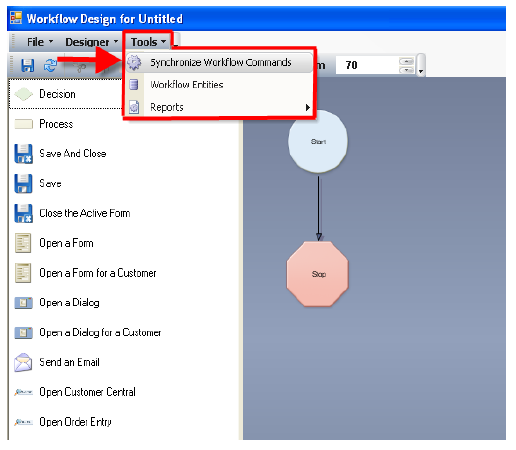
The Synchronize Commands with Workflow window displays.
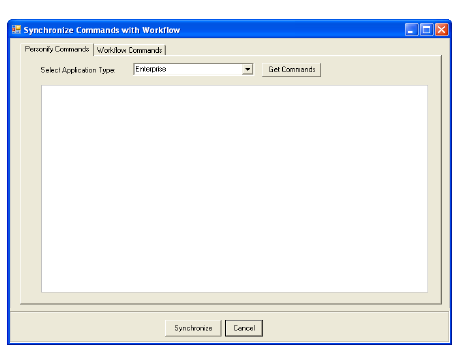
3. From
the Select Application Type drop-down,
select either “Enterprise” or “Web.”
Regardless
of which Studio Tool you entered the Workflow Designer through (Application
Designer or Web Forms Designer), you can import commands for either because
they are all ultimately used in the Workflow Designer.
Only commands specific to Enterprise, however, will be available to you
when you create a workflow for Enterprise, and vice versa for forms created
for the Web.
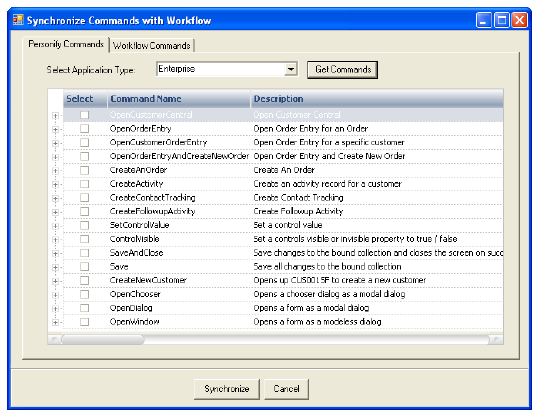
4. Click Get Commands.
5. Select
the checkbox(es) next to the Enterprise commands you wish to import into
the Workflow Designer.
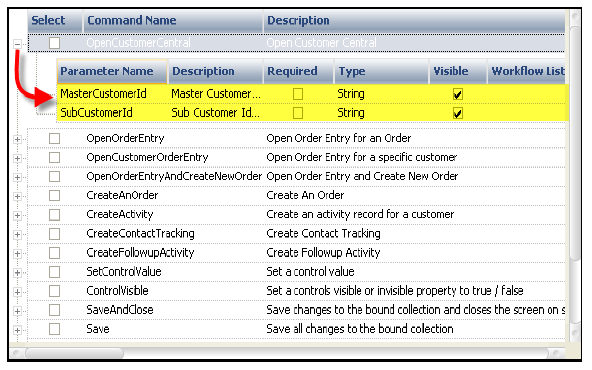
You
can click the (+) next to each command to view which parameters can be
passed by the command and which parameters are required.
For
more information regarding each command, please refer to Workflow
Commands.
6. Click Synchronize.
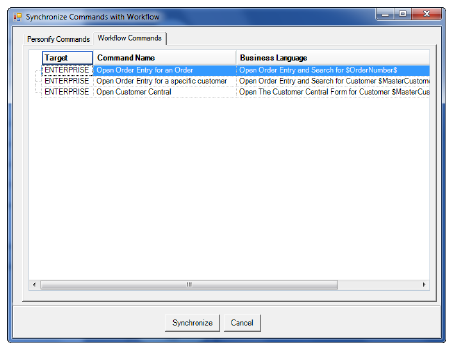
7. After
synchronizing, you can select the Workflow Commands tab to view all commands
imported into the Workflow Designer along with their Business Language.