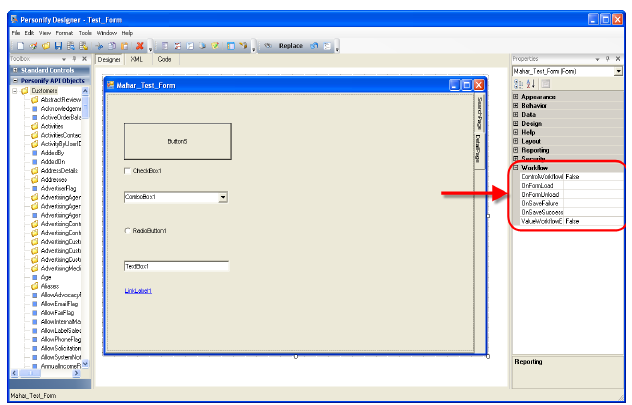
The Personify Workflow Designer is accessible via the Personify Application Designer and the Personify Web Forms Designer. You can enter the Workflow Designer through any form created with either of these Studio Tools, but you can only work on one form during your time in the designer. Keep in mind that whichever form you enter the Workflow Designer through determines which form the workflow you create during that session is tied to.
To access the Personify Workflow:
1. Open the Personify Application Designer or Personify Web Forms Designer.
2. Create a new form or open an existing one.
3. Navigate
to the Workflow section of the
Properties table on the right, as highlighted below.
4. Click
the (...) value for any of the
properties listed in the Workflow section.
The Available Workflows window displays, as shown below.
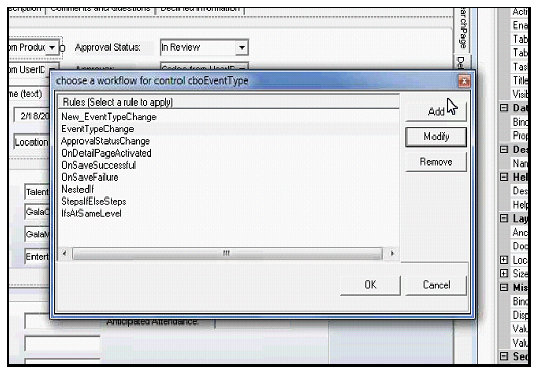
5. Click
Add.
The Personify Workflow Designer opens with a new workflow.
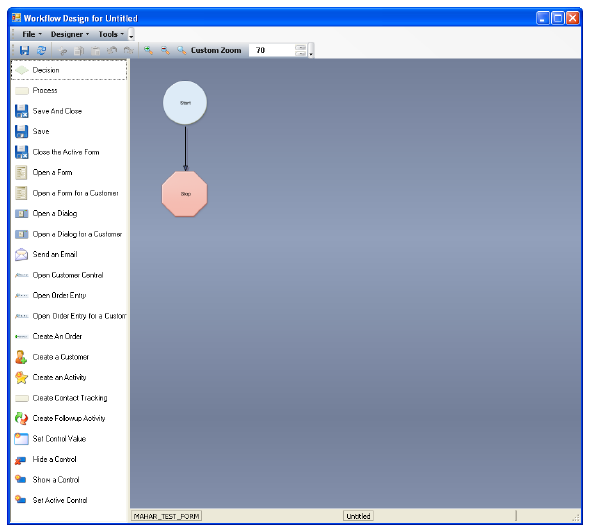
 The
first time you access the Workflow Designer, you may be prompted with
a window called “Synchronize Commands with Workflow.” Please refer to
Synchronizing
Commands into Workflow Designer for information on working with this
screen.
The
first time you access the Workflow Designer, you may be prompted with
a window called “Synchronize Commands with Workflow.” Please refer to
Synchronizing
Commands into Workflow Designer for information on working with this
screen.
When you open the Workflow Designer for Web Forms, you may not be prompted
to synchronize the commands. Make sure you do so before trying to begin
a workflow.