You can only change the start and/or end date of a subscription product on an order if the Can Change Start Date and/or Can Change End Date checkboxes are selected during product setup.
To change the start/end date of a subscription:
1. Open the appropriate subscription order on the Order Entry screen.
2. Highlight the line item for which you want to change the start and/or end date.
3. Right-click
the line item and select Show Full Line
Item Details.
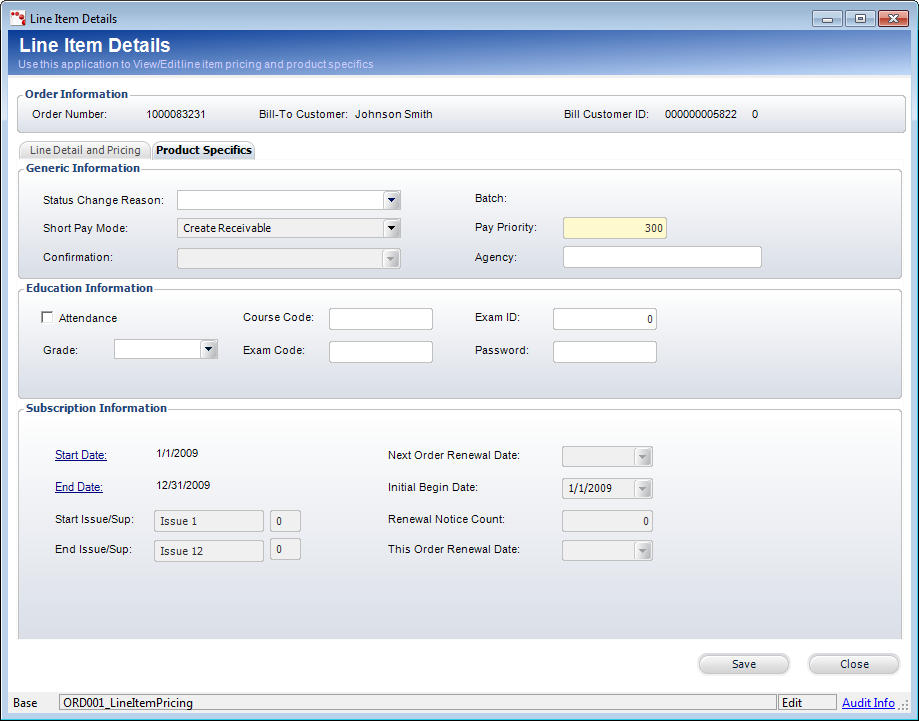
The Line Item Details screen displays.
4. Access
the Product Specifics tab, as
shown below.
5. To change the start date, perform the following:
a. From
the Subscription Information section, click the Start
Date link.
The Subscription Issue Lookup screen displays, as shown below.
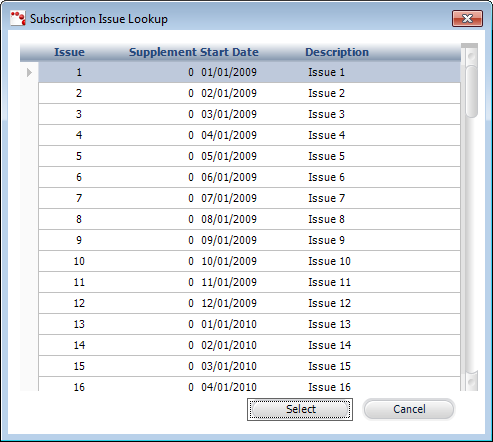
b. Highlight the issue with the Start Date in which you want the subscription to start.
c. Click
Select.
The Subscription Issue Lookup screen closes, the Start
Issue/Sup fields update accordingly with the selected issue, and
the Initial Begin Date updates
to the Start Date of the issue selected.
6. To change the end date, perform the following:
a. From
the Subscription Information section, click the End
Date link.
The Subscription Issue Lookup screen displays, as shown below.

b. Highlight the issue with the End Date in which you want the subscription to end.
c. Click
Select.
The Subscription Issue Lookup screen closes and the End
Issue/Sup fields update accordingly with the selected issue.
7. From the Line Item Details screen, click Save.