Alternatively, click Populate Table to automatically add all Target Names to the grid. Then, you can click Delete to remove the records that do not apply to your mapping.
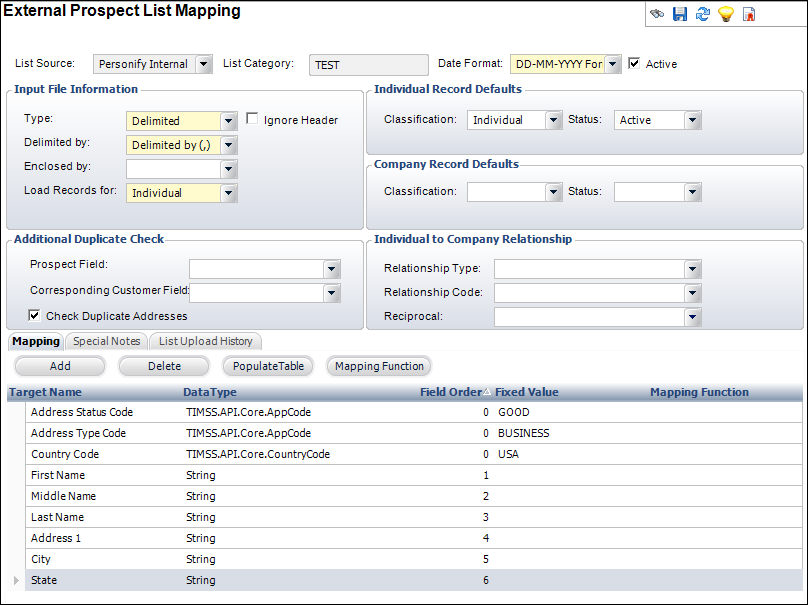
Once you have created a new list mapping template, the Mapping tab defines how data will be mapped into the Personify tables. In general, the mapping process transfers a set of objects or data from one location to another. In this case, from the source file to the MKT_Prospect table. The mapping involves the transfer of the field sequence in a source file to a specific column in the Prospect table. You can also map a specific source field value to another specific value.
Mapping functions include two types:
· Range – allows you to translate a value (e.g., revenue) into a coded field that represents ranges of values. For example, if the source file quotes revenue in dollars, then you can map this to a coded field that represents a range of revenue.
· Value – allows a mapping of a specific value into another specific value. For example, the source data file may use the code “H” for home address type whereas the system uses “HOME.”
The value mapping provides the following options:
· For delimited source files, you can map the field sequence in the source file to a specific column in the Marketing Prospect database table.
· For a fixed length record format, you can map the start and end position in the source record to a specific column in the Prospect table.
· For a specific source field value, you can map this value to another specific value.
· For any column in the Prospect table, you map it to a fixed value.
To add mapping information:
1. From the External
Prospect List Mapping screen, on the Mapping tab (shown below), click
Add.
Alternatively, click Populate Table
to automatically add all Target Names to the grid. Then, you can click
Delete to remove the records that
do not apply to your mapping.
2. Click
in the Target Name cell and select
the target name.
The Data Type displays automatically.
3. Enter the Field Order in the table cell.
 Enter a Field
Order of "0" if the field does not exist in the mapping file
but you want it to be included.
Enter a Field
Order of "0" if the field does not exist in the mapping file
but you want it to be included.
4. Enter the Fixed Value in the table cell.
5. Click
in the Mapping Function cell and
search for the appropriate mapping function.
If no Mapping Functions exist, you need to create one by completing the
following:
a. From
the Mapping tab, click Mapping Function.
The Mapping Function Maintenance search screen displays, as shown below.
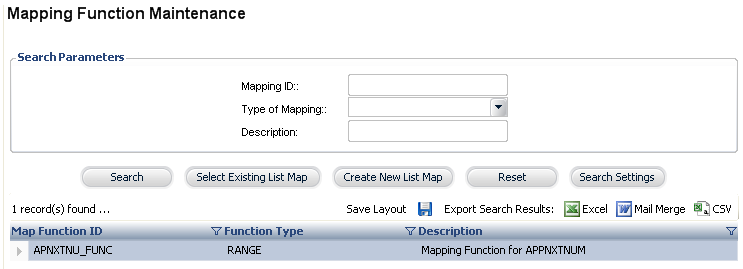
b. Click
Create New List Map.
The Mapping Function Maintenance screen displays, as shown below.
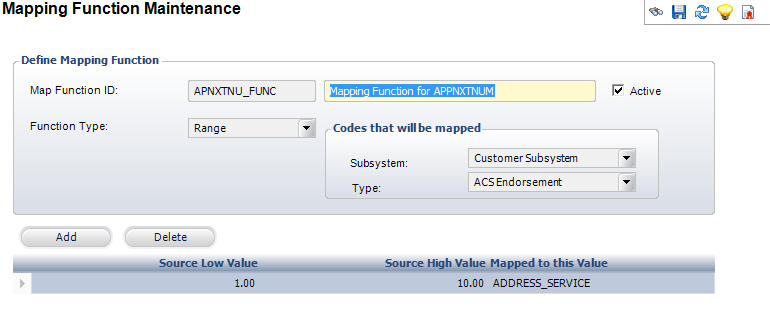
c. Enter the Map Function ID.
d. Enter the Map Function code in the first text box and the long name in the second text box.
e. Select
the Function Type from the
drop-down.
The table options differ depending on the Function Type selected here.
f. If necessary, uncheck the Active checkbox.
g. Select the Subsystem and Type of codes that will be mapped.
h. Click Add.
i. If you selected “Range” for the Function Type, then enter values in the Source Low Value and Source High Value table cells.
j. If you selected “Value” for the Function Type, then enter the specific value in the Source Data Value table cell.
k. Click the button in the Mapped to this Value table cell and select the appropriate value.
l. Click Save.
m. Navigate
back to the External Prospect List Mapping.
The Mapping Function you just created appears in the Mapping Function chooser.
6. Select the Mapping Function from the chooser.
7. Repeat steps 1-6 for any additional mapping functions.
8. Click Save.
| ||||||||||||||||||||||||||||||||||||||||||||||