The Product Maintenance screen displays, as shown below.

To create a new shipping method:
1. Using
the System Administrator persona,
from the Personify main toolbar, select Products
> Product Central.
The Product Maintenance screen displays, as shown below.
2. From
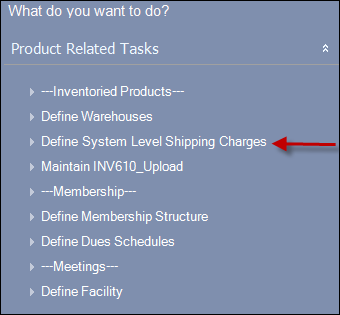
the Product Related Tasks task
category, select Define System Level
Shipping Charges, as highlighted below.
3. Alternatively,
using the Inventory Product Manager
persona, from the Personify Menu, select Shipping
and Inventory > Shipping Charge Definition.
The Shipping Charges Maintenance search screen displays, as shown below.

4. From
the Shipping Charges Maintenance search screen, click Create
New Shipping Code.
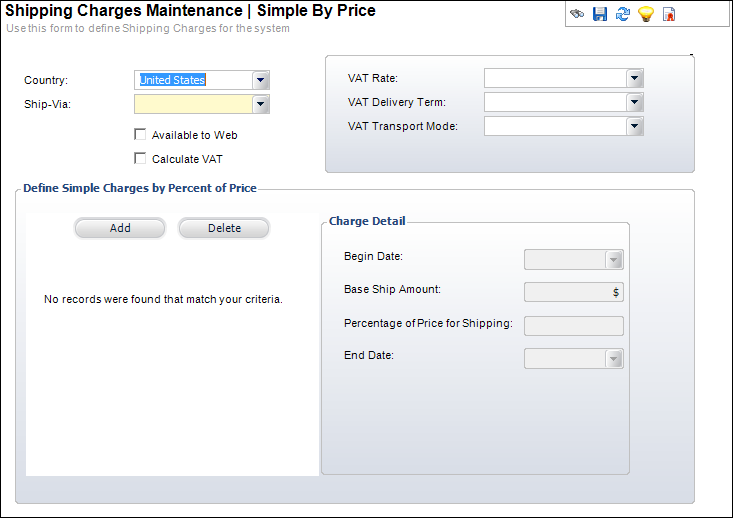
The Shipping Charges Maintenance-Simple By Price screen displays, as shown
below.
5. Select
the Country from the drop-down.
You can also select All Countries
if the shipping charges relate to all countries rather than a specific
country.
6. Select
the Ship-Via from the drop-down.
For example, Federal Express, United Parcel Service, United States Postal
Service, or Web Delivery. You will receive a warning message if you already
have a Ship-Via method for the selected Country. Values are populated
based on the non-fixed ORD
SHIP_VIA system type.
7. Check the checkboxes that apply:
a. Available to Web
When checked, indicates that the shipping charges are available for products
ordered over the Internet.
b. Calculate VAT
When checked, calculates the VAT tax and applies it to the shipping definition.
The VAT Rate, VAT Delivery Term, and VAT Transport Mode fields are enabled.
8. If you checked the Calculate VAT checkbox, perform the following:
a. Select
the VAT Rate from the drop-down.
This is the value-added tax rate percentage for select countries. Values
are populated based on the non-fixed ORD
VAT_CATEGORY system type.
b. Select
the VAT Delivery Term from the
drop-down.
For example, Standard or by Air.
c. Select
the VAT Transport Mode from the
drop-down.
For example, train, truck, ship, airplane, and etc.
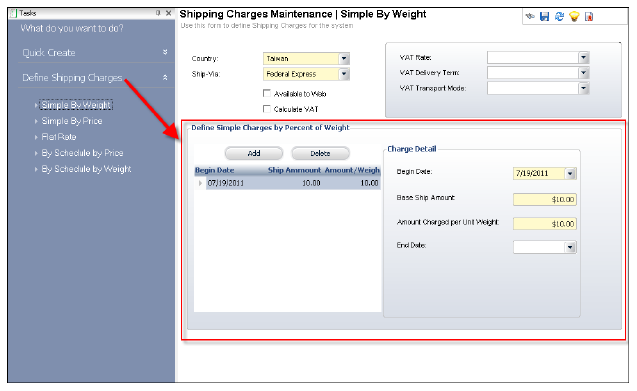
9. The highlighted section below will change depending on the task selected from the Define Shipping Charges task category:
10. Click Save.