It
is important to be sure that the old dashboards are not in use before
deleting them.
It
is important to be sure that the old dashboards are not in use before
deleting them.
Before exploring reports and dashboards, it is important to understand the folder structure in order to quickly navigate through the Data Analyzer. From the Personify 7.3.0SP2 release and forward, the structure of the folders has changed. The seven dashboards provided by default underwent a revamp. The old dashboards still exist in the Data Analyzer and can be accessed the same as in the past. The new dashboards will not impact the old dashboards and the old dashboards do NOT have to be deleted.
It
is important to be sure that the old dashboards are not in use before
deleting them.
The old dashboards can be deleted via the Central Management Console (CMC) or by a Super User via the Data Analyzer.
The following subsystems provide dashboards in the Data Analyzer:
· Abstracts
· Advertising
· Customer
· Fundraising
· Meetings
· Membership
· Orders
For
more information on these dashboards, please see Working
with Dashboards.
The original dashboard created for the subsystem is
found in the subsystem root folder and is named [Subsystem]Dashboard:
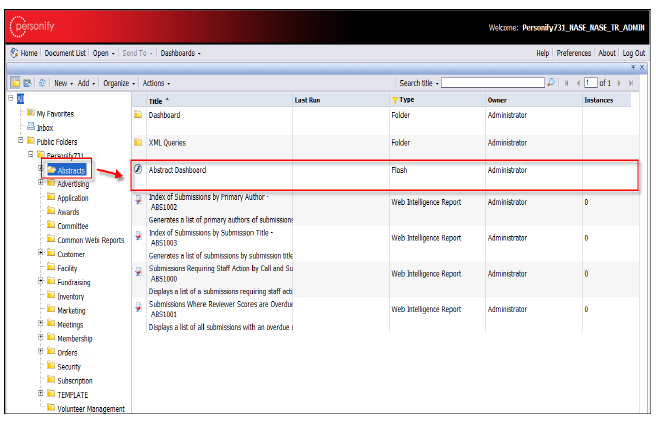
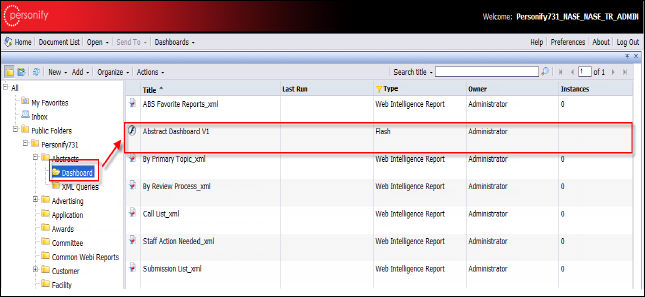
The new, revamped dashboard created for the subsystem is found in the subsystem Dashboard folder and is named [Subsystem]Dashboard V1:
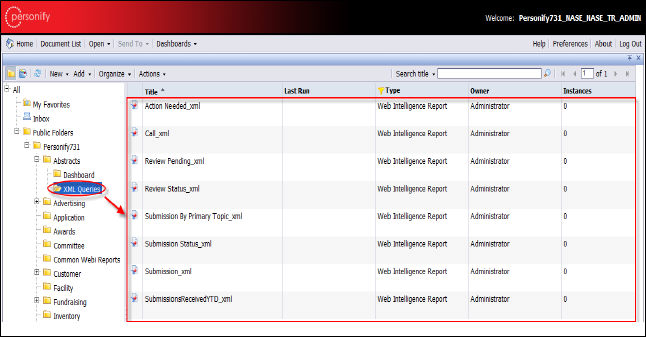
The XML queries listed in the XML Queries folder provide data for the old, non-revamped dashboards:
The XML queries listed in the subsystem’s Dashboard folder provide data for the new, revamped dashboards:
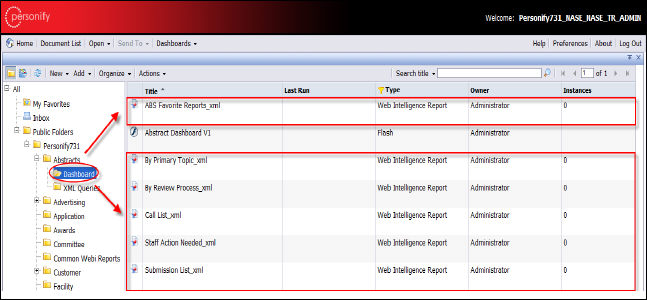
Sample Webi reports can be found in the root subsystem folder:
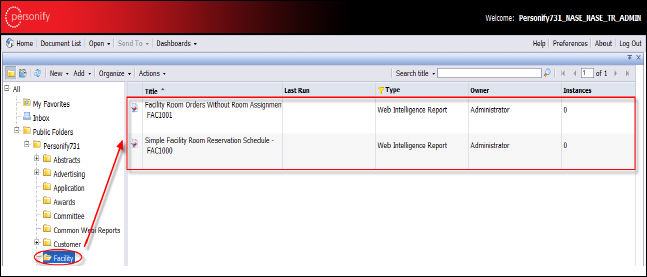
The sample Webi reports can be used as Favorite Reports. For more information, please see Selecting Your Favorite Reports.
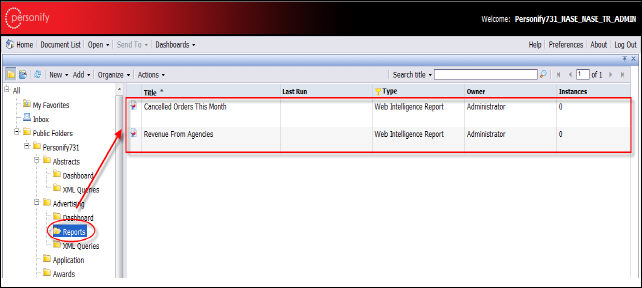
Drillable reports can be found in the subsystem’s Reports folder: