Locating Data Analyzer Reports
You can easily access custom or sample reports using
the Reports portal through the Personify interface. The Personify Reports
menu now contains a shortcut to Data Analyzer, as well as online reports
(Operational Reports).
To locate a report:
1. From
the Reports menu icon in Personify, click Data
Analyzer.
2. By
default, the Infoview home page displays.
3. In
the Navigate section, click Document List.
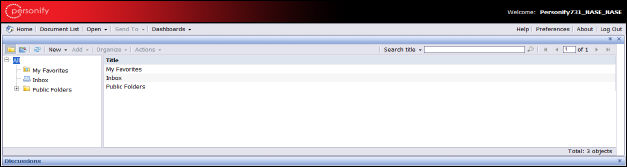
A hierarchical menu of your document folders appears on the left (defaulted
to All) with any documents or further folders within the selected folder
on the hierarchical menu listed in the main panel.
By default, everyone has a My Favorites, Inbox, and Public Folders folder,
but you may add to this.
4. If
the report you want to locate resides in your My Favorites folder, simply
click on the folder and select the report from the list that appears in
the main panel.
 For information
on adding reports or dashboards to your Favorites folder, please refer
to Adding
to Your Favorites Folder.
For information
on adding reports or dashboards to your Favorites folder, please refer
to Adding
to Your Favorites Folder.
5. If
the report does not reside in your Favorites folder, expand the Public Folders menu
under All in the hierarchical menu.
A Personify741 folder displays which includes all sample reports delivered
with 7.4.1.
You can also
expand Inbox to view any reports sent to you from other users.
6. Expand
the Personify741 folder.
A list of folders broken down by subsystem displays containing all sample
reports, dashboards, and XML queries for each universe.
7. Click
on a subsystem folder to view the reports, dashboards, and XML queries
associated with that universe.
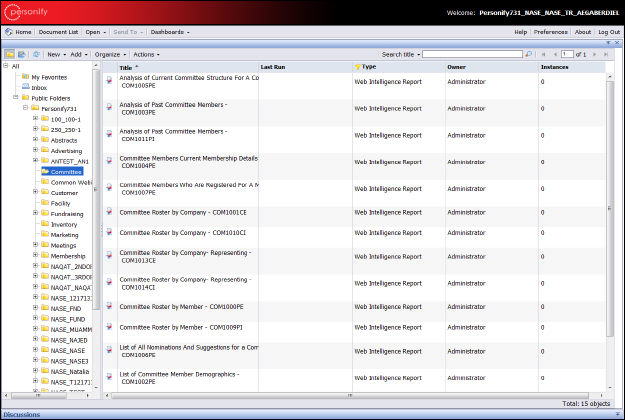
You can perform a number of tasks from this page, including running or
viewing a report, scheduling a report, changing report properties, etc.
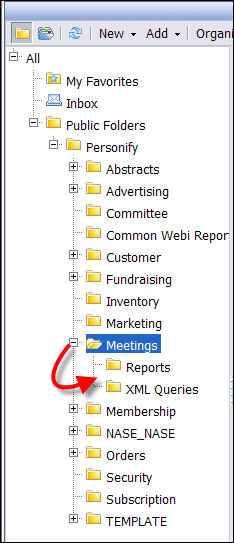
You can also expand the subsystem folder for the option to view just the
reports/dashboards or just the XML queries.
The Inbox,
My Favorites, and Public Folders menu are part of BusinessObjects InfoView.
The other folders have been condensed based on subsystem.