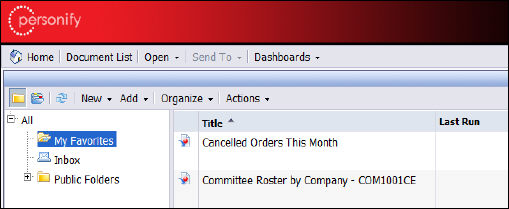
You can add any of your public reports, private reports, or dashboards saved in your Data Analyzer application to your Favorites folder. That way, if you set your preferences to have your My Favorites folder as your home page, when you open the Data Analyzer application, you can easily select any of your commonly used reports or dashboards.
To add reports or dashboards to your Favorites folder:
1. From the left-side navigation window, navigate to the folder containing the report/dashboard you want to add to your My Favorites folder.
2. Right-click
the report/dashboard from the list in the main panel.
A taskbar appears.
3. Select Organize > Copy.
4. Right-click
the My Favorites folder.
A taskbar displays.
5. Select
Organize > Paste.
The report displays in the main panel list within the My Favorites folder.
 Using
the Organize > Copy > Paste
option adds the report as a separate version to your Favorites folder.
To create a shortcut of the report instead so that any updates you make
to that report within the subsystem folder translates over to the report
you saved to the My Favorites folder, select the “Create Shortcut” option
from the Organize task and then the “Paste Shortcut” option from the Organize
task.
Using
the Organize > Copy > Paste
option adds the report as a separate version to your Favorites folder.
To create a shortcut of the report instead so that any updates you make
to that report within the subsystem folder translates over to the report
you saved to the My Favorites folder, select the “Create Shortcut” option
from the Organize task and then the “Paste Shortcut” option from the Organize
task.