 This
section assumes you already created an order for a Non-Inventoried product.
For more information, please see Creating
an Inventoried Product.
This
section assumes you already created an order for a Non-Inventoried product.
For more information, please see Creating
an Inventoried Product.
After you create a batch, you can apply credit card payments to orders by creating receipts for Non-Inventoried orders. Creating a receipt for an order creates a pre-sale transaction for that order. The pre-sale transactions are then ready for capturing and settlement through the CCP610 process.
This
section assumes you already created an order for a Non-Inventoried product.
For more information, please see Creating
an Inventoried Product.
To create Non-Inventoried order receipts:
1. From the toolbar, select Accounting > Batch Control.
2. Search
for and select the batch you created for credit card receipts.
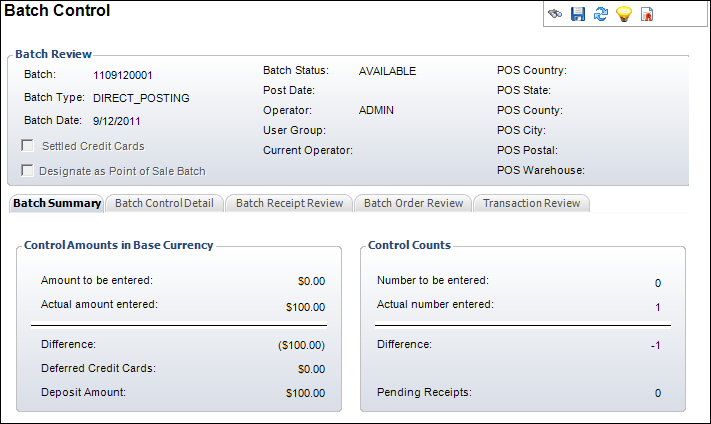
The Batch Control screen displays the selected batch in read-only format,
as shown below.
3. From
the Work with this Batch task category, click Open Batch.
The Batch Control screen clears from the screen and a confirmation pop-up
displays. The opened batch number displays in the upper-right corner of
the screen.
4. From
the toolbar, open CRM/Orders > Order
Entry.
The Order Entry search screen displays.
5. Select
the Edit an Existing Order tab
and search for the order number of the Non-Inventoried order.
The Order Entry screen displays with the Non-Inventoried order information
populated.
6. Click
Pay on any Open Order from
the Enter Payment Information task category.
The Receipt Entry (FAR002) screen displays with the batch and receipt information
populated.
7. Select
the Receipt Type from
the drop-down.
Selecting a credit card receipt type enables the Credit Card Information
section and enters the Bill-To Customer Number’s information in the Credit
Card Name and Address fields.
8. Enter the Receipt Amount.
9. Enter the Credit Card Number.
10. Select the credit card’s Expiration date from the drop-down.
11. Enter the Security Number.
This
step is optional. Entering the security number from the back of a credit
card is for security purposes only.
12. Click
Authorize Credit Card.
Once approved, an approval message displays.
If
you receive a FAR00287 error, you must manually authorize the credit card
by calling the payment processor. Please see Manually
Authorizing Credit Cards.
13. Click
OK to clear the message.
The application subtracts the credit card amount you just entered from
the Customer Balance.
14. Click Save.