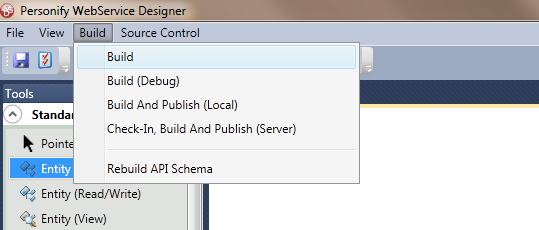
The Personify WSD provides four different options for compiling and publishing. These options are available under the Build menu as shown below.
1. Build
This option will compile your project and generate the following necessary
files needed by the Personify Data Services:
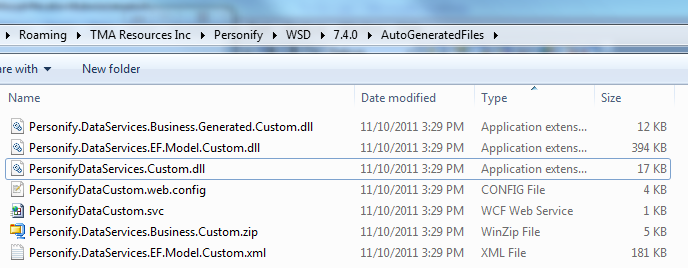
An Entity Framework data model assembly (e.g. “Personify.DataServices.EF.Model.Custom.dll”) which contains the Entity Framework schema definitions of your data model.
A generated business data model assembly (e.g. “Personify.DataServices.Business.Generated.Custom.dll”), which contains the entity managers and service operation based classes.
A data service file (e.g. “Personify.svc”), which contains the signatures of your defined service operations.
A data service model assembly (e.g. “PersonifyDataServices.Custom.dll”), which has the code behind of your data service file.
A schema file in XML format of your data model (e.g. “Personify.DataServices.EF.Model.Custom.xml”).
A sample web.config file (e.g. “PersonifyDataCustom.web.config”), which contains the recommended configuration setting for your layer.
A Visual Studio C# project in the form of a zip file (e.g. “Personify.DataServices.Business.Custom.zip”), which serve as a template for your implementation of your custom service operations.
2. Build (Debug)
This option will perform the same functionality as the first option (Build).
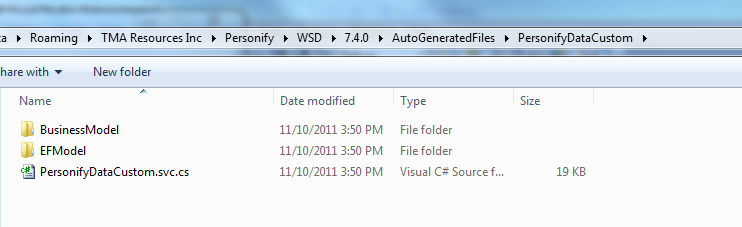
In addition, it will generate all the metadata files as well as sources
of the business model codes for the purpose for debugging. Please submit
these debug files along with any build errors and output messages when
you encounter any build issue. An example of a debug folder is as below:
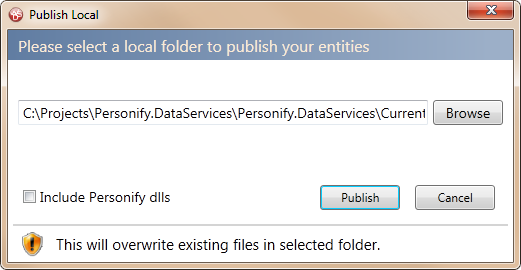
3. Build And Publish (Local)
This option will build your project in the same way as the
first option (Build). Additionally, this will provide a process
for publishing your compiled project to a local machine. This will publish
the generated assemblies, the data service file (.svc), along with the
sample web.config and XML schema file, to your local data service virtual
directory.
Selecting the option “Include Personify dlls”, will also publish the Personify
related assemblies to the data service virtual directory. You may configure
to include the Customer layer API assemblies in the configuration file.
Please see Configuring
Personify API Validation Issues for further details. For example:
4. Check
In, Build And Publish (Server)
This option will first check in any checked out service elements of your
project into source control. Then it will refresh your project to make
sure it has all the latest service elements. Please
see Web
Services Designer Source Control and Layering for more details.
If successful,
this option will continue to build your project in the same way as the
first option (Build), then will provide a process for publishing your
compiled project to the web server. This will publish the generated assemblies,
the data service file (.svc), along with the sample web.config and XML
schema file, to your hosted data service virtual directory.
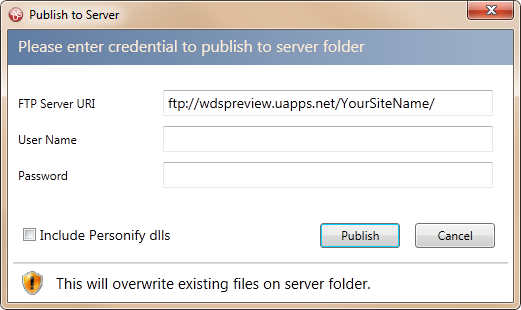
FTP Server URI: the FTP UrI path setup for your hosted virtual directory.
User Name: the username credential needed for FTP permission to your virtual directory.
Password: the password credential needed for FTP permission to your virtual directory.
Include Personify dlls: select this checkbox to publish the Personify related assemblies to the data service virtual directory. You may configure to include the Customer layer API assemblies in the configuration file. Please see Web Services Designer Configuration for more information.
 You
can configure the default values for the build options in the configuration
file (see Web Services
Designer Configuration). In addition, you can view the details of
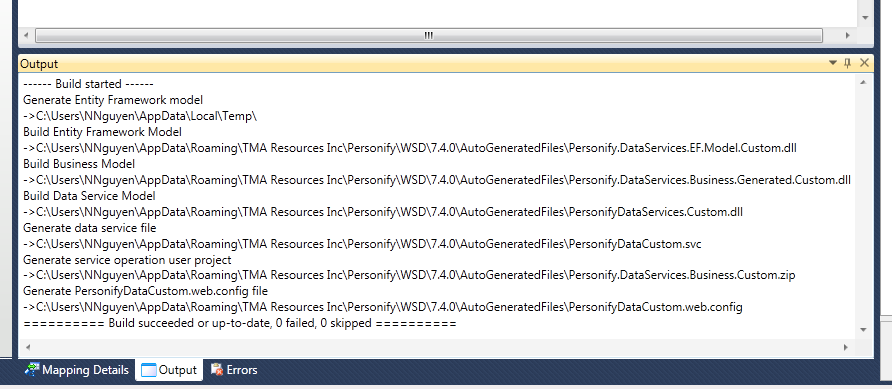
the build process messages, errors, and file output paths in the Output
window. For example:
You
can configure the default values for the build options in the configuration
file (see Web Services
Designer Configuration). In addition, you can view the details of
the build process messages, errors, and file output paths in the Output
window. For example: