The Shipping Charges screen displays, as shown below.
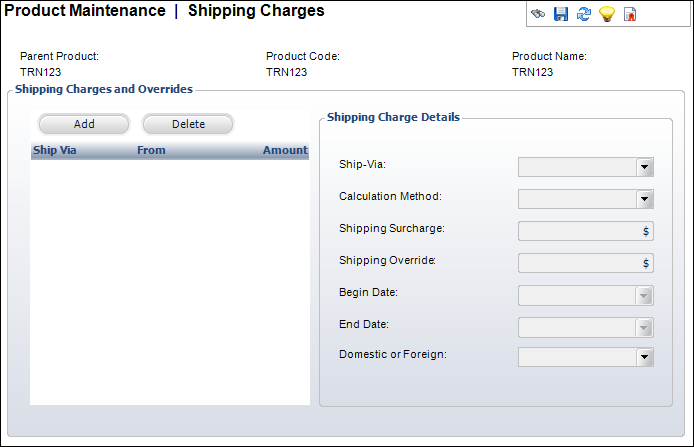
To calculate shipping for transcript products where weight is not an issue, shipping surcharges can be defined and assessed for a line item. If desired, you can assign an override amount that explicitly defines a shipping price outside of any other calculation.
To define the shipping charges:
1. Click
Define Shipping Charges from
the Define the Product task category.
The Shipping Charges screen displays, as shown below.
2. Click Add.
3. Select the Ship-Via method from the drop-down.
4. Select the Calculation Method from the drop-down.
5. If necessary, enter the Shipping Surcharge and the Shipping Override amount.
6. Select the Begin Date from the drop-down.
7. If necessary, select the End Date from the drop-down.
8. Select whether the shipment is Domestic or Foreign.
9. Click Save.
Screen Element |
Description |
|---|---|
Add |
Button. When clicked, a row is added to the Shipping Charges and Overrides table and the Shipping Charge Details fields are enabled. |
Delete |
Button. When clicked, the highlighted row is deleted from the table and the shipping charge is deleted from the product. |
Ship-Via |
Drop-down. The name of the entity used for shipping the order, e.g., UPS or Federal Express. |
Calculation Method |
Drop-down. How the ship-via organization calculates the shipping charge. For example, By Price or By Weight. |
Shipping Surcharge |
Text box. The amount of shipping that will be charged for this product. |
Shipping Override |
Text box. Relates to this product only. Add an amount here if the product requires special shipping. Otherwise, it defaults to the standard shipping amount. |
Begin Date |
Drop-down. On this date, as compared to the order date, this fee will be charged. |
End Date |
Drop-down. System maintained field that indicates the end date of this rate. A trigger will set this as the day before the next rate defined. |
Domestic or Foreign |
Drop-down. Select here whether the product will be shipped domestic or foreign. |