The Rates and Pricing screen displays, as shown below.
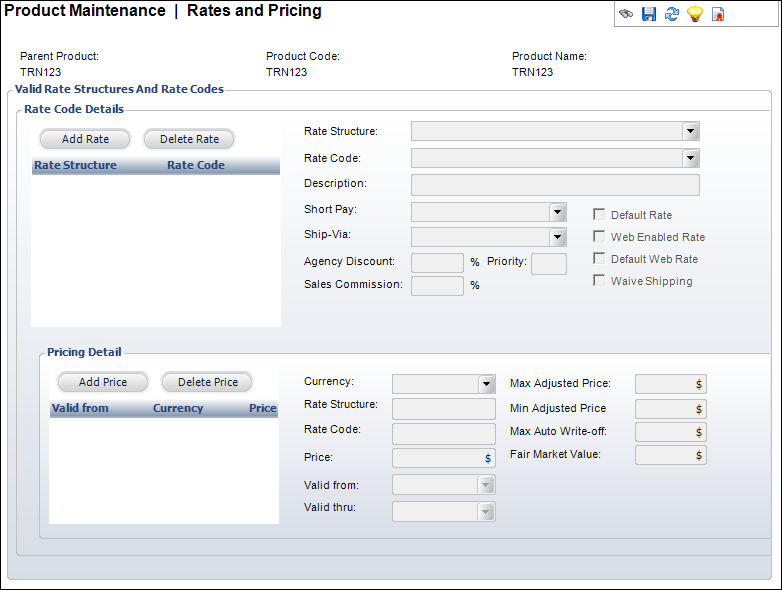
The Rate Code Details section is used to create rate structures and rate codes upon which product prices are based. Rate structures are typically used to segment customers into logical buying groups. Rate codes carry the rate associated with the specific rate structure.
The Pricing Detail section is used to associate a price with a given rate structure and code combination. Products can be priced by date or by different currencies. Accounting policies can be implemented here, including product adjustments, write-off tolerances, and tax bases.
To define the rates and pricing:
1. Click
Define Rates and Pricing from
the Define the Product task category.
The Rates and Pricing screen displays, as shown below.
2. Click Add Rate.
3. Select a Rate Structure from the drop-down.
4. Select
a Rate Code from the drop-down.
The Description defaults as the Rate Code value.
5. Select
the Short Pay from the drop-down.
The option chosen from this drop-down determines which of the following
fields are read-only in the Pricing Detail section:
· Max Adjusted Price
· Min Adjusted Price
· Min Price to Activate
· Max Auto Write-off
6. If necessary, select the Ship-Via method.
7. If necessary, enter the Agency Discount percentage.
8. Enter a Priority number.
9. Enter the Sales Commission.
10. Check the applicable checkboxes:
· Default Rate
· Web Enabled Rate
· Default Web Rate
· Waive Shipping
11. Click Add Price.
12. Select the Currency Code from the drop-down.
13. Enter the Price.
14. Select the Valid from date from the drop-down.
15. If necessary, select the Valid thru date from the drop-down.
 The
Rate Structure, Rate Code, and Fair Market Value fields are read-only.
The
Rate Structure, Rate Code, and Fair Market Value fields are read-only.
16. Enter
the Max Adjusted Price.
If “AR” or “Reject” was chosen from the Short Pay drop-down, this field
will be read-only.
17. Enter
the Min Adjusted Price.
If “Reject” was chosen from the Short Pay drop-down, this field will be
read-only.
18. Enter
the Min Price to Activate.
This field only displays when “AR” is chosen from the Short Pay drop-down.
This field is read-only.
19. Enter
the Max Auto Write-off price.
If “Adjust” was chosen from the Short Pay drop-down, this field will be
read-only.
20. Click Save.
Screen Element |
Description |
|---|---|
Rate Code Details |
|
Add Rate |
Button. When clicked, a row is added to the Rate Code Details table and the corresponding fields are enabled to add a rate code. |
Delete Rate |
Button. When clicked, the highlighted row from the table and the rate code are deleted. |
Rate Structure |
Drop-down. This is a structure that defines a customer. Rate structures are defined during the system setup. Certain customers, such as members vs. non-members, receive special rates. The rates for these structures are defined in the Rate Code.
After a rate structure has been defined for the product, this drop-down is disabled and cannot be edited. |
Rate Code |
Drop-down. The established rate determines the pricing for the Rate Structure selected.
After a rate code has been defined for the product, this drop-down is disabled and cannot be edited. |
Description |
Text box. A description of the rate code. |
Short Pay |
Drop-down. This fixed code indicates how Personify handles short payment situations. It is linked to the minimum payment amount. Options include: · Adjust: Accept whatever is paid. · AR: Create Receivable – Indicates that members under the active rate code will be invoiced. · Reject: Do not activate order unless fully paid. This should only be enacted if payment is made immediately, not monthly. If an order is created, this selection can be overridden at the order line level. |
Ship-Via |
Drop-down. Override how the product is to be shipped, e.g., by Federal Express, United Parcel Service, or United States Postal Service. |
Agency Discount |
Text box. The percentage to be applied for an agency discount when creating an order for this product. |
Priority |
Text box. Determines the order the rate codes display in the product setup and Order Entry screen. The rate code with the lowest display order displays first. |
Sales Commission |
Text box. The percent of sales commission that the salesperson receives when this product is purchased within the rate structure/ rate code selected. |
Default Rate |
Checkbox. Indicates which rate codes should be default with regards to each rate structure. This is the default rate when creating an order. |
Web Enabled Rate |
Checkbox. When checked, indicates that this rate code is available through the Web. |
Default Web Rate |
Checkbox. When checked, indicates the rate code is the default for the Web. |
Waive Shipping |
Checkbox. When checked, the shipping will be waived for this rate structure/rate code for a product. |
Pricing Detail |
|
Add Price |
Button. When clicked, a row is added to the Pricing Detail table and the corresponding fields are enabled to add a pricing structure. |
Delete Price |
Button. When clicked, the highlighted row from the table and the pricing structure are deleted.
|
Currency |
Drop-down. The appropriate domestic or international currency to use in this subsystem, e.g., German Mark, Japanese Yen, US Dollar. |
Rate Structure |
Read-only. The rate structure associated with the pricing. |
Rate Code |
Read-only. The rate code associated with the pricing. |
Price |
Drop-down. The price charged for the product prior to any applicable discounts. |
Valid from |
Drop-down. The pricing setup begins on this date. It is based on the order date in the order application. If a begin date is defined prior to an existing begin date, a warning message displays. If entered, the end date is automatically set to the day prior to the next existing begin date.
|
Valid thru |
Drop-down. Indicates the last date when this rate would be effective for this product detail. |
Max Adjusted Price |
Text box. Controls adjustable pricing and is ignored for other short-pay codes. When the Short Pay code is ADJUST, the system adjusts up only to this price. It is visible only if Short_Pay flag = “ADJUST”. When the short pay code is “ADJUST”, the price will only adjust down to this amount. If less is paid, then the line item will not be activated. |
Min Adjusted Price |
Text box. Controls various aspects of the behavior of an order depending on the Short Pay value. This is the price that must be paid prior to the line item being considered active. |
Min Price to Activate |
Text box. Controls various aspects of the behavior of an order depending on the Short Pay value. This is the price that must be paid prior to the line item being considered active. |
Max Auto Write-off |
Text box. Controls what amount is acceptable as a final price. |
Fair Market Value |
Read-only text box. If a product is complimentary or sold at a discount, then you can add the actual amount of the product here |