 It
is recommended that the blank templates and the short description share
the same name.
It
is recommended that the blank templates and the short description share
the same name.
Personify uses TEMPLATE as the keyword to identify blank template lists in Lyris.
It
is recommended that the blank templates and the short description share
the same name.
To update TEMPLATE as a keyword in the Lyris sample list:
1. Click System Admin > Configure and Verify Interfaces.
2. In the Lyris section, click Server Links.
3. From
the Useful Links task group, click Open
List Manager.
The Lyris List Manager Opens in a new Personify window.
4. If prompted, login using the appropriate user ID and password.
5. Click Utilities.
6. Click
ListSettings > Discussion Forum Interface > Information
about Your List.
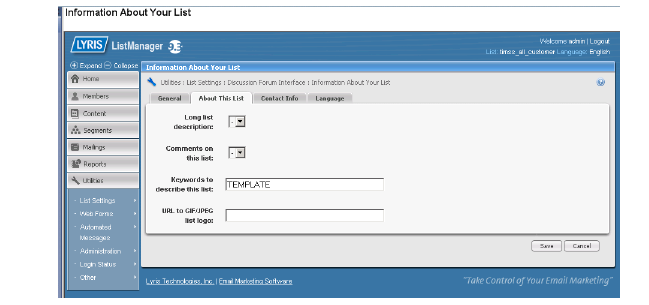
The Information About Your List screen displays as shown below.

7. Select the About This List tab.
8. Enter
TEMPLATE in the Keywords field
as demonstrated below.
9. Click Save.