The first pieces of the command (cmd://App/) default.
The Pop-up Command gives you the ability to display a Personify pop-up window in the bottom right-hand corner of the application. You can also specify different icons to display in the window and the length of time the pop-up remains visible.
· DisplayTimeout – Specifies the length of time, in seconds, the pop-up window remains visible.
· ImageKey – Specifies the type of icon to display in the window.
· Text – Specifies the text that displays in the window.
· Title – Specifies the text that displays at the top of the window.
To build a Pop-up Command:
1. Access
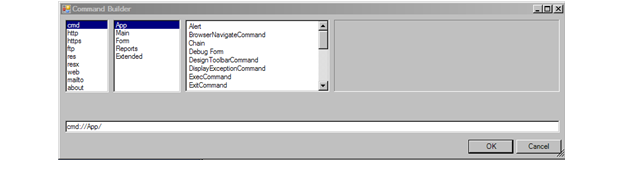
the Command Builder, shown below.
The first pieces of the command (cmd://App/) default.
2. From
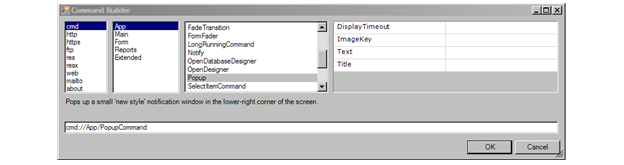
the third window, scroll down and click Popup.
The fourth window activates.
3. In
the DisplayTimeout text box, enter
the number, in seconds, you want the pop-up to remain visible.
For example, 2.
4. In
the ImageKey text box, enter an
icon name.
For example, “information.ico”.
5. In
the Text text box, enter the text
you want to display in the pop-up.
For example, “Cannot Save”.
6. In
the Title text box, enter the
text you want to display at the top of the pop-up.
For example, “Field Error”.
7. Click OK.
Your final command, using the examples given in each step, looks like this:
cmd://App/PopupCommand?ImageKey=information.ico&Text=Cannot Save&Title=Field Error&DisplayTimeout=5
When the control to which you added this command is clicked, this dialog
now displays:
