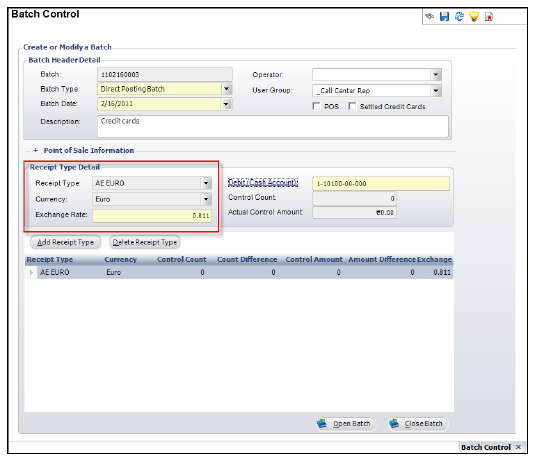
Due to the rules associated with multi-currency and exchange rates, tracking currency conversions through a transaction can appear complicated, especially if you alter an exchange rate when creating a batch or before processing a refund.
This section provides an example of currency conversion in which you override the exchange rate at batch creation and eventually also process a refund for an order in that batch. The example displays how to track the currency conversions and how to calculate the balances yourself.
To track an example of currency conversion:
1. Create a direct posting batch with a different exchange rate for the AE-EURO receipt type.
a. Enter in the batch information on "FAR001".
b. Select the receipt type from the receipt type table.
c. Alter
the Exchange Rate field to "0.811"
and tab out of the field.
This assumes the exchange rate is set at 0.750.
d. Click
Save.
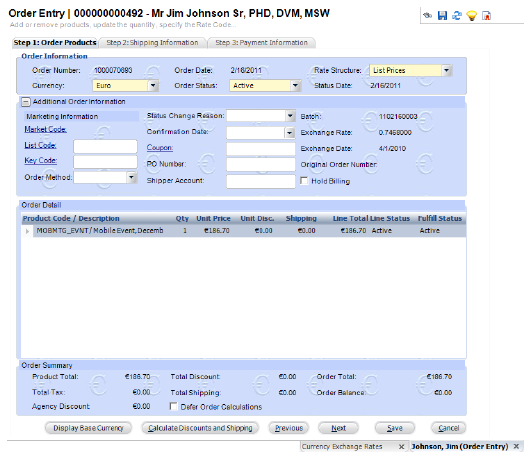
2. Create
an order with the Euro as the currency.
Note on the Additional Order Information tab of ORD001 the exchange rate
still reads 0.75.
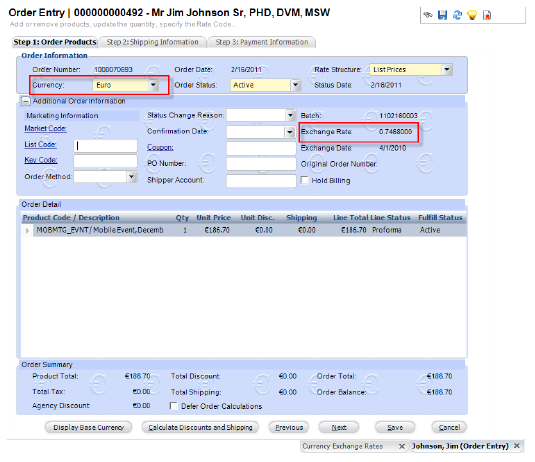
3. Save the order.
4. Click
Display Base Currency at the bottom
of the screen.
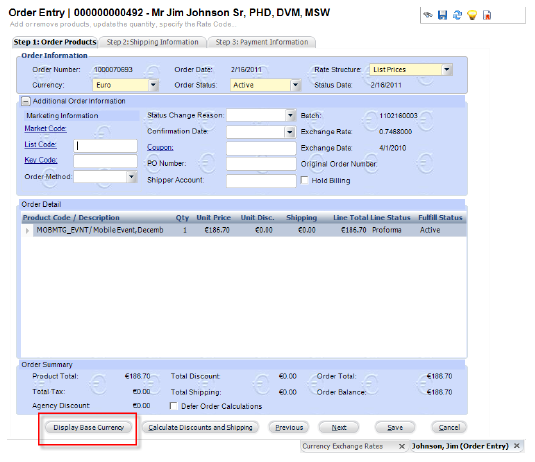
This shows the product order balances in the organization’s base currency
of USD.
Note the total equals $250.00.
5. Click
Display Invoice Currency at the
bottom of the screen.
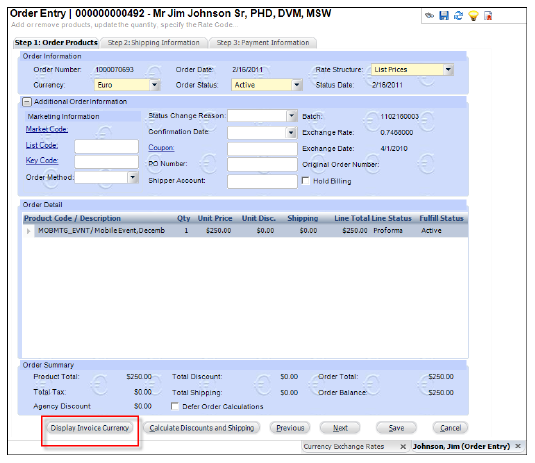
This will revert back to displaying the order in Euros.
Note the exchange rate still reads 0.640.
 If
you add an order line at a later date, a different exchange rate may appear
for each order line on this tab. Remember, the exchange rate is based
on the exchange rate active in your application on the date you place
the line order.
If
you add an order line at a later date, a different exchange rate may appear
for each order line on this tab. Remember, the exchange rate is based
on the exchange rate active in your application on the date you place
the line order.
6. Enter a cash Euro payment for the order.
7. Under
tasks, click Show Financial Analysis.
8. From
the Order Balance table, you can see Line Number 1’s Base Amount of $-250.00
This refers to the base currency order total using the 0.640 exchange rate
active in your application on the date you create the line order.
9. The Base Amount (at the time you created the order) CASH total displays $250.00 because this is the amount of base deposit derived from the 6.40 Euros to your accounts receivable.
Your
organization remains responsible for correction amounts.
Write-offs
of $0.01 occurs because of rounding discrepancies present in the calculations.
Please see Banker’s Rounding in the Rules section of this document for
more information.
10. If
you scroll to the right of the Order Transaction table, you see the Payment Currency, Payment
Amount, and Payment Exchange Rate
information displayed.
This allows you to check all the currency conversion calculations yourself
directly from this screen without the need to navigate back to the Order
Entry screen to retrieve the payment currency information.
11. Process
a refund for this order by clicking Create
Refund.
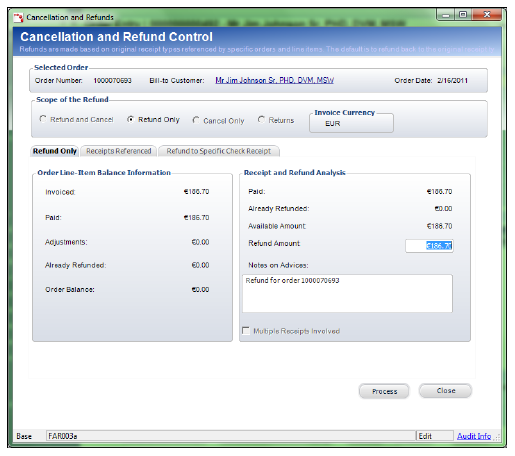
Back on the Order Transaction Analysis screen, the refund appears on the
screen.
The refund currency conversion is based on the exchange rate entered in
the system at the time of the order (0.640), not the exchange rate of
the batch (0.811).
Therefore, your Accounts Receivable shows a refund of $250.00 instead of
the amount deposited at the time payment occurred ($230.21). The exchange
rate of the batch determines the deduction from the bank, while exchange
rate of the line order determines the reduction from your Accounts Receivable.
A currency correction of $19.79 made up the difference between the
batch cash receipt amount and sale amount.
In
the refund case above, the exchange rate at the time of the refund equaled
the exchange rate at the time you added the order line. If the system
exchange rate for the currency used as the invoice currency changed between
the time you created the order line and the time you created a refund,
a currency correction occurs, similar to the one shown for the receipt
transaction discussed earlier in this section.