 This
step is required if you are on a version of Personify prior to 7.4.0.
If you are on Personify 7.4.0 or later, this step is included in the enterprise
installation. For more information, please see the 7.4.0
Installation Guide.
This
step is required if you are on a version of Personify prior to 7.4.0.
If you are on Personify 7.4.0 or later, this step is included in the enterprise
installation. For more information, please see the 7.4.0
Installation Guide.
This
step is required if you are on a version of Personify prior to 7.4.0.
If you are on Personify 7.4.0 or later, this step is included in the enterprise
installation. For more information, please see the 7.4.0
Installation Guide.
If your organization allows users to upload customer profile images or you include product images on your product listing page, you should consider installing the Windows Service. This service creates a Customer Images folder and helps you to standardize the size of all uploaded images ensuring that all customer profile images display in the same size as well as all product images. This way, your users can upload an image at any size and the application will not distort the image when inserting it into the image space.
To install the Windows Service:
1. Navigate
to the “MobileDeploymentPackage\ImageService” folder in the Mobile package
and double-click the PersonifyImageServiceSetup to begin the installation.
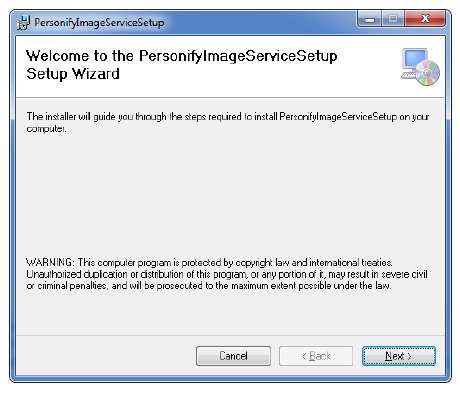
2. Click
Next until you reach the “Select
Installation Folder” screen.
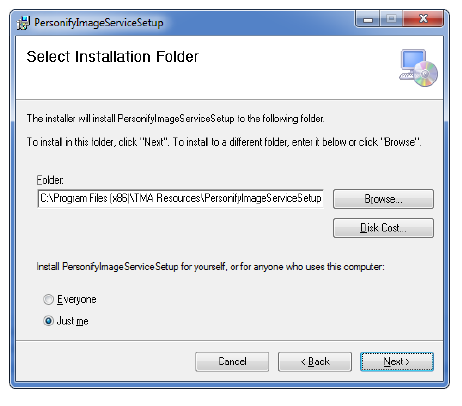
3. Browse and select the file path in which you want to install the Windows Service.
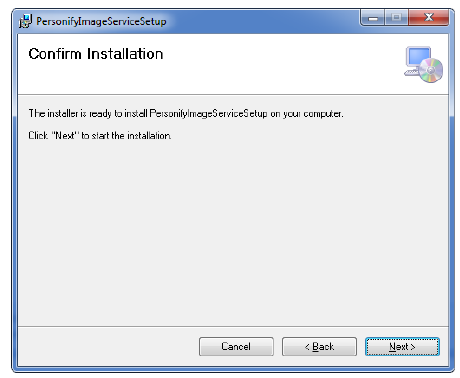
4. Click
Next until you finish the installation.
5. Open the PersonifyImageService.exe.xml file and update the following:
· Seat Information
· App Service URL
6. The following values also appear in the PersonifyImageService.exe.xml. You can modify them as desired:
Key |
Value |
Comments |
|---|---|---|
CustomerImagePath |
(enter the URL) |
Web service will point to this directory for Customer Image URL. |
ProductImagePath |
(enter the URL) |
Web service will point to this directory for Product Image URL. |
EnableEventLogs |
False |
For Production |
ProfileThumbnailHeight* |
40 |
Customer Image |
ProfileThumbnailWidth* |
60 |
Customer Image |
ProfilePictureWidth* |
100 |
Customer Image |
ProfilePictureHeight* |
100 |
Customer Image |
RefreshImageInterval |
3600000 |
In milliseconds. Recommended 1- 24 hrs. |
These are
the recommended values for the image sizes. The profile height and width
can go to 200 X 200 max. The image size should be < 100 K for the best
performance.
7. Save and close the config.xml file.
8. Click on Start to start the service.
9. If the service fails to start, check the application event log and/or your email for an error report.