The News screen displays, as shown below.
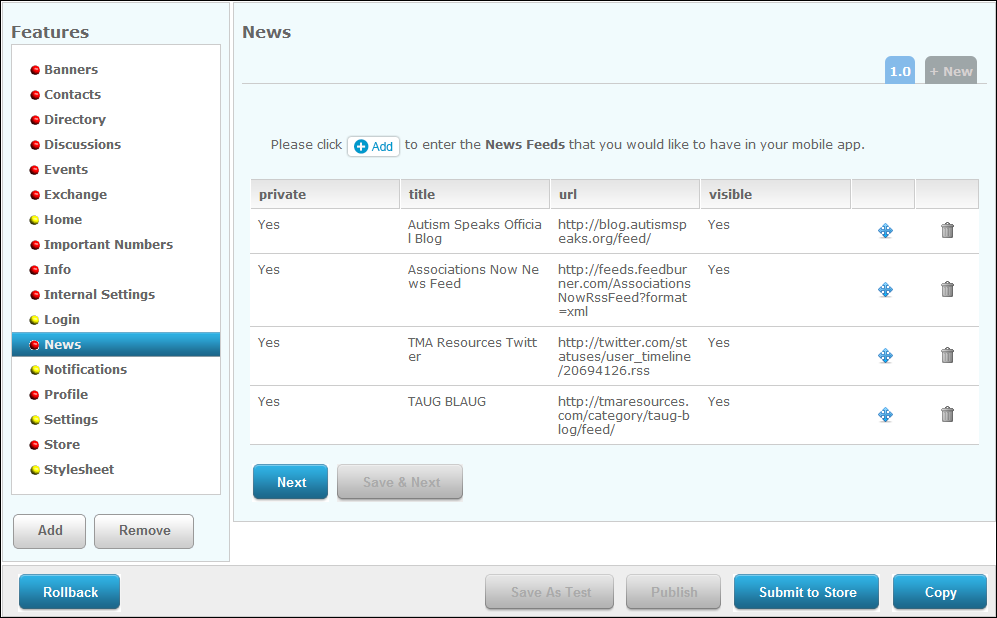
The RSS Feed posts that display on the homepage as well as in the News module are configured on the News screen in S3. Association’s must provide an RSS Feed title (e.g., Autism Speaks Official Blog) and the accompanying RSS Feed URL for it to display. If multiple RSS feeds are desired for an association, the most recent post for the first RSS Feed listed on the News screen in S3 displays on the homepage, while all RSS Feeds must be viewed from the News module.
To add news feeds:
1. From
the S3 Mobile Apps Detail screen, click News
from the Features menu on the left.
The News screen displays, as shown below.
2. Click
 .
.
The News Feed screen displays, as shown below.
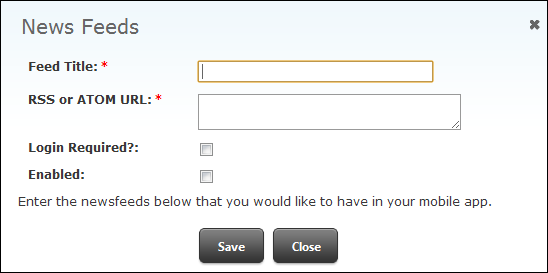
3. Enter the Feed Title.
4. Enter the RSS or ATOM URL.
5. If necessary, select the Login Required? checkbox to view the news feed.
6. If necessary, select the Enabled checkbox to determine whether or not the news feed is enabled and will be displayed in the News module.
7. Click
Save.
The news feed is added to the News screen. If necessary, click the garbage
icon  to delete the news feed from the News module.