The Login screen displays, as shown below.
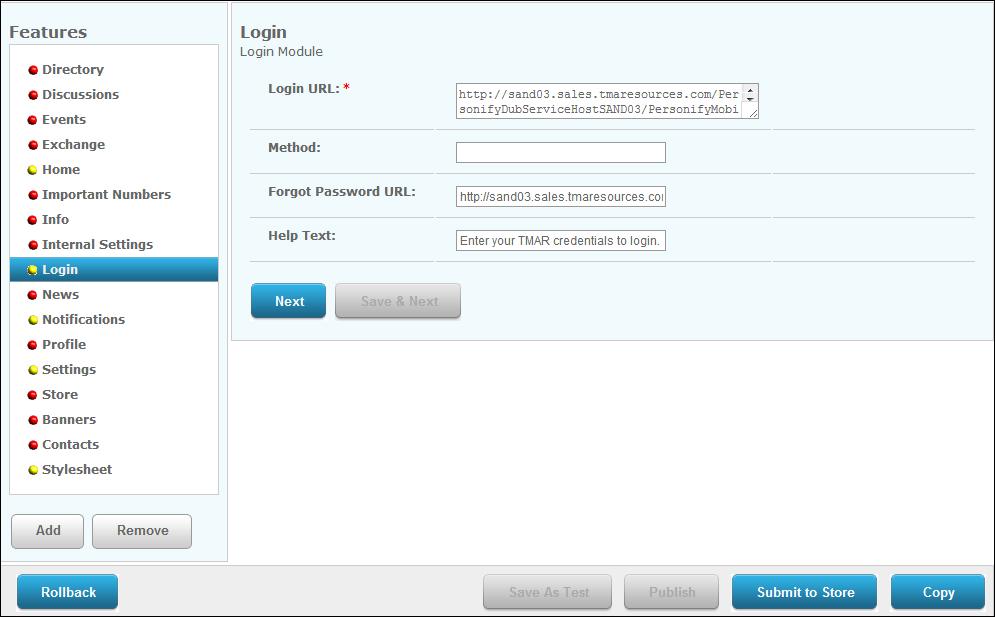
When users first access the Personify Mobile application, they will NOT be prompted to login. Only public modules will display before the user logs in. The log in page can be configured to display help text instructing users what information to enter.
To configure the login page:
1. From
the S3 Mobile Apps Detail screen, click Login
from the Features menu on the left.
The Login screen displays, as shown below.
2. Enter
the Login URL. Fill in the information
in red brackets below with the location of your "ValidateUserCredentials"
web service.
https://[resource1.tmaresources.com/PersonifyMobileWebService/personifymobilesvc.svc]/ValidateUserCredentials
3. If necessary, enter the Method.
4. If
necessary, enter the Forgot Password
URL.
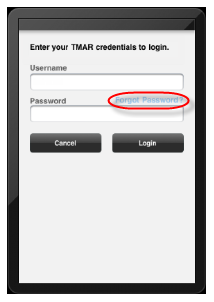
This is the URL that will open if the user clicks the Forgot Password?
link, as shown below.
5. If
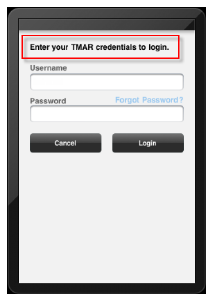
necessary, enter some Help Text.
If you enter some Help Text, the text will display at the top of the login
page, as highlighted below.
6. Click Save.