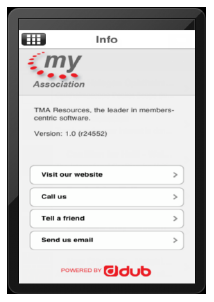
The information that is displayed when the users access the Info module is defined on the Info screen in S3, as shown below.
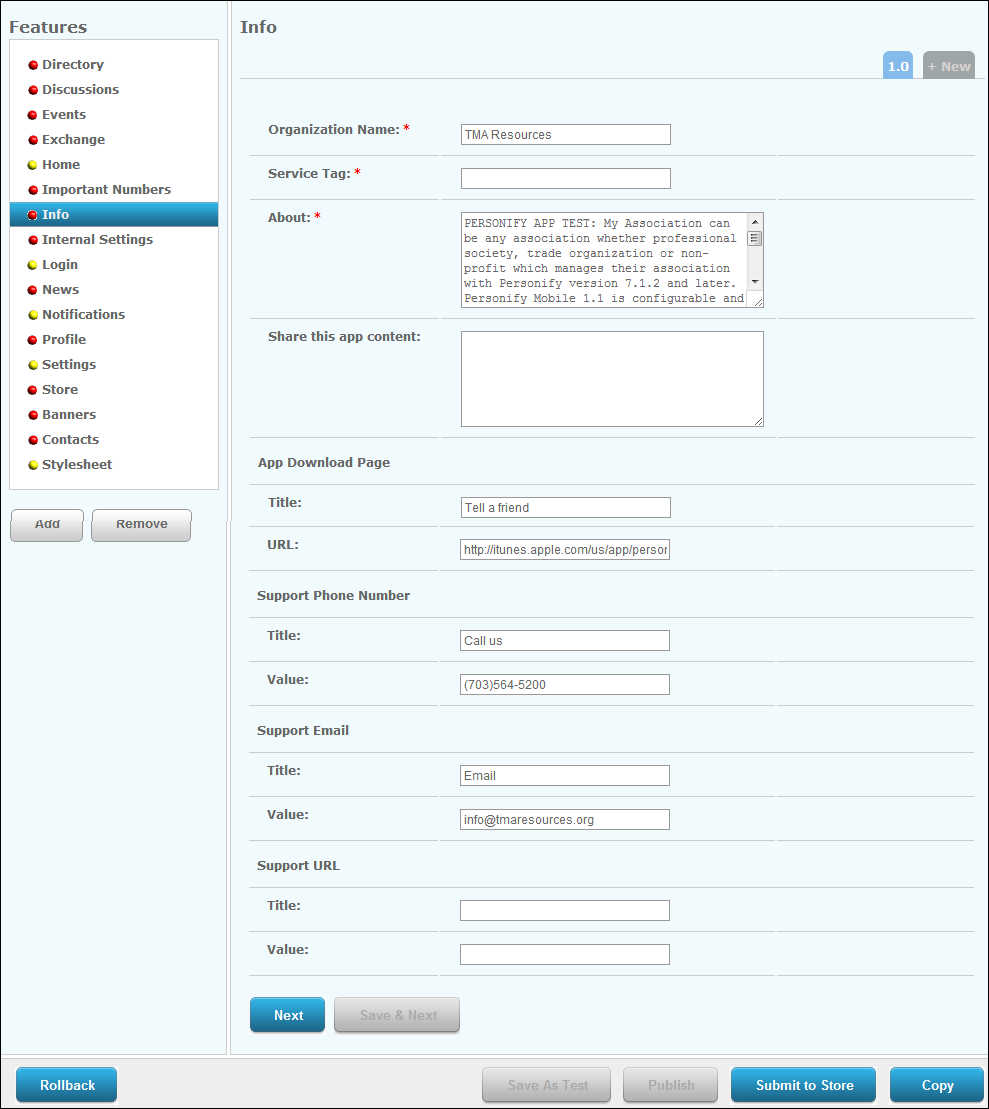
The following information is required:
· Organization Name
· About
· Support Email
· Support URL
· App Download Page Title
· App Download Page URL
To set up the Info module:
1. From
the S3 Mobile Apps Detail screen, click Info
from the Features menu on the left.
The Info screen displays, as shown below.
2. Enter your Organization Name.
3. Enter the Service Tag.
4. Enter
a brief statement about your organization and mobile application in the
About field.
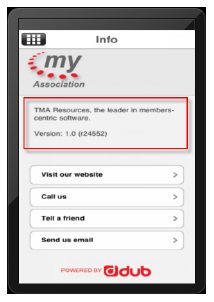
The about statement will display at the top of the Info module, as highlighted
below.
5. If necessary, enter the Share this app content.
6. Enter
the App Download Page Title
and the App Download Page URL.
This URL displays in an email when the user clicks Tell a friend, as shown
below. This URL will take the user to a site where they can download the
Personify Mobile application.

 Because the
Personify Mobile application is offered for iPhone, Blackberry, and Android,
TMA Resources recommends that the App Download Page URL should take users
to a site where they can choose which device to download the application
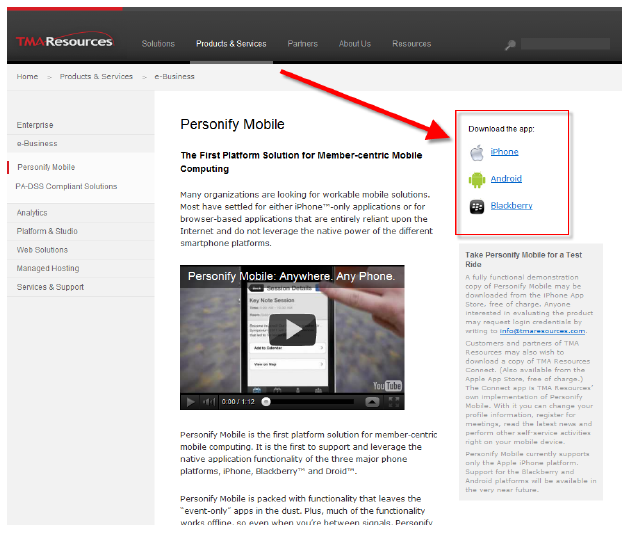
for. In the example below, the App Download URL would take users to the
TMA Resources corporate site where they can choose their device.
Because the
Personify Mobile application is offered for iPhone, Blackberry, and Android,
TMA Resources recommends that the App Download Page URL should take users
to a site where they can choose which device to download the application
for. In the example below, the App Download URL would take users to the
TMA Resources corporate site where they can choose their device.
7. If necessary, enter the Support Phone Number Title and Value.
8. Enter
the Support Email Title and Value.
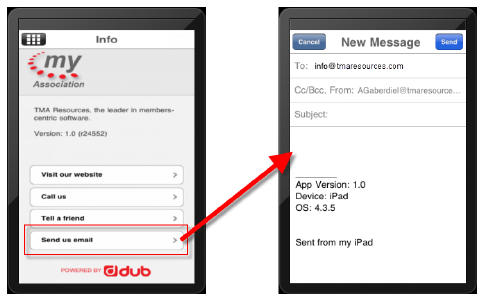
This email address will be added to the To field in a new email message
when the user clicks the Send us email button, as shown below.
9. Enter
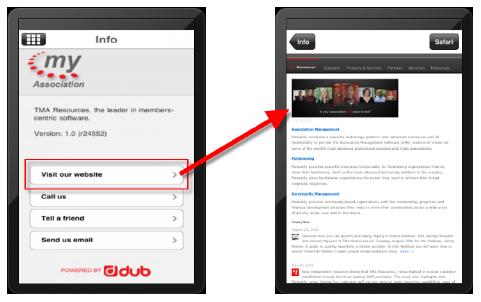
the Support URL Title and Value.
This URL will open when the user clicks Visit our website, as shown below.
10. Click Save.