 Keep
in mind, disabling a module prohibits all users from accessing it. If
your association wants to make a module only accessible to logged-in users,
they can enable the module, but set it as “Private” as discussed in this
section.
Keep
in mind, disabling a module prohibits all users from accessing it. If
your association wants to make a module only accessible to logged-in users,
they can enable the module, but set it as “Private” as discussed in this
section.
As discussed earlier, a total of 11 Personify Mobile Application modules are available to users from the application home page. By default, all mobile application modules are enabled to be displayed on the home page when users access the Personify Mobile application.
Associations can choose to disable any of these modules. For example, if the association does not have an RSS feed, they can request to disable the News module which displays recent posts from the RSS feed’s URL. If disabled, the module icon does not appear on the homepage.
All mobile modules can be defined as public or private:
· Public Modules
Visible and accessible to all users who downloaded the mobile application.
· Private Modules
Always visible but only accessible to users logged into the mobile application
with their active e-Business Web credentials. If a logged-out user tries
to access a private module, a message displays requesting a username and
password.
By default, all mobile application modules are configured as “Public.” The Public/Private settings only pertain to enabled modules.
Keep
in mind, disabling a module prohibits all users from accessing it. If
your association wants to make a module only accessible to logged-in users,
they can enable the module, but set it as “Private” as discussed in this
section.
To configure your mobile home page:
1. From
the S3 Mobile Apps Detail screen, click Home
from the Features menu on the left.
The Home screen displays, as shown below.
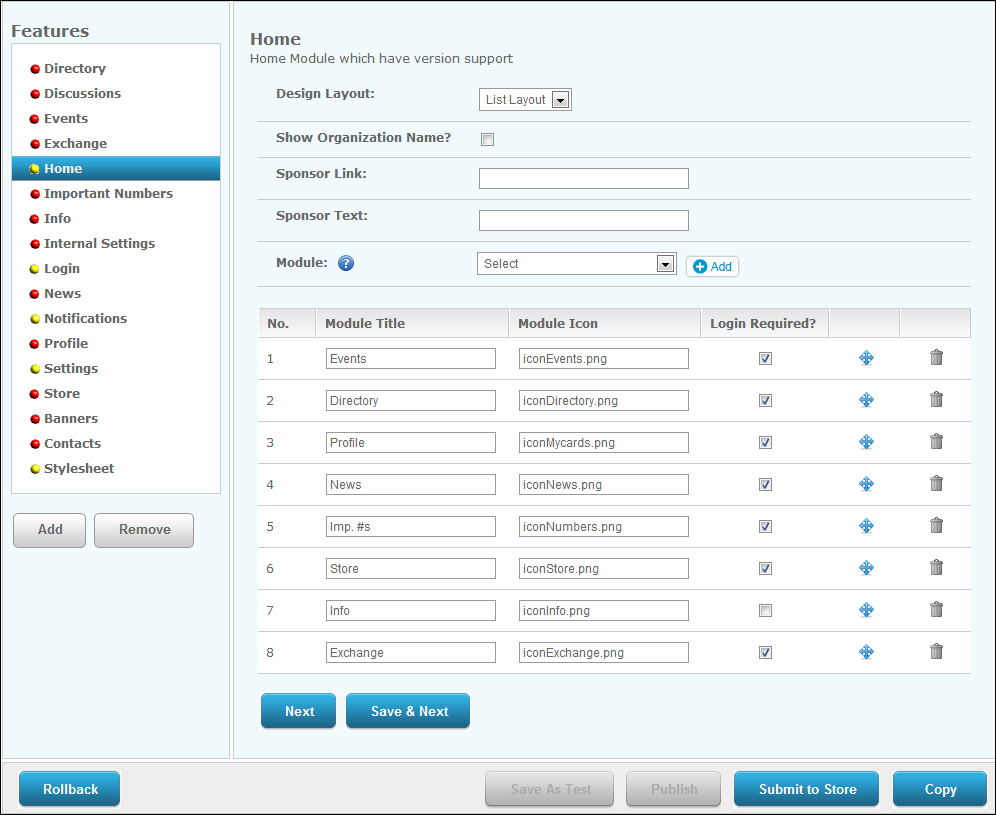
2. Select the Design Layout: List Layout or Grid Layout.
3. Select whether or not to Show Organization Name? on the home page.
4. If necessary, enter a Sponsor Link URL.
5. If you entered a Sponsor Link URL, enter the Sponsor Text.
6. To
add a new module to the home page, select the Module
from the drop-down and click Add.
The module is added to the bottom of the list.
7. If necessary, change the Title of any of the listed modules.
TMA Resources
recommends that you do NOT change the Module Icon name.
8. To select which modules are public or public, select the Login Required checkbox next to the appropriate enabled module(s).
9. To select the mobile modules which will display on the home page, select the Enabled checkbox next to the appropriate module(s).
10. If
necessary, to rearrange the order in which the modules will display on
the home page, click the cross arrow icon  next to
the appropriate module and drag the selected module up or down.
next to
the appropriate module and drag the selected module up or down.
Icons will be displayed 3x3 on the home page. Any additional icons will
be displayed on the second page.
11. If
necessary, click the garbage icon  to delete a module
from the home page.
to delete a module
from the home page.
12. Click Save.