 Staff users will always see
members and authenticated users whether or not this option is enabled.
Staff users will always see
members and authenticated users whether or not this option is enabled.
The only customer records that appear in the Directory module are those whose Include_In_Directory = True.
Staff users will always see
members and authenticated users whether or not this option is enabled.
By default, after running the UpdateCustomer_IncludeInDirectory script mentioned earlier, all customer records have a value of “True” for this field, making all customer records visible in the Directory.
While customers have the option of modifying this status via the Preferences module on the Personify Mobile application, this field is not currently displayed anywhere in the back-office Personify application. Therefore, your association needs to add the Include_In_Directory flag to the Customer Central screen in the back-office, so you can modify the value for customers.
To add the Include_In_Directory flag to the CusCentral screen:
1. Open the Personify application.
2. From
the menu, open Customers > Customer
Central.
This opens the CusCentral screen.
3. From
the tool bar, open Tools > Design
This Form, as shown below.
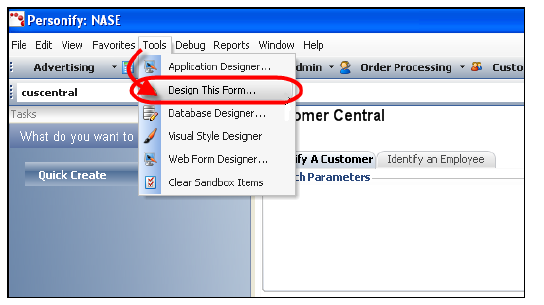
This opens the CusCentral form in the Personify Application Designer, as
shown below.
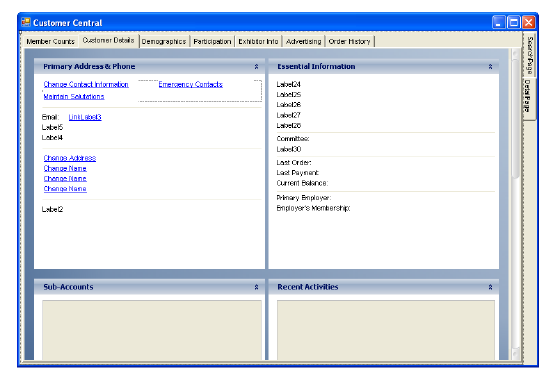
4. Add a CheckBox control to the CusCentral form at any location.
5. Link this CheckBox control to the Include_In_Directory field.
6. Save and publish the form.
For
more information on working with the Personify Application Designer and
modifying forms, please see the Application
Designer section.