The Membership Subscriptions screen displays, as shown below.
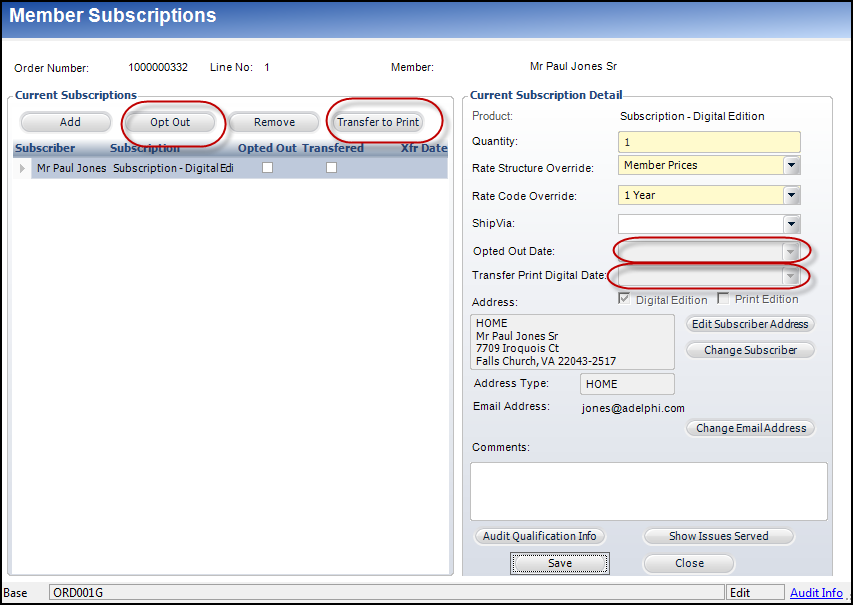
If a customer would like to transfer the subscription benefit during their membership to either a digital or print version of the same publication, the Transfer button will accomplish this task.
To transfer a subscription benefit:
1. From the Order
Entry screen, click Edit Membership Subscriptions from the Work
with Line Items task category.
The Membership Subscriptions screen displays, as shown below.
2. If the current edition is Digital, the Transfer button will display "Transfer to Print". If the current edition is Print, the Transfer button will display "Transfer to Digital".
3. Click the Transfer button and the old product line will display the Transferred box checked and set the Transfer Date. A new row will be added for the transfer-to subscription product.