The Cancellation and Refunds screen displays, as shown below.
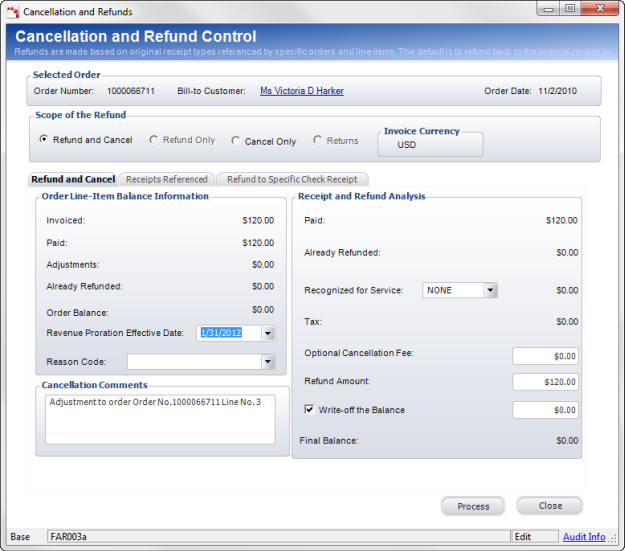
A membership order may need to be cancelled and the customer may request a full refund. Your association may have special processing scenarios for cancelling and refunding a membership order, which is determined by the Recognized for Service option selected in the Receipt and Refund Analysis section of the Cancellation and Refunds screen. Depending on the option selected, the Refund Amount updates automatically.
To refund and cancel a membership order:
1. On the Order Entry screen, select the appropriate line item.
2. Click Cancel
an Item from the Work with Line Items task category or Cancel an
Order from the Work with Orders task category.
The Cancellation and Refunds screen displays, as shown below.
3. From the Scope of the Refund section, select the Refund and Cancel radio button, as shown to the right.
4. On the Item to Cancel or Refund tab, select the appropriate line item to cancel and refund.
5. On the Refund and Cancel tab, select the Revenue Proration Effective Date.
6. Select the Reason Code from the drop-down.
7. Enter any Cancellation Comments.
8. Select the Recognized
for Service type.
This will create a dr/cr memo to reverse the sale (credit revenue, debit
AR). Select “None” to refund the entire amount to the customer, “Recognize
All” to recognize the entire amount in revenue and not refund the customer
(defaulted for a cancellation only), or "Amount Paid" to recognize
all the amount paid by the customer.
 As
of 7.4.1, if the order has a payment schedule defined, the Recognized
for Service drop-down will default to "Amount Paid". If you
select “Prorate” instead of “Amount Paid”, the system will evaluate whether
the calculated prorated revenue to be recognized needs to be adjusted.
The amount paid less any previous refund less the revenue to be recognized
should equal $0. If the amount paid less any previous refund less
the revenue to be recognized is between -.01 and -.05, the revenue to
be recognized will be adjusted so that the amount paid less any previous
refund less the revenue to be recognized equals $0.
As
of 7.4.1, if the order has a payment schedule defined, the Recognized
for Service drop-down will default to "Amount Paid". If you
select “Prorate” instead of “Amount Paid”, the system will evaluate whether
the calculated prorated revenue to be recognized needs to be adjusted.
The amount paid less any previous refund less the revenue to be recognized
should equal $0. If the amount paid less any previous refund less
the revenue to be recognized is between -.01 and -.05, the revenue to
be recognized will be adjusted so that the amount paid less any previous
refund less the revenue to be recognized equals $0.
9. Enter the Optional Cancellation Fees, if necessary.
10. Enter
the Refund Amount.
This will default with the amount being reversed up to the amount paid. This will create the
voucher in Personify. This value changes automatically depending on the
Recognized for Service option selected.
11. If you check the Write-off the Balance checkbox, then enter the amount of the write-off in the text box.
12. On the Receipts Referenced tab, highlight the appropriate receipt.
13. If the receipt was originally created by credit card, the Refund to Specific Check Receipt tab displays, as shown below:
a. On
the Refund to Specific Credit Card Receipt (shown below), enter the Refund
Amount.
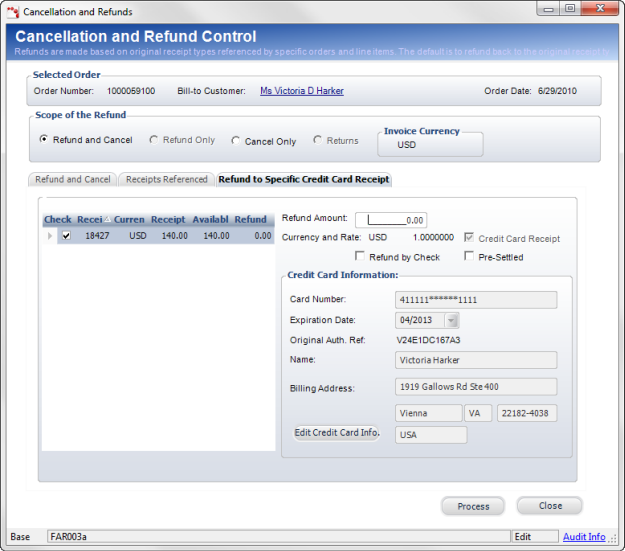
b. To refund the order by check, select Refund by Check and proceed to the Refund to Specific check tab.
c. If your association used a lockbox or outside service to process the credit card receipt, select the Pre-Settled checkbox.
d. If necessary, click Edit Credit Card Info.
e. Click
Process.
The refund will go to VeriSign and settle the next time the settlement
process is run. The Cancellation and Refunds screen closes and the status
of the membership order line changes to “Cancelled”.
14. If
the receipt was originally credited by cash or check, the Refund to Specific
Check Receipt tab displays, as shown below:
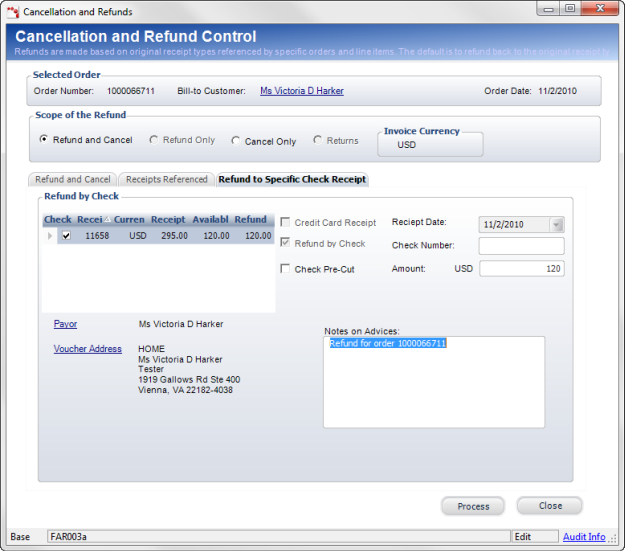
a. If
the check has already been issued, select the Check Pre-Cut checkbox.
If this checkbox is checked, the voucher will not flow to the AP system.
b. Enter the Check Number.
c. Enter the refund Amount.
d. If necessary, click the Payor link to view more details about the customer.
e. If necessary, click the Voucher Address link to select a different address.
f. Enter any Notes on Advices.
g. Click Process.
The Cancellation and Refunds screen closes and the status of the membership
order line changes to “Cancelled”.