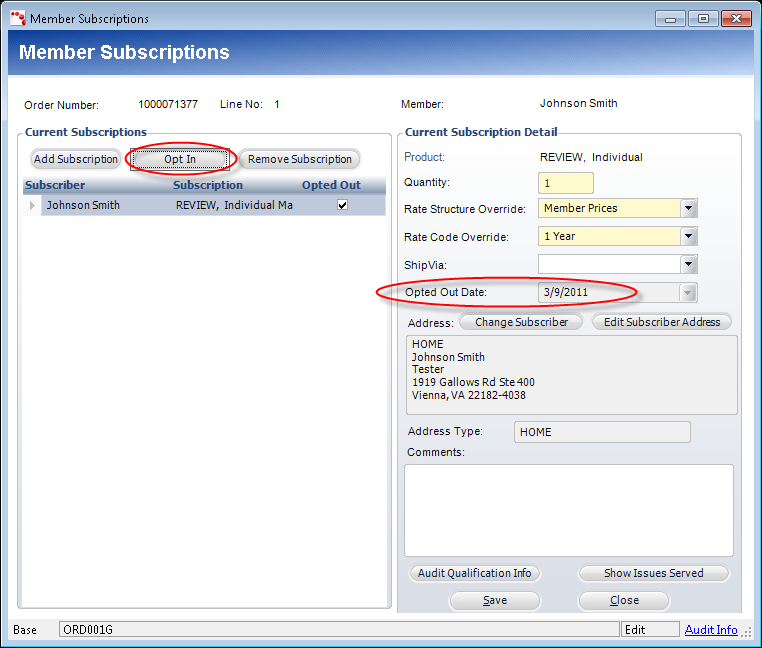
The Membership Subscriptions screen displays, as shown below.
If a customer would like to stop receiving the subscription benefit during their membership, the Opt Out button will stop the subscription and will cause the subscription benefit to NOT be renewed.
To opt out of a subscription benefit:
1. From the Order
Entry screen, click Edit Membership Subscriptions from the Work
with Line Items task category.
The Membership Subscriptions screen displays, as shown below.
2. Select the appropriate subscription from the grid.
3. Perform one of the following:
a. Click Opt Out.
The Opted Out Date is updated to today’s date. If the subscription benefit
was opted out by mistake or the customer wants to opt back in, click Opt
In (highlighted above).
b. If the customer only wants to stop receiving the subscription benefit for the current membership and wants the subscription benefit to start again when he/she/it renews the membership order, click Remove Subscription.
4. Click Save.