The Cancellation and Refunds screen displays, as shown below.
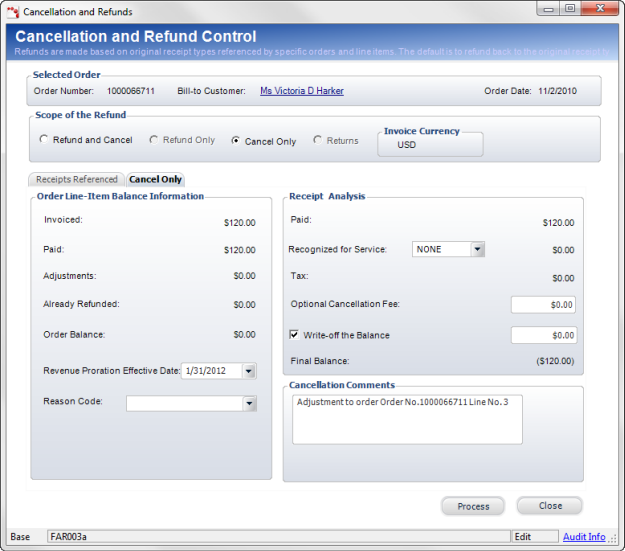
Cancelling an order, without also refunding the order, results in a credit balance on the order. That credit balance can then be transferred to another order, if necessary. The credit balance is displayed in parentheses as the Final Balance in the Receipt Analysis section of the Cancellation and Refunds screen.
To cancel a membership order:
1. On the Order Entry
screen, click Cancel an Item from the Work with Line Items task
category or Cancel an Order from the Work with Orders task category.
The Cancellation and Refunds screen displays, as shown below.
2. From the Scope of the Refund section, select the Cancel Only radio button.
3. On the Receipts Referenced tab, highlight the appropriate receipt.
4. On the Cancel Only tab, select the Revenue Proration Effective Date.
5. Select the Reason Code from the drop-down and enter Cancellation Comments.
6. Select the Recognized
for Service type.
Select “None” to refund the entire amount to the customer, “Recognize All”
to recognize the entire amount in revenue and not refund the customer
(defaulted for a cancellation only), “Prorate” to refund only the remaining
amount of the order to the customer, or "Amount Paid" to recognize
all the amount paid by the customer.
 As
of 7.4.1, if the order has a payment schedule defined, the Recognized
for Service drop-down will default to "Amount Paid". If you
select “Prorate” instead of “Amount Paid”, the system will evaluate whether
the calculated prorated revenue to be recognized needs to be adjusted.
The amount paid less any previous refund less the revenue to be recognized
should equal $0. If the amount paid less any previous refund less
the revenue to be recognized is between -.01 and -.05, the revenue to
be recognized will be adjusted so that the amount paid less any previous
refund less the revenue to be recognized equals $0.
As
of 7.4.1, if the order has a payment schedule defined, the Recognized
for Service drop-down will default to "Amount Paid". If you
select “Prorate” instead of “Amount Paid”, the system will evaluate whether
the calculated prorated revenue to be recognized needs to be adjusted.
The amount paid less any previous refund less the revenue to be recognized
should equal $0. If the amount paid less any previous refund less
the revenue to be recognized is between -.01 and -.05, the revenue to
be recognized will be adjusted so that the amount paid less any previous
refund less the revenue to be recognized equals $0.
7. Enter the Optional Cancellation Fees, if necessary.
8. If you check the Write-off the Balance checkbox, then enter the amount of the write-off in the text box.
9. Click Process.