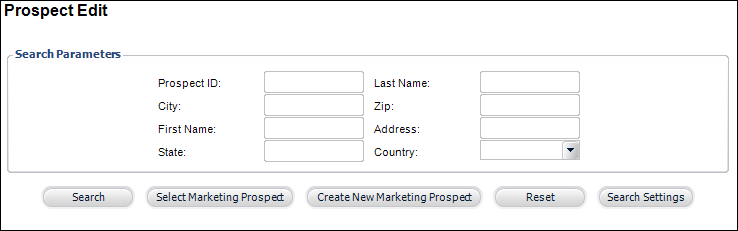
The Prospect Edit search screen displays, as shown below.
When a prospect is entered in the database, at some point, you may want to turn that prospect into a customer with all the same information that exists in the prospect record.
To convert a prospect into a customer:
1. From
the toolbar, select Marketing & Communication
> Prospect Edits.
The Prospect Edit search screen displays, as shown below.
2. Search for and select the appropriate prospect.
3. On
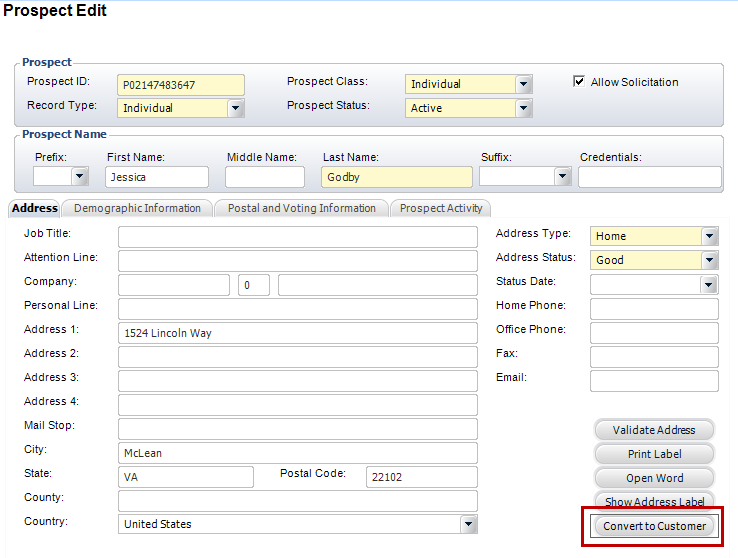
the Address tab, click Convert to Customer,
as highlighted below.
The Address Validation screen displays, as shown below.
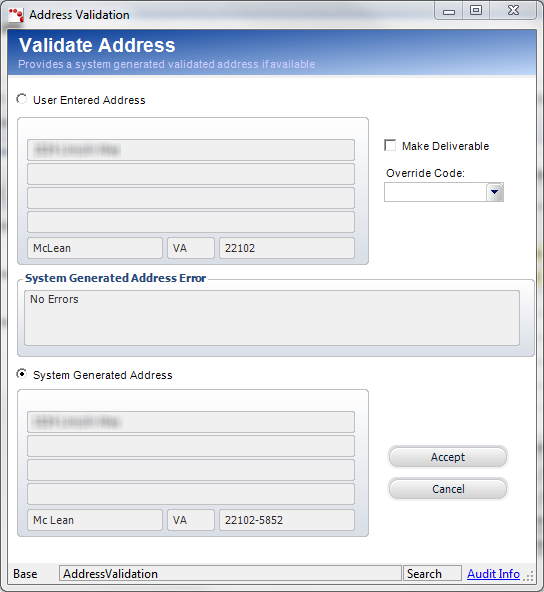
4. Select the User Entered Address radio button if you would like to type a new address for the customer, or select the System Generated Address radio button if you would like to use the address originally assigned to the prospect.
5. Click Make Deliverable if you would like this customer address to be the deliverable address.
6. If necessary, select an Override Code from the drop-down menu.
7. Click
Accept.
A confirmation message displays that the prospect was successfully converted
to a customer and the new customer ID.