 If
you want to change the default date/time format to a different country's
date/time format this setting has to be updated in the web.config:
If
you want to change the default date/time format to a different country's
date/time format this setting has to be updated in the web.config:<appSettings>
<add key="DefaultCulture" value="en-US"/>
The My Meetings control displays a list of up to four meetings that a logged in user has purchased. It also displays links that allow users to view the agenda and order summary for the meeting(s). If a user is registered for more than four meetings, he/she can navigate to Purchase History control to see all meeting registrations. The My Meetings control will only display parent products and will not display any subproducts. In addition, it will only display active meetings; proforma and cancelled meetings will not display. See Configuring the Web Settings for the My Meetings Control for more information on how to drop this control onto a page on your e-Business website.
Before configuring the My Meetings control, it is important that your back office configurations are accurate. If not, these configurations will not display properly on your e-Business website. See Configuring the Back Office Settings for the My Meetings Control for more information on the system types and codes that need to be web enabled before setting up this control.
If
you want to change the default date/time format to a different country's
date/time format this setting has to be updated in the web.config:
<appSettings>
<add
key="DefaultCulture" value="en-US"/>
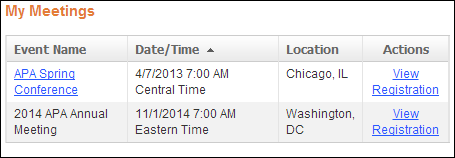
After setting up the My Meetings control, your users will see the control
similar to the one displayed below.
A meeting
setup in the back office to start at 3 pm Eastern Standard Time (EST)
will display on a calendar as noon for a user who downloads it to a Pacific
Standard Time (PST) calendar. When the meeting is downloaded to a calendar,
the time is recalculated using the Time Zone offset field. See Configuring
the Back Office Settings for the My Meetings Control for more information.
When your user selects the View Registration link, if the event is web
enabled in the back-office, he/she is taken to the product details
page, as shown below.

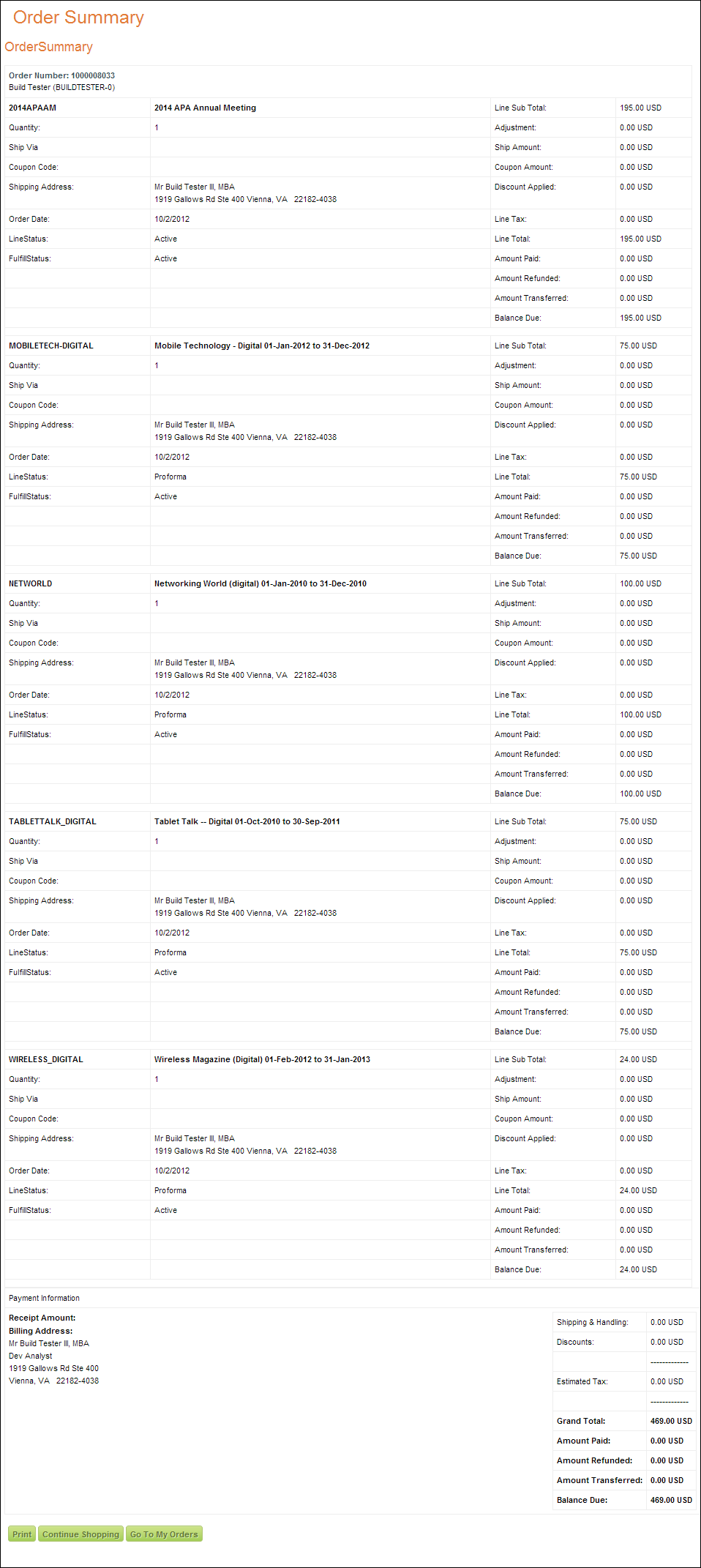
When your user selects the View Registration link, if the event is not
web enabled in the back-office, he/she is taken to the order summary
page for that order, as shown below.
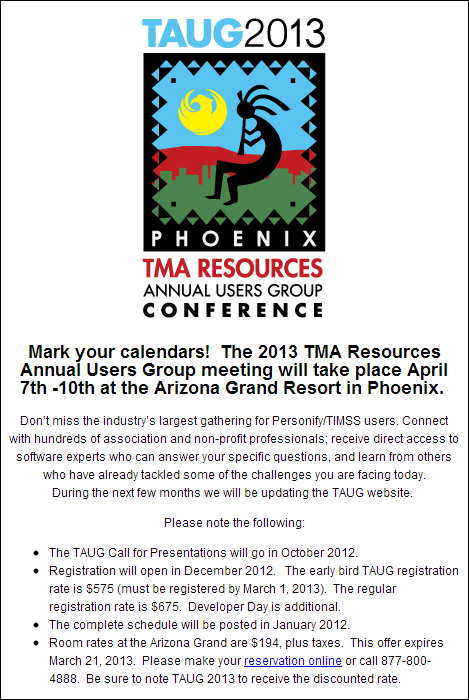
When your user selects the event name link, if the product is web-enabled in
the back-office and has a product URL, he/she is taken that product's
URL, as shown below.
When your user selects the event name link, if the product is web-enabled in
the back-office and does not have a product URL, he/she is taken
that product details page, as shown below.
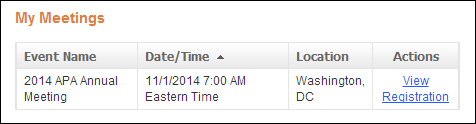
If the product is not web-enabled in the back office, the event name will not be a link, as shown below.
This
will only display up to four upcoming meetings that a user is registered
for.