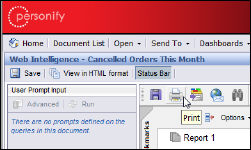
Data Analyzer lets you print reports. However, to do this, you must make sure that your report is displayed as a PDF and not in HTML. The My Reports portal does not allow you to print reports in HTML format, unless you first change it to PDF.
The following procedure assumes that you opened Data Analyzer from the Personify application and have an open report the My Reports portal.
To print a report if you choose to display reports natively in HTML:
1. Open
your report
The report displays in its native HTML format (depending on how your Web
Intelligence Document options are set.)
2. From
the View menu in the Report toolbar, select PDF mode.
The report is displayed as a PDF within the My Reports portal.
3. Click
the Print icon on the Adobe toolbar
in the PDF.
4. Print
as normal.
Click View in HTML format in the Report toolbar to return to the original
format.
If you choose to display Web Intelligence documents in PDF format by default, you can start the print report procedure at step 3.
If you choose to view reports natively in HTML, do not use the Print icon or the File menu Print option to print reports. The report will not render as intended.