
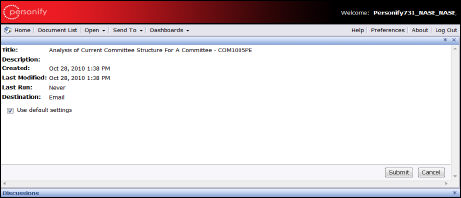
The email information displays, as shown below.
Data Analyzer lets you e-mail reports to others, including members of your organization or outside e-mail addresses, from the My Reports portal.
The following procedure assumes that you have logged into Data Analyzer from the Personify application and have an open My Reports portal window.
To e-mail a Web Intelligence or Crystal Report:
1. Open the list of Webi documents by clicking on Document List from the home page.
2. Open the folder from the left-side pane that includes the report you want to email.
3. Select the desired report from within the main pane.
4. From
the toolbar, select Send To > Email.
The email information displays, as shown below.
5. Uncheck
Use Default Settings.
The email settings options appear, as shown below.
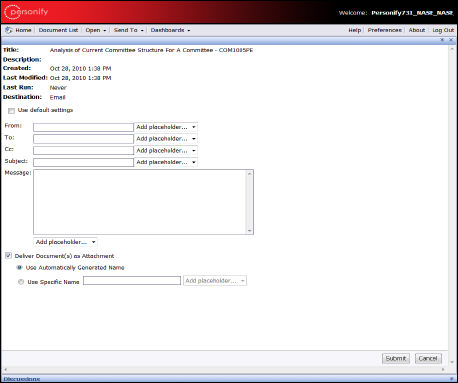
6. Enter details for your e-mail message; for example, sender e-mail address, recipient e-mail address, subject, and message.
7. Click Submit.
 Your recipient
receives an email with a hyperlink to the report you selected. He/she
needs to click on the link from the email, which navigates them to a Business
Objects InfoView Login screen.
Your recipient
receives an email with a hyperlink to the report you selected. He/she
needs to click on the link from the email, which navigates them to a Business
Objects InfoView Login screen.
Once there, the recipient must enter the entire BOE User Name string (for
example, PersonifyProd_OrgID_OrgUnitID_TR_UserName) and password is the
same as your Personify password and for network user the user id would
be NetworkDomain\PersonifyProd_OrgID_OrgUnitID_TR_UserName with blank
password.