Defining Components
This task defines products that should be included with
the active products at no additional charge. Any product in Personify
can be added as a product component. Transactions and pricing will be
at the master product level, not at the component level. Packages cannot
be included as a component.
 Components
are always $0.
Components
are always $0.
To define components:
1. Click
Define Components from the
Define the Product task category.
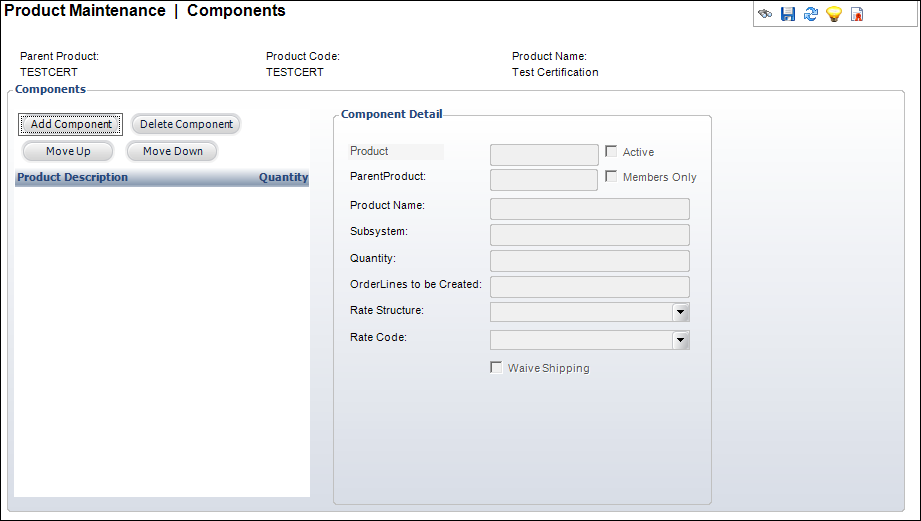
The Components screen displays, as shown below.
2. Click
Add Component.
The Product Chooser screen displays. Enter information and search for a
product. Double-click a product to add it to the table.
3. Enter
the Quantity.
4. If
necessary, enter the Order Line to be
Created.
5. If
necessary, select a Rate Structure and
Rate Code.
6. If
shipping is waived for this component, check the Waive
Shipping checkbox.
7. If
necessary, change the Active status.
8. If
necessary, use the Move Up and
Move Down button to arrange the
components in the correct order.
9. Click
Save.
| Screen Element |
Description |
Components |
| Add Component |
Button. When clicked, the Product Chooser screen displays.
Search for a component and double-click it to add it to the table.
The fields in the Component Detail section are populated. |
| Delete Component |
Button. When clicked, a pop-up displays stating “You have selected
1 row for deletion. Choose Yes to delete the row or No to exit.”
Click Yes to delete the row from the table and the component from
the meeting. |
| Move Up |
Button. When clicked, the highlighted product is moved one
row up in the grid. |
| Move Down |
Button. When clicked, the highlighted product is moved one
row down in the grid. |
Component Detail |
| Product |
Link. The component product fills in this field automatically.
Click the link to open the Product Chooser screen and search for
a new product. |
| Subsystem |
Read-only. Subsystem associated with the product. |
| Parent Product |
Read-only. Brought in from the product search for new records
or from the Product Component table for existing components. |
| Product Name |
Read-only. The name of the product selected from the Product
field. |
| Rate Method |
Read-only drop-down. The rate method associated with the component.
If “Calculated” is selected, the system determines the rate code
and structure. |
| Quantity |
Text box. The quantity of the component that should be included. |
| Order Line to be Created |
Text box. How many order lines you want created based on quantity
given. |
| Rate Structure |
Drop-down. Validated against the rate structure table. When
set, this specific rate structure will be used on the order detail
record created when the product is ordered. |
| Rate Code |
Drop-down. The rate or price associated with the rate structure
selected. |
| Waive Shipping |
Checkbox. When checked, this component will not be included
in any calculation of shipping charges. |
| Active |
Checkbox. When checked, indicates the component is an active
product. |
| Members Only |
Checkbox. This is disabled unless the product is members only. |
|