To Select a Web Application Server Configuration Option
The web application server runs Business Objects web applications such
as InfoView, the Central Management Console (CMC), and custom web applications.
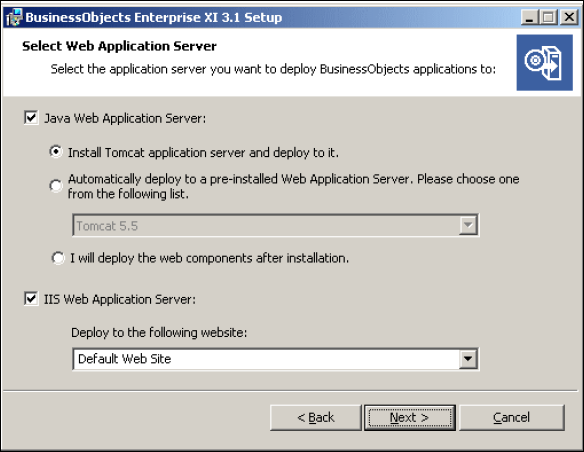
Use the "Select Web Application Server" screen to choose to:
· Install
and/or deploy to a Java web application server, such as the Tomcat web
application server included with BusinessObjects Enterprise.
· Install
and deploy to the IIS web application server installed as part of your
Windows operating system.
 If you are using the 64-bit version of IIS 7, you must ensure that:
ASP.NET is enabled.
The advanced IIS setting Enable 32-bit
Applications is set to "True".
The advanced IIS setting .NET Application
Pool is set to "Classic" mode.
If the IIS Web Application Server
option is not selectable, ensure that ASP.NET v1.1 and IIS are both
installed.
To configure a Java web application server for BusinessObjects Enterprise you
will need the web application server administrator account name and password,
as well as the listener port number.
1. To
use a Java web application server, select Java
Web Application Server and choose one of the following options:
· Install Tomcat application server and deploy
to it. This will automatically install and configure Tomcat.
· Automatically deploy to a pre-installed
Web Application Server. This will prompt you to enter the
configuration and authentication information on the next screen.
2. To
use the IIS web application server included as part of your Windows operating
system, choose IIS Web Application Server,
then select the website to use for deployment from the drop-down
list.
3. Click
Next.
Depending on your selection, you can now proceed to either configure your
web application server, or start the installation process.
To configure a new Tomcat web application
server
The "Configure Tomcat" screen
displays during installation if you choose to install Tomcat as the
web application server for your BusinessObjects Enterprise
installation. Use this screen to configure Tomcat.
1. Accept
the default values or specify new port numbers for Connection
port, Shutdown port, and
Redirect port.
2. Click
Next to continue with the installation.
If the port numbers you specified are in use, a warning message is displayed.
To continue you will have to specify unused and valid port numbers.
The
"Start Installation" screen is displayed.
To configure your existing web application
server
The
"Configure Web Application Server" screen displays during installation after
you specify an existing server in the
"Select Web Application Server" screen. To
properly
install web components on your web application server, you must provide
specific
configuration information about your existing web application server.
The setup program may not provide the option to perform an automatic deployment
of web applications to a supported web application server. Under these
circumstances, web applications must be deployed manually, or with the wdeploy command-line tool.
For information on how to deploy web applications manually or with
thew deploy tool, see the SAP BusinessObjects Enterprise Web Application
Deployment Guide.
1. Select your existing web application server
from the drop-down list of web application
server types.
2. Click
Next to continue with the installation.
The following table summarizes the information required for supported web
application servers.
| Web Application Server |
Information Required for Installation |
| Tomcat 5.5 |
· Server
Instance: Name of the current web application server instance
(for example “localhost”).
· Service Name: Name of the Windows
service if the application server will be installed as a windows
service (for example “Tomcat5”).
· Application Server Installation Directory:
The directory where the web application server is installed (for
example C:\wdeploy\appserver\Tomcat5520). |
| Weblogic10 |
· Port:
Administration port of the application server(for example “7001”).
· Username: User name with administration
rights to the application server.
· Password: Password for account
with administration rights to the application server.
· Server Instance: Name of the
current web application server instance (for example “mserver1”).
· Application Server Domain Root Directory:
The WebLogic domain root directory (for example C:\bea\weblogic10\user_projects\domains\base_domain). |
| WebSphere6.1 |
· SOAP
Port: The SOAP Connector Port of the application server
(for example “8880”).
· Username: User name with administration
rights to the WebSphere application server.
· Password: Password for account
with administration rights to the application server.
· Server Instance: Name of the
current web application server instance (for example “server1”).
· Virtual Host: The virtual host
to which the application must be bound.
· Admin is Secure?: Select this
option to enable security requiring administrative access credentials
to the application.
Values for the username and
password parameters must be set when Admin is Secure is enabled.
· Application
Server Installation Directory: The directory where the
web application server is installed (for example C:\ProgramFiles\IBM\WebSphere\AppServer). |
Oracle Application Server 10g R3 |
· Admin
is Secure?: Select this option to use Secure Sockets Layer
(SSL) encryption for authentication.
If Admin is Secure? is not selected,
you will still have to specify the username and password to access
the server.
· Port:
Administration port of the application server (for example “6003”).
This should be the request port of the <notification-server>
element in the opmn.xml file.
· Username: User with administration
rights to the application server.
· Password: Password for account
with administration rights to the application server.
· Server Instance: Name of the
Oracle Application Server application server instance (for example
“home”).
· Server Name: Name of the target
application server (for example, “myserver.domain.com”).
· Group Id: Name of the server
group to which the target application belongs (for example "Default_group").
· Application Server Installation Directory:
The directory where the web application server is installed (for
example C:\product\10.1.3\OracleAS_1). |
The "Start Installation"
screen is displayed.
Remember your credentials for the web application server as they
may be required to install add-ons such as ProcessTracker or additional
language packs.