Logging on to InfoView
To use InfoView, one of the following web browsers must be installed
on your machine:
· Microsoft
Internet Explorer
· Firefox
· Safari
(for Macintosh users)
For more information on the platforms that BusinessObjects Enterprise supports,
please see the Products Availability Report (PAR) at http://sup port.businessobjects.com/documentation/supported_platforms/default.asp.
To log on to InfoView
1. Open
your web browser.
2. Enter
the appropriateURL for InfoView:
· For
Java InfoView go to http://webserver:portnumber/InfoViewApp/
· For
.NET InfoView go to http://webserver/InfoViewApp/
· Replace
webserver with the name of the web server and portnumber with the
port number that is set up for BusinessObjects Enterprise. You may
need to ask your administrator for the name of the web server, the port
number, or the exact URL to enter.
 If you have
any BusinessObjects Enterprise client tools installed on Windows,
you can also click Start > Programs > BusinessObjects XI 3.1
> BusinessObjects Enterprise > BusinessObjects Enterprise Java
InfoView or BusinessObjects Enterprise .NET InfoView.
If you have
any BusinessObjects Enterprise client tools installed on Windows,
you can also click Start > Programs > BusinessObjects XI 3.1
> BusinessObjects Enterprise > BusinessObjects Enterprise Java
InfoView or BusinessObjects Enterprise .NET InfoView.
The "Log On to InfoView" page appears.
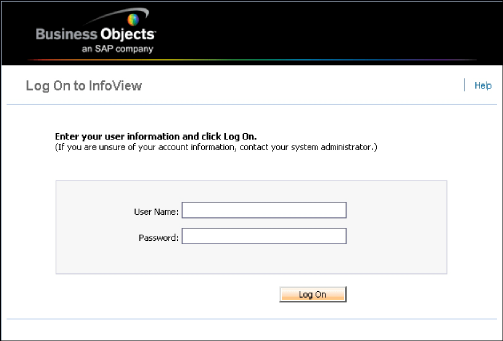
3. By
default, you will not be asked to supply a system name. However, if you
are asked to supply one, enter the name of your Central Management Server
(CMS) In the System field.
4. In
the User name and Password fields, enter your logon credentials.
5. By
default, you will not be asked to choose an authentication type.
However, if you are asked to supply one, select Enterprise,
LDAP, Windows
AD, or Windows NT from
the Authentication list.
a. Enterprise
authentication requires a user name and password that are recognized by
BusinessObjects Enterprise.
b. LDAP
authentication requires a user name and password that are recognized
by an LDAP directory server.
c. Windows
AD authentication requires a user name and password that are recognized
by Windows AD.
d. Windows
NT authentication requires a user name and password that are recognized
by Windows NT.
e. Enterprise
authentication is the default authentication method. LDAP, Windows
AD, Windows NT, and other third-party authentication types require
special setup. For more information, see the BusinessObjects Enterprise
Administrator's Guide.
6. Click
Log On.
7. The
InfoView home page appears.