1. Question: When I create a new web report, the save button is not enabled. How can I save the report?
Answer: The save button is enabled once you run the report.
2. Question: Why am I getting partial results when I run my Webi Report?
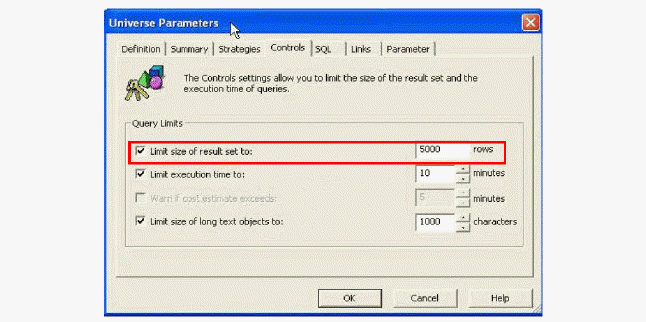
Answer: The reason for partial results is that your administrator has limited the number of records selected in the universe. To change the settings, you may have to contact your administrator.
To change the setting:
a. Open the targeted universe used by the particular Webi document in the Designer.
b. Select File > Parameters and select the Controls tab.
c. Increase the value of Limit size of result set to the desired value.
3. Question: When viewing reports that spans many thousands of pages, why does an error occur while printing or viewing pages with over 20000 records?
Answer: The default setting for database records to read when previewing or refreshing a report is 20000. This can be changed to Unlimited or set to a higher number to accommodate any business rules that require printing or viewing pages in excess of the 20000 page limit.
Please follow the following instructions in Modifying the Page Server (Crystal Reports Processing Server) Performance Settings to set this property.
4. Question: How can I fix the error that occurred when I tried to set the Webi universe connection using the Synchronizer tool?
Answer: To fix this error, perform the following steps:
a. Make sure you selected to import both reports and universes associated with these reports from the release area when setting up the Synchronizer tool.
b. After importing the universes, you will see a new universe connection (generally tagged with the Personify release version number), make sure you make this connection live by going into the Designer and edit the connection to point to a working DSN.
c. Run the Synchronizer tool again to assign the Webi universe connection.
5. Question: How can I fix the error that occurred when I tried to export Webi report to Microsoft Excel?
Answer: Perform the following change on the BOE Server:
a. Login to Central Management Console (CMC) using BusinessObjects Enterprise "Administrator".
b. Navigate to Home > Servers.
c. Right-click Web Intelligence Processing Server to open the properties.
d. Increase the Binary Stream Maximum Size (MB) value from 50 to "10240" (which is 10 GB).
The default value is 50 MB; the maximum value is 65535 MB.
e. Click Save and Close.
f. Restart Web Intelligence processing server.
Now try exporting the report.