 This
service pack is required for use with Internet Explorer 9 and Microsoft
Office 2010.
This
service pack is required for use with Internet Explorer 9 and Microsoft
Office 2010.
This
service pack is required for use with Internet Explorer 9 and Microsoft
Office 2010.
This patch needs to be applied on the server where BusinessObjects server/client has been installed.
Service Pack 3 is required before you can install Service Pack 5.
1. Create a folder named "BO _SP5_TEMP" on your BOE Server.
2. Navigate
to the following file path in the Personify installation package:
..\Business Objects\Software Upgrades\SP5
3. Copy the zip file BOESP5(Server).zip to the above created temp folder.
4. Unzip the copied file and run the setup.exe as an administrator.
5. Follow the installation wizard.
1. Create a folder named "BO_SP5_TEMP" on your client machines (TRS/Application Server).
2. Navigate
to the following file path in the Personify installation package:
..\Business Objects\Software Upgrades\SP5
3. Copy the BOESP5(Client).exe file to the above created temp folder.
4. Run the BOESP5(Client).exe as an administrator.
5. Follow the installation wizard.
The next step of the upgrade is to install the dashboard fixes that were done as part of the upgrade. Please locate the “DashboardFixes.BIAR” file at the following location, per your Personify release:
· P:\Personify\Releases\7.2.2\Package\BusinessObjects\Dashboards
· P:\Personify\Releases\7.2.3\Package\BusinessObjects\Dashboards
· P:\Personify\Releases\7.3.0\Package\BusinessObjects\Dashboards
· P:\Personify\Releases\7.3.1\Package\BusinessObjects\Dashboards
· P:\Personify\Releases\7.4.0\Package\BusinessObjects\Dashboards
and import it using the BOE import wizard located on your BusinessObjects server.
The contents of the file are four flash files for the following dashboards:
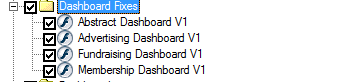
Once imported, you should see a folder by name "Dashboard Fixes" in your BOE. Delete the respective dashboards from your local environment and copy the respective dashboards from Dashboard Fixes folder to your local environment.
Here is where the dashboards are located in your local environment:
| Folder Path | File Name |
|---|---|
Environment Folder > Abstracts > Dashboard |
Abstracts Dashboard V1 |
Environment Folder > Advertising > Dashboard |
Advertising Dashboard V1 |
Environment Folder > Fundraising > Dashboard |
Fundraising Dashboard V1 |
Environment Folder > Membership > Dashboard |
Membership Dashboard V1 |
You
should have the latest dashboards installed before installing the fixes;
you can verify if you have the latest dashboards or not by going to any
of the locations mentioned in the table above and verify if the respective
dashboard file with a suffix of "_V1" is present or not. If
the above mentioned path doesn’t exist then please get in touch with your
account specialist to have the latest dashboards installed.
Once the software upgrade is complete and all the customization batch files are run successfully and the dashboard fixes are installed, run a sanity check by viewing few online reports and ability to login to Data Analyzer from Personify and run Data Analyzer reports and dashboards.