 If
you have a server cluster, please make the above changes in all Web Intelligence
report servers.
If
you have a server cluster, please make the above changes in all Web Intelligence
report servers.
1. Question: When I import the biar file using
the Import wizard, the client folder disappears. Why?
Answer: The Import wizard does not allow you to specify the destination
folder. It either creates a folder specified in the biar file, or it overwrites
the folder previously created by the import, even though it was later
renamed to a new one.
2. Question: Why do I get a login error when
“Data Analyzer or Personify Analytics” is selected on a web page?
Answer: You need to make sure that all Personify users and groups are synchronized
with BusinessObjects. The Personify BOSynchronizer is a utility provided
by TMA Resources to synchronize users, upload reports, and grant privileges.
3. Question: When I launch Data Analyzer,
the Webi documents do not appear in the drop-down.
Answer: Since all users belong to a generic group, you must grant appropriate
permissions to the generic group in Webi. You need to click Advanced and
grant permissions for all Webi options.
4. Question: What should I do if there is
a login or database error when running an online report?
Answer: Verify the user login and password on the application parameters
(the user ID and password are case sensitive in BusinessObjects.) Under
Parameters, check the ODBCSERVER parameter (DSN name) and ODBCDATABASE,
which should be the Personify database name.
5. Question: In the Configure and Verify Interfaces
screen (APP014), the Change DSN feature either does not work or finishes
immediately.
Answer: The Change DSN usually takes no more than one minute to complete.
If the aforementioned does not occur, verify the folder structure on the
BusinessObjects server. It should appear in the application parameters
of the BusinessObjects Configuration parameters screen.
6. Question: I receive an error message stating
“Failed to open the connection.”
Answer: Verify the user login and password on the application parameters
(the user ID and password are case sensitive in BusinessObjects.) Under
Parameters, check the ODBCSERVER parameter (DSN name) and ODBCDATABASE,
which should be the Personify database name.
7. Question: I think everything is working
properly; why won’t the online reports display data?
Answer: Log in to the Central Management Control (CMC) of BusinessObjects
and select the report you tried to run. Select the Process tab for this
report in the CMC, then select Database. Verify that Use Custom Database
Logon is selected. Verify that the Server field has the appropriate ODBC
connection information and that the Database, User, and Password fields
have the correct values.
From the BusinessObjects configuration screen validate all the configuration
parameters and select Change DSN.
8. Question: When should I run the synchronizer
utility?
Answer: The utility can be run in the following scenarios:
· Run after performing the data conversion
· Before go-live
· If the user decided not to create the BusinessObjects environment when created the organization unit and later if he or she wishes to have the environment, run this utility to create the environment for this org-org unit.
· If some groups get accidentally deleted in Business Objects environment, you may run this utility to synchronize both environments.
9. Question: When I leave the Personify Data
analyzer screen idle for some time, it prompts me to login with the login
dialog box. How do I resolve the issue?
Answer: You have couple of options. You may close the session and open
the Personify Data Analyzer from the Reports menu. The other option may
be to increase the default connection timeout of 20 minutes to a higher
value; for example, 720 minutes. To set the timeout, do the following:
a. Login into CMC (Central Management Console)
b. Click Servers.
c. Click Web_IntelligenceReportServer.
d. Change the Connection Time Out value to 720.
If
you have a server cluster, please make the above changes in all Web Intelligence
report servers.
10. Question: When I run a report with prompts
in it, it hangs up the system. How can I resolve this?
Answer: Check the Java version (JVM) installed in the system. Currently,
BusinessObjects only supports Java 1.4/1.5 and no higher than Java 6 Update
5. If your Java Environment is 1.6, please uninstall it and run the application
again.
11. Question: How do I give all users access
to Data Analyzer?
Answer: Create a group in Personify; for example, InfoView. Assign TRS301
screen privileges to the group you created, then assign all your users
to that group. All your users will now have access to Data Analyzer.
12. Question: When launching Data Analyzer,
I receive the error, “Authentication Failed.” How do I resolve this?
Answer: Uncheck all the options under Authentication in the CMC
by following the steps below:
a. Log into the CMC.
b. Click Authentication.
c. Click Enterprise.
d. Uncheck all the options.
e. Click Update.
f. Run the Synchronizer again to synchronize the users and groups in BO or change the user’s password in the Personify application.
13. Question: How do I create a Marketing List
from a Data Analyzer query?
Answer: See Creating
a List from a Data Analyzer Query. Keep in mind a few things, however,
when creating your Marketing List.
· If creating a Marketing List from a Personal folder, make sure you have a Marketing List folder created under your Favorites folder with the respective Marketing List reports stored under there.
· Make sure the report has both a Master Customer ID and a SubCustomer ID as the first columns.
· Make sure the reports under the Marketing List folder have not filters with prompts.
14. Question: I see a ~WebIntelligence Folder
in my Favorites Folder, how do I get rid of it?
Answer: BO 3.1 introduced a new Auto Save functionality for Data Analyzer
queries; i.e., when a report is opened in Modify Mode and the report times
out, it is automatically saved to this ~Webintelligence folder and you
don't need to recreate it from scratch. However, you can disable this
functionality to get rid of this folder by disabling the Auto-Save settings.
To Disable the Auto-save Settings in Web
Intelligence for all users:
a. Log into the Central Management Console.
b. Click on Applications.
c. Right-click on 'Web Intelligence' and select Properties.
d. Scroll down and uncheck the box “Enable auto-save for users who have sufficient privileges.”
e. Save
and close.
After making the above settings you can delete the ~Webintelligence folder.
15. Question: When I try to open Data Analyzer,
I receive the following error. How do I work around this?
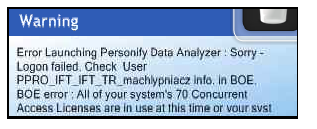
Answer: You received this error because the PSM_User you are trying to
access Data Analyzer with does not exist on the BO Server. Make sure the
BO environment is synchronized. For more information on doing so, please
refer to “Using
BusinessObjects Enterprise Synchronizer”.
16. Question: When I try to open a Webi Report,
I receive the following error. What is causing this error?
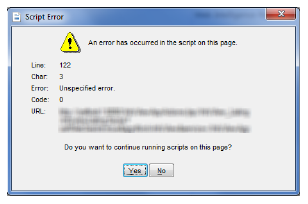
Answer: You received this error because you’re using Internet Explorer 9. Currently, BusinessObjects does not support IE9. To resolve this issue, uninstall IE9 and install IE8 or below.