BusinessObjects FAQ
1. Question: Why won’t my BusinessObjects application run without errors?
Answer: As a general rule, if you experience any issues with your BusinessObjects application, the first thing you should do is verify that your BOE services are running. To do so, open the Central Configuration Manager (CCM). Verify that the status of all services is “Running” (except WinHTTP Web Proxy Auto-Discovery Service).
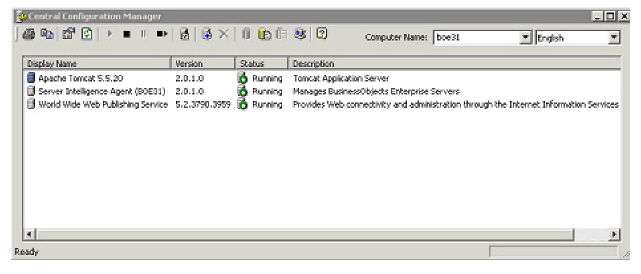
If you find services which are “Stopped,” restart them and run your BusinessObjects application again.
 The Central Management Server connects to the BOE CMS database. It stops, requiring you to restart it, whenever it fails to connect to the BOE CMS database. It uses the ODBC Data Source on your BOE server.
2. Question: Why do I receive the following error when importing the biar file?
Committing the export object to the destination CMS failed. Reason: Failed to commit the associated files of objects to the file repository server: (obj APP2311, id 24732): File Repository Server error: The file URL frs:/// is not valid. Please check the format of the URL...
Answer: The “Maximum Idle Time” for the Input and Output FRS servers in the Central Management Console (CMC) has now increased from 10 minutes to 30 minutes.
3. Question: When uploading universes, I receive the following error, “Universe connection could not be set. This may be due to bug in Business Objects API.” How can resolve this error?
Answer: You can resolve this error in the following ways:
· Ensure that the ODBC connection name matches the universe connection name.
· You may need to install a service pack. Please contact your Account Specialist.
4. Question: When trying to print a label under the Customer screen or print an invoice under the Order Entry screen, I receive the error, “Report could not be located. Contact your Local Administrator.” How can I resolve this error?
Answer: Set a six (6) character password for Administrator users in BusinessObjects CMC, then enter the same password under the CLIENTADMINPASSWORD parameter under CLEINTADMINUSER under the BusinessObjects Interface Parameter Maintenance screen.
5. Question: When trying to print a label under the Customer screen or print an invoice under the Order Entry screen, I receive the error, “Account Information Not Recognized: An error occurred on the server: Not a valid logon token.” How can I resolve this error?
Answer: In order to print a label, the user trying to print must have a named user license on the BO server. You can verify this from the Configure and Verify Interfaces (APP014) screen by completing the following steps while signed in as an Administrator.
a. From the BusinessObjects CMC homepage, click Users.
b. Click the user name that wants the ability to print a label or invoice.
c. Verify that the radio button selected for Connection Type is “Named User.”
If it is, contact your Account Specialist for more information.
If not, select “Named User” and click Update.
d. Follow any steps necessary to complete the licensing.
6. Question: My users, groups, and privileges are out of synch. How can I fix this?
Answer: Use the synchronization options for a specific user group.
To synchronize a specific user group:
a. Navigate to the following file path in your Install Package:
Upgrade\Business Objects\Utility.
b. Launch Synchronizer.exe and enter your Admin credentials.
c. Under BOE Tasks on the left side of the screen, click Synchronize.
d. Click the User Group tab.
e. Under Organizational Units, select one or more Org Units.
f. Click Get User/Group.
g. Select the Personify Group you wish to apply the synchronization to.
The Personify groups displayed depend on which Org Unit(s) you selected in Step E.
h. Optionally, select the Personify Users to which you wish to apply the synchronization.
The users displayed depend on which Personify Group(s) you selected in Step G.
i. Click Synchronize.
7. Question: How can I make sure the base invoice report prints my custom logo?
Answer: To insure the base invoice reports prints the correct logo, follow the steps below.
a. Open the Configure and Verify Interface (APP014) screen.
b. Click Setup Global Parameters.
c. Select the IMAGEPATH parameter and click Select.
d. Set the parameter value for IMAGEPATH to the file path for your custom logo.
For example, C:\Logo.
e. Click Save.
f. On the BO server, create the following folder structure and place the logo bitmap in it:
C:\Logo\{Organization ID}\{Org Unit Name}\{Org Unit Name}.bmp.
For example, C:\Logo\Nsswp\Nsswp\Nsswp.bmp.
8. Question: BusinessObjects will not respond. How can I fix this?
Answer: In the event that BusinessObjects does not respond to your user actions, follow the steps below to fix some common mistakes:
a. Check the event viewer on the server where Business Objects is installed for any errors concerning BusinessObjects. The errors would be located under the application log.
b. Check the version of Java Installed on your BO server – Business Objects doesn’t support versions of Java Runtime higher than Java 6 Update 5.
Please uninstall if you find a higher version on the client and the server.
c. Check the CMS name under each service in the Central Configuration Manager on the BO server. The CMS name is usually found under the Configuration tab of the properties for each service.
d. Check the ODBC connection created for the BusinessObjects repository to make sure the connection is live.
9. Question: When I leave the Personify BusinessObjects screen idle for some time, it prompts me to login with the login dialog box. How do I resolve the issue?
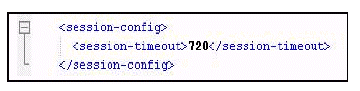
Answer: You may increase the default connection timeout of 20 minutes to a higher value; for example, 720 minutes. To alter the timeout, do the following:
a. Navigate to the following file path on your BOE Server:
Business Objects\Tomcat55\webapps\InfoViewApp\WEB-INF
b. Open Web.xml in a text editor like Notepad.
c. Set the session-timeout value to “720”.
d. Save the web.xml file
e. Navigate to the following file path on your BOE Server:
Business Objects\Tomcat55\webapps\InfoViewAppActions\WEB-INF
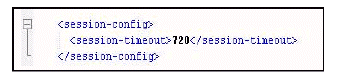
f. Open Web.xml in a text editor like Notepad and set the session-timeout value to “720”.
g. Save the web.xml file.
h. Navigate to the following file path on your BOE Server:
Business Objects\Tomcat55\webapps\AnalyticalReporting\WEB-INF
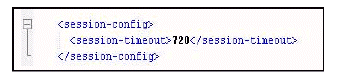
i. Open Web.xml in a text editor like Notepad and set the session-timeout value to “720”.
j. Save the web.xml file.
k. Restart the Apache Tomcat services.
10. Question: When having a report open for less than ten seconds, I receive an error message telling me I need to reopen the report. How can I fix this?
Answer: This is a timeout issue. Follow the steps mentioned in Question #7 above.
11. Question: My BusinessObjects server runs slow sometimes. How can I fix this?
Answer: Update the registry key entry in the BO server. If you use cluster, make sure to update all the nodes of the cluster.
To update the registry key:
a. Navigate to the following file location:
HKEY_LOCAL_MACHINE > SOFTWARE > Business Objects > Suite 11.5 > CMS > Instances.
b. Open Your Server Name.cms (where it actually states the name of your server).
c. Set the MaximumObjectsTokeepInMemory value to 100000.
12. Question: How do I redeploy the WAR files for Tomcat in the BusinessObjects server?
Answer: Follow the steps in the section Redeploying the WAR Files for Tomcat.
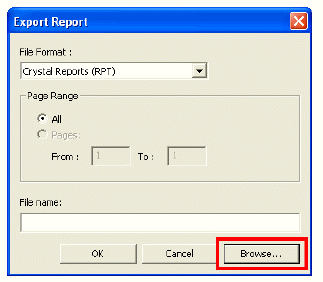
13. Question: I can not locate my operational report after exporting it to my computer. Where did it go?
Answer: When exporting your operational report, you need to click Browse and select a specific file path to save the report to.
14. Question: How can I prevent my system from locking when running the duplicate merge report and duplicate merge process at the same time?:
Answer: To prevent your system from locking, apply the NO-LOCK explicitly by following the steps below:
a. Open the report.
b. From the toolbar, select Database > Database Expert.
c. From the Select Tables box, right-click Command.
d. Click Edit Command.
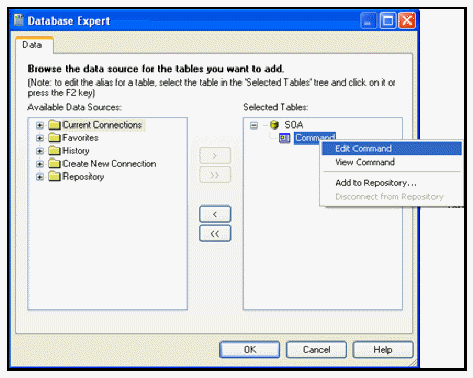
e. Add the NO-LOCK explicitly on the tables.
f. Click OK.
g. Verify the database by clicking Database > Verify Database.
h. Save the report.
i. Upload the report to the BO server.
15. Question: How can I allow my users to modify Webi reports?
Answer: The default user group has privileges to run Webi reports; however, these users do not have rights to modify or create new reports. If a group of users requires privileges to modify Webi reports, the system administrator must assign the appropriate privileges through the Synchronizer utility or the CMC. For instructions on using the Synchronizer utility, please refer to “Setting Webi Security”.